live_tv
Livestream Starting Soon
00
Hours
:
00
Minutes
:
00
Seconds
Up next in 10


How to BUY & SEND KLAYTN to METAMASK (Step by Step)
Show More Show Less View Video Transcript
0:00
How to buy and send Clayton MetaMask
0:04
So first thing you want to do after you have your MetaMask opened
0:08
as you can see I have this already added as an extension in here
0:12
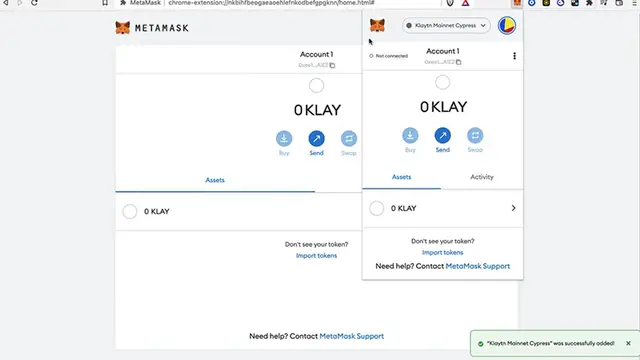
I have a network of Clayton mainnet and then I have this specific token
0:18
but as you can see I don't have the option for buying it because sometimes maybe
0:22
it's not available to make the purchase because of my country or the region that you're currently in
0:28
so if you have the same problem what I strongly recommend you guys is to buy this specific token
0:33
through an exchange like Binance or Coinbase So as you can see I'm already into my Binance account
0:40
so what I want to do is to focus on the Clayton token so as you can see this is a token but we can't buy this directly
0:49
maybe for the same situation about the region but what we can do is to buy another token here on Binance and then we can make the trade
0:58
So the first thing you want to do is to go into the market and try to find the token that you want to buy
1:05
so in this case that would be Clayton so here is right in here
1:09
so what you guys want to find is all the pairs that can be making the purchase
1:15
so as you can see we have the Clayton and the VNV so if you purchase Binance tokens you can make this swap really really easy
1:23
or you can choose to buy BUSD, USDT or Bitcoin to make this swap
1:29
so in this case I'm going to select the VNV from Clayton so after that you just want to focus right in here
1:36
or on the limits you want to put the total amount of 100
1:40
so you can sell all your VNV and buy the Clayton and after that just go into buy Clayton
1:47
and you're going to see that your open orders is going to be right in here just in case you don't want to do that anymore
1:52
just go into cancel all and once you have your tokens now available on your account
1:57
what you guys want to do is to find your Clayton token, your coin
2:02
and select the option that says Retro so we want to send our Claycoin into our Metamask
2:09
so let's go ahead and go into our Metamask and copy our wallet so we can paste the address right in here
2:17
and as you can see this is the network of the Clayton and this is the fee that is going to be costing us
2:23
the amount that you want to send and you just hit into withdraw
2:27
but just before you do that make sure guys to have on your Metamask
2:31
the Clayton network so you can be really really sure to make this process
2:38
if you don't have it right in here just go into Clayton network to Metamask on a new tab
2:44
and you're going to see that there are a lot of pages, articles about how we can add this network
2:50
so the first one if I select the first one I'm going to select it
2:54
and I'm going to scroll down until I find this information so this information I just want to copy and paste it right into my Metamask
3:02
so it would be just as easy as to go into your Metamask
3:06
select your networks, add network and all the information that we just copy
3:11
we're going to paste it right in here and after that just hit into save
3:15
so now you can go back into your Metamask account select your network and go to Clayton mainnet Cpress
3:23
so you can copy this wallet and paste it right in here
3:27
so you won't be having any problem by selecting the exact same network
3:32
so you can be receiving your money so just be really careful with that guys
3:37
and there you have it don't forget to like and subscribe to this channel if you want to see more about Metamask and cryptocurrencies
3:43
thank you for watching the video and I'll be seeing you guys on the next one
#Software
#Banking