live_tv
Livestream Starting Soon
00
Hours
:
00
Minutes
:
00
Seconds
Up next in 10


How to Add KLAYTN Chain to Metamask Wallet (Step by Step) Klay Wallet
Show More Show Less View Video Transcript
0:00
Hey guys, welcome into this new video in today's tutorial
0:02
I'm going to show you how you can add this network called Clayton so into MetaMask
0:07
the first thing you want to do after you have your browser and your
0:11
MetaMask already opened as you can see my MetaMask has been added as an extension
0:15
What I want to look for in here in my browser is to select the option that says Clayton
0:21
Network to MetaMask. So as you can see, I found this page for coin carb about the
0:29
Mainnet from Clayton and what I want to do is to focus on this information
0:34
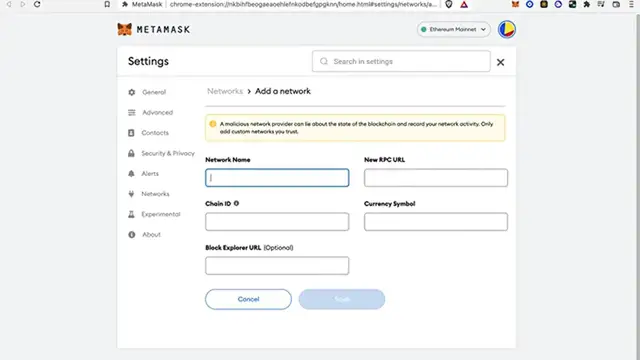
Go back into my MetaMask and select this option that says network and go into add network
0:41
Then it's gonna be popping up this window. It says add a network
0:45
So what I want to do is to copy all this information and paste it right into the other tab from MetaMask
0:52
So after you add all the information, let's go ahead and to save
0:56
So as you can see if I go back into my MetaMask extension
1:00
You can see that the Clayton network has been added successfully So if I select this option, you're gonna see that the clay is already added the assets into my account
1:11
So if I want to go back just in case into another network I just select this networks and I go back into Ethereum mainnet
1:18
So you don't have to be worried about your assets if you don't see it after you select the other network
1:24
So there you have it guys don't forget to Like and subscribe to this channel if you want to see more about MetaMask
1:29
Thank you for watching the video and I'll be seeing you guys on the next one