Up next in 10


How To Add Apecoin (APE) To Metamask Wallet (Step by Step)
Show More Show Less View Video Transcript
0:00
So if you want to find how to add this token, this coin, the AppCoin into Metamask
0:05
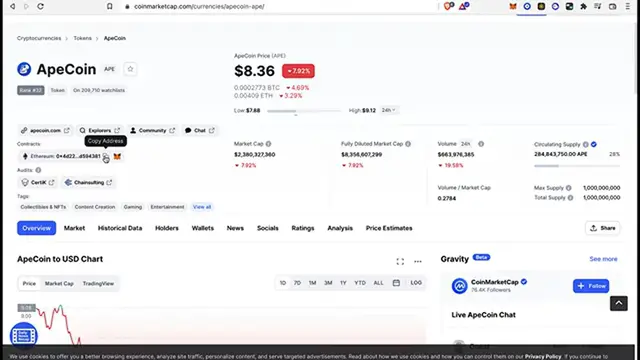
what you guys want to do is to go into coinmarketcap.com where you can see all the contracts of the cryptocurrencies and the coins and all that
0:13
So first of all, as you can see, I already have my Metamask already added as an extension in my browser
0:19
And the first thing I want to do after I select the coinmarketcap.com
0:24
is to look for the token that I want to input. So in the search bar, I'm going to select APE coin
0:32
So there you have it. It's the first one. And after that, what you guys want to focus on is where it says contracts
0:39
So either you can copy this address or you can select this one that says add to Metamask
0:44
So I'm going to select this icon which says add to Metamask
0:48
And you just need to confill this into Metamask. But just in case this icon does not work, just click into copy address
0:57
So after this one says copy it, I'm going to go back into my Metamask
1:01
and select the option that says input tokens right in here. And I'm going to go into custom token and I'm going to paste the token address
1:10
that we just copied from the coinmarketcap. So the token and the decimal is going to be added automatically
1:16
So let's go into add custom token. And here it is, the token that we want to input
1:21
I'm going to go into input tokens. And there you go guys, I was really wasn't that hard
1:26
So there you have it guys, don't forget to like and subscribe to this channel if you want to see more about Metamask
1:31
Thank you for watching the video and I'll see you guys on the next one