Up next in 10


How to Add ADA to Metamask Wallet (Step by Step) Cardano Metamask
Show More Show Less View Video Transcript
0:00
how to add Cardano to MetaMask
0:05
Hey guys, welcome to this new video. In today's tutorial, I'm going to show you how we can add Cardano into our MetaMask wallet
0:12
So first of all, as you can see, my MetaMask is already attached as an extension
0:17
But if you don't have this as an extension, you need to go into MetaMask.io and download your extension
0:25
or maybe you can use a your phone, which one fits better for you and just need to add the extension and create a wallet
0:32
So after you've done that, you're probably wondering how you can add Cardano into MetaMask
0:38
So what I did was to add a network called Smart Chain
0:43
So if you don't have a Smart Chain, you just need to go ahead and open the academy.binance.com
0:49
and you want to look for the connecting MetaMask to Binance Smart Chain
0:53
Now in here, you just want to scroll down and find this information
0:57
Now, once we find this information, let's go back into our MetaMask
1:01
Let's select our networks, add network, and all this information that we need to put, it's going to be right in here
1:09
So let's go ahead and copy paste this information. And after that, you select the one that says save
1:14
So once you finish with that, you just need to select MetaMask and select the Smart Chain
1:20
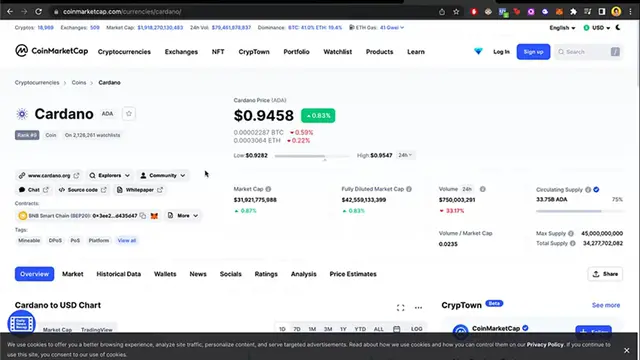
And now let's go ahead and go into NPO token. So we can find our token that will be Cardano
1:26
So we can either copy this information, copy this address, and paste it right in here of MetaMask, as I just showed you before
1:34
Or maybe we can select this icon from MetaMask and it will be sending us a pop up of adding the token Cardano
1:41
So let's go ahead and select add token. So as you can see, if I go back into my MetaMask
1:47
now Cardano is now available in my wallet. So now that we have in here this one
1:53
what I want to do is to go into an exchange. In this case, I'm going to be using Binance
1:58
So if I go back into my Binance and I see my wallet
2:02
what I want to do is to view all my assets. So I can find in here the Cardano token
2:09
So once I found this, I want to select the one that says Wetrow because I want to send this token into another wallet
2:16
So now we need to fill this information. Right. So let's go back into our wallet
2:21
Remember to choose the Smart Chain Network before you do that, then copy this address and paste it right in here
2:28
Now the network should be automatically be putting as a Smart Chain
2:33
But just in case that you don't make a match, you select the Smart Chain
2:37
Okay. And it says that we have to make sure that these are the same network on MetaMask
2:42
So yes, I am sure. And lastly, you need to select the kind of amount and go ahead
2:46
with the Wetrow. Now, in this case, it says that the amount is no higher than my available balance
2:52
Just ignore that and just go ahead with the Wetrow. You're going to be seeing your money
2:57
Sometimes it takes just 5 minutes or 10 minutes. As you can see, I have recent Wetrows in here
3:02
I sent a Binance coin. I sent USDT and Solana into my wallet
3:07
So if I go back into my MetaMask account and try to see that
3:12
my money is in here, you're going to be seeing that in our coin
3:17
we see our amount. So there you have it guys. It wasn't that hard
3:21
Thank you for watching the video. Don't forget to like and subscribe to this channel if you want
3:24
to see more about the MetaMask extension or application. That will be all for today
3:31
And I'll be seeing you guys on the next one
#Software
#Internet Software
#Operating Systems