Up next in 10

This tutorial was contributed by creator Softoni! Subscribe to their channel: https://www.youtube.com/@softonimotion
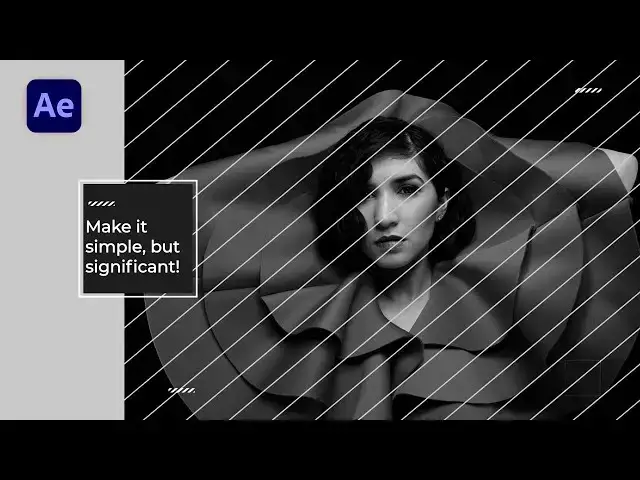
Here's more from the creator: 'Hey everyone, in this after effects tutorial I will show you how to create an awesome Minimal Slideshow in After Effects without using any plugins. This technique is a cool way to make your texts, logos, videos, or images look even better. Very easy to make, just follow my steps!'
View Softoni's store here: https://filtergrade.com/vendor/softoni/
View all After Effects Templates on FilterGrade: https://filtergrade.com/product-category/after-effects-templates/
- - - - - - - - - - - - - - - - - - - -
Follow FilterGrade!
Instagram - https://www.instagram.com/filtergrade/
TikTok - https://www.tiktok.com/@filtergrade_
Facebook - https://www.facebook.com/filtergrade
Twitter - https://twitter.com/filtergrade
Pinterest - https://www.pinterest.com/filtergrade/
Newsletter - https://filtergrade.com/filtergrade-newsletter/
- - - - - - - - - - - - - - - - - - - -
Show More Show Less View Video Transcript
0:00
hello guys of Tony here welcome to
0:02
another video tutorial and in this one
0:05
we will be exploring the popular and
0:07
trendy concept of creating a captivating
0:09
minimal promo slide show this style has
0:12
gained popularity do it modern look
0:14
making it a great choice for showcasing
0:17
various types of content
0:19
step by step we will be learning how to
0:21
create this eye-catching slideshow
0:22
covering everything from selecting the
0:24
right images or videos to implementing
0:27
elegant transition and the typography by
0:30
the end of this tutorial you'll have the
0:32
skills to create your own impressive
0:34
minimal promo slideshow so without any
0:36
further Ado let's dive in and bring your
0:39
vision to life
0:42
[Music]
0:47
thank you
0:52
all right for hearing After Effects and
0:54
first like always let's create a new
0:56
comp hit Control Plus and or this little
0:58
icon here for the composition name type
1:00
whatever you want I will type final
1:03
width and height full HD 1920x1080 30
1:06
frames per second and it's okay to leave
1:09
it to maybe around 10 seconds hit OK and
1:11
now let's create our background right
1:13
click go to new find here solid I will
1:16
rename it too
1:17
background also full HD hit OK and now
1:21
it's time to add our first effect go
1:23
here in the facts and press it and type
1:25
fill but before that if you can find
1:27
effects and preset go to window and just
1:30
hit here okay now type
1:33
fill effect drag and drop onto our
1:36
background layer open up colors and for
1:39
the Hue saturation type 0 and for the
1:42
brightness go around 80 percent now hit
1:46
OK and our next step is to import our
1:49
media here in our scene just drag and
1:52
drop your media like this this is bigger
1:56
media I'll just do scale for scaling
1:58
maybe around
2:00
27 okay then hit P for position move it
2:05
to around here like so
2:08
and now it's time to add our next effect
2:10
go again here in the facts and preset to
2:12
find Triton effect drag and drop onto
2:15
our media and for the mid tones open up
2:18
this option a hue 0 saturation also zero
2:23
and brightness leave it here uh to maybe
2:27
around 50 hit OK and now it's time to
2:30
animate our media go again here on this
2:33
position option for our media setup our
2:37
first keyframe move up bit to the right
2:39
like this and then go here to around 2
2:43
seconds and move a little to the left
2:45
like this okay now select all of our two
2:49
keyframes hit F9 open up graph editor
2:52
and draw a curve like this
2:55
and if you can't find curve like this
2:57
just hit right click and then hit here
3:00
edit speed graph now we have this cool
3:04
animation okay now let's add our next
3:07
effect go again here in the facts and
3:09
precept find
3:10
Venetian blinds effect drag and drop
3:13
onto our media 01 and now we will make
3:17
here a few adjustments for the direction
3:20
type here 50 you can play around with
3:23
wooden feather but I recommend to leave
3:25
it maybe around 300 and now it's time to
3:28
animate our transition gold at zero
3:31
frames set up our first keyframe then go
3:34
to two seconds and type here 100 just
3:40
hit you to show a transition completion
3:42
keyframe select keyframes also go here
3:47
in the graph editor and draw similar
3:50
curve like before
3:51
also one thing we have forgotten is to
3:55
do reverse animation grab all of those
3:57
two keyframes then right click go to
4:00
keyframe assistance and just hit here
4:03
time reverse keyframes and now when we
4:06
hit the zero in our finals I'll just
4:09
lower down our resolution for the
4:11
preview we have this really cool and
4:15
awesome movement
4:17
okay now let's make the design even
4:19
better looking first step is to hit on
4:22
this grid and guide options and hit here
4:24
titles and action safe okay it will be
4:27
useful for our next mask and solid layer
4:30
then go right click find here a solid
4:33
layer I will rename it to square also
4:37
full HD hit OK and now it's important to
4:40
turn off the visibility for our Square
4:42
layer then go here on this rectangle
4:45
tool or cue on your keyboard and now we
4:48
will draw a mask of our solid layer hold
4:52
Ctrl shift and ALT on your keyboard to
4:55
draw a perfect like this here in our
4:58
scene and now when we turn on the
5:01
visibility as you can see we have the
5:04
perfect square here in our finals okay
5:07
our next step is to add effect here also
5:10
go here in the facts and preset type
5:12
fill effect drag and drop also on our
5:15
Square layer and for the color choose
5:18
maybe this kind of gray one okay also we
5:23
will animate our a square shape but
5:26
before that just turn off this title and
5:29
action safe like this hit R for rotation
5:32
and also hold shift and hit s on your
5:36
keyboard also for scale go to around
5:39
zero frames set up our first keyframe
5:42
for scale and rotation for the scale
5:44
type here 0 and for the rotation type
5:48
here
5:50
180 like this then go to around 2
5:54
seconds and for the scale type
5:57
104 rotation zero one thing we have
6:00
forgotten to do hit here and just hold
6:03
Ctrl on your keyboard to move this pen
6:06
behind tool here in the center of our
6:09
shape just close control and then just
6:11
double click here and now when we hit
6:14
zero we have this kind of cool movement
6:17
now you can also hit W on your keyboard
6:20
select all of our keyframes then go here
6:24
to graph editor and draw the same curve
6:28
like before like this and now in our
6:32
finals we have this really nice
6:35
animation okay also our next step is to
6:38
create outline for this uh square shape
6:42
okay hit also Q on your keyboard or go
6:45
here again on this rectangle tool like
6:49
so uh make sure that our fill is set to
6:52
non-stroke to maybe around 5 also one
6:55
important step do not select anything
6:57
here in our finals and just draw also a
7:01
perfect circle
7:02
like this
7:04
this is looking uh cool to me
7:08
okay and then we will rename it just to
7:12
line then also go here in add find here
7:16
trim pads and now we will animate and
7:19
parameter also go here to do a second
7:22
set up our first keyframe and then go to
7:25
around zero and type also zero here then
7:30
grab all of those keyframes go to graph
7:33
editor and draw the same curve like
7:36
before
7:37
okay now when we hit zero in our scene
7:39
we also have this cool animation you can
7:43
also grab them and move it to the right
7:45
a bit and now this is looking really
7:48
cool and really awesome in our finals
7:53
okay now let's bring our text to life
7:56
here in our scene go hit Ctrl plus t or
7:59
this little icon here for the font I'm
8:01
using this monsterat font you can use it
8:04
for free from font squirrel.com for the
8:07
text size 50 and also for the leading
8:10
I'm using these 60 pixels okay I already
8:13
have my text here uh you can hit here on
8:17
this horizontal type tool and just draw
8:19
a rectangle like this I will hit Ctrl V
8:23
here just to paste our text make it
8:26
simple but significant you can move it
8:28
to the left or right down a bit
8:31
okay something like this also one uh
8:35
step that I have been using is to go
8:38
here in the paragraph if you can find it
8:40
go to window and then find the paragraph
8:43
and go here to left align text just to
8:47
make this perfect alignment to the left
8:50
side okay now let's animate our text
8:53
here in our scene open up this Little
8:55
Triangle go to animate find here opacity
8:58
and then go to add here find here
9:01
property and also find here position
9:04
okay now open up this position range
9:09
selector one for the position maybe go
9:12
to around for the Y parameter 100 like
9:15
this opacity set to zero go to around 2
9:20
seconds set up our first keyframe for
9:22
offset go to around zero seconds type
9:26
here A minus 100
9:28
uh we have forgotten to type here 100
9:31
for the second keyframe like this and
9:35
then also open up this Advanced tab for
9:39
the shape change here from Square to
9:40
ramp up for the is high end is low type
9:44
66
9:47
like this and instead of characters find
9:51
here words and now when we hit zero we
9:54
have this also cool animation of our
9:57
text
9:58
now let's create shapes here in our
10:00
scene I will close this texture now hit
10:02
Q on your keyboard again make sure to
10:06
unselect everything here in our finals
10:08
set up our fill color to white and
10:11
stroke to none if you don't know how to
10:13
select stroke To None just hold alt on
10:16
your keyboard and then just left click
10:19
until you see this icon like this okay
10:22
now move on the right side of our scene
10:26
just see our picture okay and let's draw
10:30
a first shape here in this box something
10:33
like this okay I will rename it too
10:36
decoration
10:38
like this you can type your own text of
10:41
course and then go here in the facts and
10:43
preset again find here Venetian blinds
10:46
drag and drop onto our decoration
10:49
transition completion you can play
10:51
around of course maybe around 50
10:54
direction also maybe around 50
10:56
everything is up to you width and height
10:59
also
11:00
play around until you're satisfied with
11:02
the result also a hip again here and
11:06
make sure that our Pan behind tool is
11:08
set here in the center just hold Ctrl
11:11
and then double click here on this
11:12
little icon and now you can scale it
11:15
down or up according your needs
11:18
something like this move it also to the
11:21
left maybe to scale it down a bit also
11:24
as I already said played with those
11:27
shapes also what you can do is to hit
11:29
Ctrl D or go edit and then duplicate
11:33
and reposition our shape here in our
11:38
scene like this everything is up to you
11:41
we can also animate this one maybe go to
11:44
around
11:45
one or two seconds like here hit t for
11:49
opacity for this first and second set up
11:53
our first keyframe then go to around
11:55
here until our animation is finished hit
11:59
here 0 and then zero again also we will
12:04
do back animation then right click
12:06
goalkeep frame assistance time reverse
12:08
and now when we hit zero we're getting
12:12
our really cool and awesome minimal
12:15
animation
12:16
all right guys you can also play around
12:18
with other effects you can also add
12:21
Triton adjustments layers blue uh
12:25
everything is up to you as I have
12:26
already said this is a minimal concept
12:29
and this is looking really cool to me
12:32
also you can hit Ctrl plus a then right
12:35
click pre-compose everything I'll just
12:38
hit one and just hit Ctrl D again move
12:43
this one to the maybe around three or
12:45
four seconds and to make your own
12:47
slideshow like it's just one important
12:50
note a new must duplicate this first
12:53
composition and just change media here
12:56
in the second and so on to get this
13:00
awesome minimal slideshow
13:03
alright guys that was everything for
13:05
today today's tutorial I hope you
13:07
learned something new uh this was really
13:09
easy to create just a few solids and few
13:12
shapes I want to ask you to subscribe to
13:15
my channel if you haven't already also
13:17
take a look on my channel for even more
13:18
great tutorials also turn on the Bell
13:21
icon so you can always get a
13:22
notification whenever I post a new clip
13:25
and until next time stay creative and
13:28
bye bye
13:31
thanks
13:35
[Music]