0:00
hey what's up YouTube it's Matt here
0:01
again from Filter grade and today I'm
0:03
going to be teaching you a little bit
0:04
about how to change your image quality
0:06
and sizing settings on the Nikon
0:09
d750 this is a question I've gotten
0:11
asked a few times in the past and it's
0:14
really helpful to know how to do it so
0:15
that once you get on set or once you go
0:17
out in the field with your camera you
0:19
know exactly what what size media you're
0:22
shooting at and how to change it if you
0:24
want to get it into a new setting
0:26
there's a few different options between
0:28
raw and jpeg and within those two
0:31
there's also Sub sub um file sizes and
0:35
file options that you can choose through
0:37
some even allow you to shoot both nef
0:40
which is the raw Nikon format and JPEG
0:42
file format in the same time so you get
0:45
both of them that way it's a little bit
0:46
easier to preview your images with the
0:49
jpeg file and then you still have the
0:51
high quality editing abilities with the
0:53
the nef raw file if you want to but
0:55
let's go ahead and get into it and I'll
0:56
show you how to how to find and change
0:59
this file settings in your Nikon
1:06
d750 all right so now that we're all set
1:09
up with the camera you're going to want
1:11
to go ahead and first start by turning
1:13
the camera on and then you're going to
1:18
menu once you get into menu then you're
1:21
going to see all these different options
1:24
and on the left side you'll see this is
1:26
where the photo tab is this one is for
1:28
movie shooting this one it's just custom
1:30
settings and there's a whole lot of
1:32
different different options to play
1:34
around with here but you're going to
1:35
want to go into the photo shooting menu
1:38
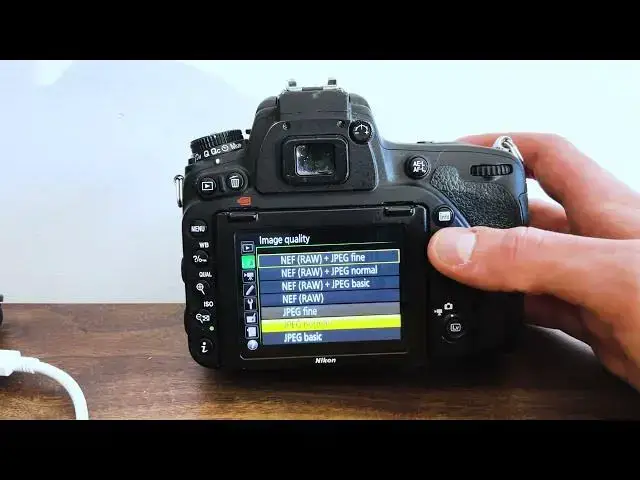
then select to the right click on image
1:42
here and go ahead and click on that and
1:45
then you'll see a list of different
1:46
options for what exactly you want to be
1:48
shooting in um this is what I was
1:50
talking about before if you want to
1:51
shoot in raw mode and really fine jpeg
1:55
mode um you can do it at the same time
1:57
so that you get both file formats or if
2:00
you want to break it down you can shoot
2:02
individually in raw you can shoot in
2:04
jpeg fine jpeg normal or jpeg basic or
2:08
you can even do jpeg normal with raw or
2:11
jpeg basic with raw right now I've just
2:14
been shooting with raw files um this is
2:16
normally what I do for client projects
2:19
and it just provides better editing and
2:21
I don't also have to have the JPEG but
2:24
if you need both it's very simple if you
2:26
want to change it up to here just click
2:28
on neall and J Peg and you get both file
2:32
formats which is really great and if you
2:35
just want to shoot in jpeg you can click
2:37
any of these ones as well so really it
2:40
just depends on what you're going to be
2:41
shooting and if you need the raw
2:43
capabilities for when you go into post
2:46
production but that's more um up to you
2:49
and up to whichever project you're
2:51
working on but for me I usually just
2:53
like to shoot in normal um raw quality
2:56
that way when I do get into post
2:58
production I can always do different
3:01
styles of editing and really push my
3:02
images to to the maximum extent so if
3:06
you have any questions feel free to let
3:07
us know in the comments below we'll get
3:09
back to you as soon as possible but I
3:11
hope this T tutorial helped out and
3:14
thanks so much guys have a good