0:00
In this video, I'm going to show you how
0:02
In this video, I'm going to show you how
0:02
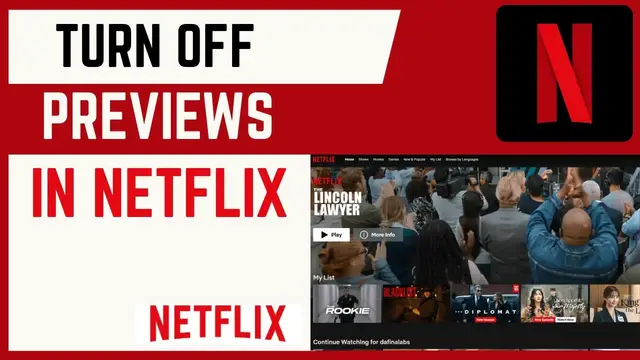
In this video, I'm going to show you how you can turn off previews on Netflix.
0:05
you can turn off previews on Netflix.
0:05
you can turn off previews on Netflix. Now, typically Netflix by default makes
0:07
Now, typically Netflix by default makes
0:07
Now, typically Netflix by default makes it possible to preview videos. For
0:09
it possible to preview videos. For
0:09
it possible to preview videos. For instance, if you just hover over any TV
0:11
instance, if you just hover over any TV
0:11
instance, if you just hover over any TV show and point at it, you can see it
0:14
show and point at it, you can see it
0:14
show and point at it, you can see it will begin to play. However, if you want
0:17
will begin to play. However, if you want
0:17
will begin to play. However, if you want to put this off, it's pretty simple. We
0:19
to put this off, it's pretty simple. We
0:20
to put this off, it's pretty simple. We can do this in Netflix. To do that, go
0:22
can do this in Netflix. To do that, go
0:22
can do this in Netflix. To do that, go ahead and click on your profile here and
0:25
ahead and click on your profile here and
0:25
ahead and click on your profile here and then choose account. Under account, head
0:28
then choose account. Under account, head
0:28
then choose account. Under account, head down under quick links and choose this
0:30
down under quick links and choose this
0:30
down under quick links and choose this option called edit settings. Now under
0:33
option called edit settings. Now under
0:34
option called edit settings. Now under edit settings, scroll down until you see
0:36
edit settings, scroll down until you see
0:36
edit settings, scroll down until you see the option called playback settings. Now
0:39
the option called playback settings. Now
0:39
the option called playback settings. Now this will open a page where you can
0:41
this will open a page where you can
0:41
this will open a page where you can manage now autoplays and go to the
0:43
manage now autoplays and go to the
0:43
manage now autoplays and go to the second option here autoplay previews
0:45
second option here autoplay previews
0:46
second option here autoplay previews while browsing on all devices. So if it
0:49
while browsing on all devices. So if it
0:49
while browsing on all devices. So if it is checked, go ahead and uncheck it and
0:51
is checked, go ahead and uncheck it and
0:52
is checked, go ahead and uncheck it and then go ahead and click on save changes.
0:54
then go ahead and click on save changes.
0:54
then go ahead and click on save changes. And this will apply on all your devices.
0:58
And this will apply on all your devices.
0:58
And this will apply on all your devices. Now, if we go back to Netflix homepage
1:01
Now, if we go back to Netflix homepage
1:01
Now, if we go back to Netflix homepage and hover over any of these movies, you
1:04
and hover over any of these movies, you
1:04
and hover over any of these movies, you can see there is no preview. So, that's
1:07
can see there is no preview. So, that's
1:07
can see there is no preview. So, that's how you can turn off previews on Netflix
1:10
how you can turn off previews on Netflix
1:10
how you can turn off previews on Netflix by following these steps. If you have
1:11
by following these steps. If you have
1:11
by following these steps. If you have any other questions, kindly let me know
1:13
any other questions, kindly let me know
1:13
any other questions, kindly let me know in the comment section. Otherwise,
1:15
in the comment section. Otherwise,
1:15
in the comment section. Otherwise, thanks for watching and let's meet in
1:17
thanks for watching and let's meet in
1:17
thanks for watching and let's meet in the next