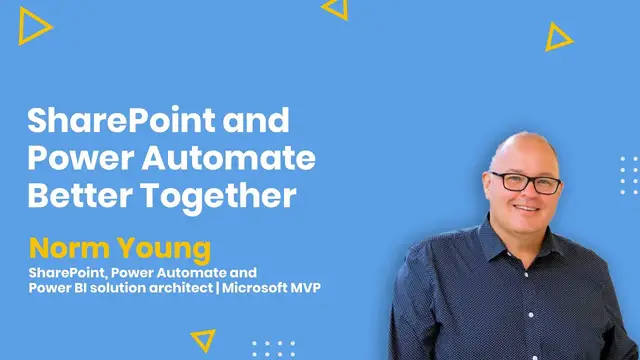
Up next in 10



Join us on August 27 with Norm Young on Ask Me Anything show to learn SharePoint & Power Automate Better Together.
ABSTRACT
Lists are great for storing and collaborating on business data for teams. When combined with the dozens of Power Automate triggers and actions Lists become a legitimate solution platform for IT pros and citizen developers. In this session, we will demonstrate some Power Automate can extend functionality in SharePoint.
C# Corner - Global Community for Software and Data Developers
https://www.c-sharpcorner.com
#csharpcorner #sharepoint #ama #liveshow #powerautomate #lowcode #nocode
Show More Show Less View Video Transcript
0:00
Thank you
0:29
Thank you
0:59
We'll see you next time
1:29
Thank you
1:59
Thank you
2:29
Hello, hello, hello. Welcome back everyone to C Sharp Corner live show. I'm your host Stephen Simon
2:47
and we are back with another episode of Ask Me Anything series. And if you are joining us for
2:52
the very first time, we do Ask Me Anything live show on every Thursday, 7.30 p.m. IST and 10 a.m
2:59
Eastern Time and for this show we have a very very exciting guest joining us today Norm Young
3:06
he is a Microsoft MVP he's a community contributor and he often likes to talk about SharePoint
3:13
Power Automate and Power BI. He also works in the field of Office 65 he's an evangelist and
3:20
in a way Norm Young is a community rock star so we are really honored and humbled to have Norm
3:27
on our live show today. So let's welcome our guest of the show, Norm Young
3:57
hi norm welcome to the live show thank you so much what a wonderful introduction
4:21
I mean, that is the reason I asked you to give us the pictures, right, so that we could make
4:27
the intro videos. So I'm glad that you loved it. Thank you. So Nama, thank you for joining us today
4:34
and accepting the invitation. I know we planned it almost like a month back
4:40
It's been so nice that you reached out again. We met at the Light Up 24-hour virtual conference
4:47
Oh, my goodness. Yes. And so it was so nice to hear from you again. And I'm so happy to come meet your audience, your community, so I can talk about two of my favorite technical subjects, SharePoint and Power Automate. But not only that, hopefully, connect with and make some new friends along the way. So thanks so much for having me
5:10
Definitely, Norm. Thank you. Thank you so much for coming into this live show
5:14
Norm, as we said and also saw in the intro video that you are a Microsoft MVP
5:20
that's an award given to a community contributor. Would you like to go ahead and talk about how you became a Microsoft MVP
5:27
and what does it take to be a community leader? Absolutely. I have to tell you that in my working career
5:36
I wasn't aware of the Microsoft technical community. I had always used Microsoft products
5:43
I had my start as a DBA and was always fully invested in SQL server
5:47
I always helped the need to be pursuing new learnings and investing in myself
5:56
And then I came to find out that people actually wrote blogs about this stuff
6:00
People actually had conferences about technology. And in the last couple of years, I found out that there's a whole other world that I wasn't aware of
6:10
And I was lucky enough to work with a consultant by the name of John White
6:17
And John is a data platform and office apps and services MVP
6:23
And he was the very first MVP I ever met. And that kind of exposed me to this other world where people are learning, sharing and repeating it out to other people with openness and the willingness to share with other people
6:39
And I thought that this is something that might be interesting for me to pursue, because not only can I help other people along the way, but I'm also helping myself
6:50
If you go to the tech community Microsoft site and you see some of the questions that people are posing, there's an opportunity for you to share an answer if you know it already
7:03
Or better yet, you can take that challenge on yourself, figure out the problem and come up with a solution and share it back
7:11
And I started finding that also very engaging when I was starting this journey into the Microsoft tech community
7:17
I work in a higher ed at Brock University in St. Catharines, Ontario, and we have our
7:23
own technical community within the universities and colleges in Canada People were trying to do things like stand up or SharePoint intranet or get started with Power BI And we had this excellent set of community leaders
7:37
and they would bring us together. So the people who had experience with SharePoint or Power BI
7:41
could lead the way, could provide guidance and mentoring. And that just turned into this whole sense of wellness
7:53
and a sense of purpose within the technical community to help others who are interested
8:01
or passionate about the technologies that I'm passionate about as well and learn along the way
8:06
So I've come to take this learn, share, repeat type of stance and motto in my own life
8:15
No MVP you ever meet will ever be an expert at all things
8:20
We all know what we know. And we also know that there's always more to learn. There's always more
8:26
to share. And it's in that vein that I'm so happy to be a part of the MVP community. More importantly
8:33
so happy to continue to be part of the technical community, get to come to places virtually or in
8:40
person, listen to their questions, their concerns. And if I have some way to help, you can help and
8:47
you can just improve the whole community. One question, one connection at a time
8:53
Wow, Norma. I think that's well said. One connection. And I think this is how we all have been, right
9:00
To what we are today, it is because someone somewhere has shared his or her knowledge with us
9:06
And that is how we all have grown. So it looks like you had a really amazing journey for the last two years where you explored the community stuff
9:14
And now you are a Microsoft MVP. And thank you, everyone, who is joining us now
9:20
I think a lot of new people are joining us while you gave the intro
9:23
So, Norm, I know as the title says, it's going to be about SharePoint and Power Automate, but together
9:29
So what actually the audience who are watching us today, right, what they should be expecting through this session and the demo that you're going to talk about today
9:38
I have found in my own working career that there have been opportunities to bring digital transformations to small teams that are running small business processes that oftentimes get left behind from larger transformations
9:57
Think of a large enterprise scale application is implemented. There's always someone whose needs or some team whose needs get left behind or a large ERP solution
10:06
And in my experiences, I'm still finding people out there with this plethora of tools like Office 365, like the ERPs that they use, where they're still running core business processes from their desktop on a spreadsheet
10:24
And no one has insight. No one has the ability to share or scale or automate some of those manual tasks
10:33
So it's in those cases that I thrive and I come in and grab that spreadsheet, modernize it, get it in SharePoint, throw some power automate at it and simplify their business process and try and find opportunities to add value
10:51
Not for me. I don't want to throw a tool at them. I want to see where and when I can add value
10:56
Yes, I could go into the whole Power Platform and make this amazing application and fulfill myself technically
11:04
But it's better if I come in with a perspective that I'm just going to use the tools at my disposal
11:11
I'm going to make as simple of a solution as possible so I don't overinvest in that
11:17
And I reduce the amount of technical debt that I bring to the solution. So I'll take a spreadsheet from a user
11:22
I'll clean it up, I'll get it online, and I'll show them a faster, better way to work
11:27
And I'm going to do that in a very brief demo in our current session
11:33
That sounds so interesting, Norm. And I think you give a very nice example that there are some teams when we work, there are some teams that are left behind right
11:42
They may not be able to cope up with the change in technology that we see. And definitely power automate is something that even Microsoft as a company and other the entire tech industry is investing a lot these days to make sure we remove the repetitive human tasks that we do so that we can invest in some better time
12:00
So that's good. Looks like we have you're going to have a very interesting session
12:04
So now I think you can go ahead and start sharing your screen and talk about the session for today
12:10
Thank you. Sharing now. OK. And I'll. Perfect and I'll bring your stream
12:19
We have Azure perfect. Hopefully that's showing up clear for everyone, and what I'm showing right now is kind of a
12:30
whole kickstart to the process. I've met with the users. I've gotten their spreadsheet
12:35
I've understand their requirements and And they're all typically new to Office 365
12:43
They're new to technology. So I try and come in with the simplicity of design
12:49
and come together and bring them into an Office 365 group. And that will be the cornerstone in the building block
12:59
for the current solution and into the future, should they want to add to it
13:05
So I start with a very solid foundation. And in this case, I've created a new Office 365 group called C Sharp Corner
13:13
I've removed all the garbage that you would normally see and just left what I think they need
13:19
But now I have their Excel spreadsheet. I've looked at the attributes
13:23
I've cleaned up the data. Now I'm going to do something meaningful with it
13:27
I'm going to move it into a Microsoft list. Now, Microsoft Lists, which is what you're seeing on my screen right now, is a new application in the Microsoft 365 space, but the functionality has been there for very long
13:44
What Microsoft is doing is taking SharePoint lists, rebranding them as Microsoft Lists to help clarify the landscape of applications
13:55
SharePoint will always exist. It's the backbone for most things. But lists and business data need to come to the forefront
14:03
So we're not confused by Teams and SharePoint and OneDrive. We need to know what to use, when and where
14:10
And this move to introduce Microsoft Lists is a great way to do it. It's still SharePoint, but with a dedicated app in the Office 365 and soon a dedicated app for your mobile device, it's going to make this easier for business users
14:26
So I want to showcase lists right now. So I have the Excel spreadsheet
14:31
Like I said, it's been cleaned up on my desktop and I've moved it up into my OneDrive
14:35
So one of the really nice features that's come to SharePoint and lists this year is the ability to create a new list from an existing Excel file
14:44
So I'm going to create this list and then I'll click the option from existing list
14:49
And this is going to scan all of my different items. whoops I meant to say from Excel forgive me and I going to go into my demos folder digital transformation and I going to use this exchange data and click next
15:07
It's going to yze the spreadsheet to make sure that it has a table and it does have
15:13
a table and then it's going to give me all of the options for columns that it currently supports
15:19
So in this case, I'm going to use title as the first column and this is a primary key
15:24
essentially inside of a list. Exchange type, I'm going to set to the type of choice. This is a
15:31
lookup value. Creation date was interpreted as a number from Excel, but it's actually a date. So
15:37
I'll switch that to a date and we see that change. And I'll also do the same thing for the start date
15:46
I have to zoom out just momentarily, bear with me so I can get my scroll bars back
15:50
here we go i'll zoom back in date and time date and time again
15:57
choice again these are lookup values so let me just scroll over one thing that's unfortunate is
16:06
there's no such thing as a person column to use for the list import these numbers all look good
16:14
still look good forgive all of the scrolling around i'm just zooming in so you can actually
16:22
see what's happening on my screen and i'll set the country and the city to choice click next
16:28
i'm going to give it a name i'm going to pick a color give it an icon and i'm going to save it to
16:37
my site. Now, where is my recent sites? Always happens
16:54
Perhaps I need to refresh. Sorry, folks. So just to bypass that little error, Microsoft lists
17:04
is still new and it was not picking up my new site
17:09
So I'm just going to skip over, create that new list in the same way
17:15
using the default SharePoint tools. And again, it's the same process in Microsoft lists
17:33
So bear with me while I fix this. And I'm pretty sure Simon warned me that the demo gods
17:40
sometimes like to interfere during his show, so that's what we're seeing today
17:46
Yeah, I mean, demo demons are a part of live shows, right? Yes. So hope we can overcome this one
17:52
but this may seem so simple. just doing an import of a file
18:03
But when you consider where users are coming from and they are running from their desktop
18:12
their colleagues have no insight into what they're working on. And if they had to recreate the list manually
18:20
and start typing in the data, there's no easy way to do this for a normal user
18:27
So these type of maker tools are massive. So what we've done is we've taken their data, we've put it into a site where now everyone has insight and no one had to go through that manual and mundane work of typing it in
18:41
So just like that, we have our list, we have our data, and for the most part, it's formatted exactly the way we needed it to be
18:50
There's only one change that I need to do, and that's with the owner. So bear with me while I create a new column and we'll call it owner new
18:59
And this will be important for later in the demo because if I just used a text field for the owner name, I don't have a lot of options for automation down the road
19:11
But if I create it as a person field, I have so many more opportunities to use automation and power automate
19:18
And so in this case, I'm going to type in my own name
19:23
And there I am. I'm going to let that resolve. And just I'm going to backfill some of these values
19:30
In the real world, you wouldn't do this. But for the purposes of making the demo work, it does
19:35
So you may have noticed if you're a user of SharePoint and you've been in Lists before
19:42
you might notice that my view of the quick edit in Lists has been upgraded significantly this year
19:49
Microsoft is investing so much to modernize lists, quick edit experience to try and serve the needs of business users
19:57
It really is a wonderful investment, and I'm able to get in quickly, do my work
20:03
and I can do everything without having to go into the back end
20:07
and start messing around with list settings. I can do everything from the front end
20:11
What this means is that there's less barriers for business users to adopt this type of technology
20:19
And so one of the things that I want to do with SharePoint is try and find value
20:25
Try and find value through ways of automating. Now, we have these columns, very simple columns, total students and balance
20:33
And they're simply an addition or a subtraction of the inbound, outbound columns
20:39
So what I'm going to do is to create a new column for them
20:43
And I'm going to go into the backend list settings and create a column the old-fashioned way. I'm going to create column. I'm going to call it total students new. And this is going to be a
21:00
calculated column. And it's going to be a number. And it is simply going to be the inbound value
21:10
plus the outbound value. This is not development. This is simply making a solution all through configuration
21:26
And I'm going to do the same thing with the balance. I'm going to create a new column called balance new
21:32
And I'm going to do another calculated column. Again, it's important to set it to a number
21:39
and this will equal inbound minus outbound. And in the previous version of this
21:48
where people were managing, where the user was managing this from their desktop
21:53
they may have put in an Excel formula to do that or they may have been doing it manually
21:59
And I'm not exaggerating and I'm not lying. I have seen this scenario where it was done with paper
22:04
and the total and the balance was done manually. It's a different way of working that people need to embrace
22:14
when they come to the cloud. And so I'm able to drag columns around
22:19
and you may have noticed that the view is saving. In previous versions of SharePoint
22:24
you had to do this all by hand And so business users were dependent upon site owners or power users Now we talking about a delegation of these tasks
22:38
And I do it once. I set it up for the users. And then I just focus on adoption
22:45
So they have their data. Great. They might be thinking to themselves, well, thank you for putting it online
22:51
That makes sense. I can now move around and work from home
22:55
or work in the office or work from ever and my data follows me that's great that's value but this
23:00
sure still looks like a spreadsheet to me what i can do is try and highlight areas or items that
23:10
are critical or important to the business so when i look at the status column this is an indicator
23:16
of something important to them as business users and i see that there's expired and there's active
23:21
I'm going to visually highlight those columns so they're aware on quick glance what's happening
23:27
So I'll go into column settings and I'll format this column. If you rewind a year or two ago
23:35
this would have been done using JSON code. And I will show you what that looks like in a moment
23:41
But for now, I have almost a Microsoft Excel user experience where I can create these highly visual
23:51
ways of drawing in the eye and the users to things that are important for them to look at
23:57
So I simply selected choice pills. And if I want to, I can further refine that. Perhaps I want active
24:07
to be green and I want expired to be red. Save. And just like that, they have a visual acuity
24:16
and they're able to know what's important and what's not. And so let me go back to the point that I made about the JSON code
24:25
I'm not a developer. I can barely read this stuff or understand it
24:29
and I know for sure that my users cannot. Behind that little click option that I did is all of this JSON code
24:39
And I imagine some of you are saying to yourself, well, that's not a big deal. That's because you're probably a developer
24:45
and you're a lot smarter at this stuff than I or my users. But to have this in a configured state is massively important to users
24:56
So in this case, too much green. I don't want to highlight it
25:00
I just want to focus on expired because expired is what's important
25:06
And so now I want to go back to those two calculated columns that I created
25:12
we have the total students which is fine and as i understand from working with my business units
25:18
this is simply tracking the inbound and outbound students to a different university so some students
25:25
will come to my school as an exchange student and some of my students will go to the partner school
25:30
to learn from them but the balance is always something that's important to the user they want
25:36
to know if the balance is negative, because that means that they're missing out on opportunities
25:42
for funding and revenue. So I'll use the format column again, except this time I'm going to go
25:49
into conditional formatting, and I'm going to start by managing the rules, and I'm going to
25:58
only select certain values. So I'm going to create a new rule. And I'm going to say, if the balance
26:07
is greater than zero, I am going to format it in a certain way. I'm going to give it a green color
26:21
to represent good. And I'm going to give it an up arrow to say we are trending up. And I'll even
26:28
move things around like the icon placement, or I can add borders. And I will go back. And I'll add
26:39
another condition. So we can have multiple values in these conditions. If the, where's my balance
26:45
new is less than zero. Oops. I'm going to go back, add a rule is less than zero
27:02
I'm going to change it around from the plus to a down. I'm going to make it red
27:10
I'm not going to have a fill color. And boom. And just like that, just with some simple configuration
27:21
my users can come in and they can hone in on what's expired
27:26
That means they have to take action. They have to do something. The balance is minus seven in this case
27:33
Hey, there's an opportunity or there's a need for me to do something as a user
27:38
Or I see that I'm plus. Plus, I know that I don't have to focus my energy today on those rows that are plus
27:48
And so this is just some of the simple things that we can do out of the box
27:53
And we're taking a configuration approach. I wouldn't even consider this a maker solution like you see in the Power Platform
28:01
This is simply importing data, getting it centralized, making it accessible to other members of the team, using things like view formatting, column formatting to add visual appeal and draw their eye and to focus their energies on what's important to focus on
28:23
add some value by doing the calculations for them automatically and try and ensure that my data is consistent
28:33
These simple tasks, which have taken us maybe 10 minutes, including some technical hiccups, to do
28:41
Very simple, very straightforward. But there's other things that we can do to add value
28:48
One of the things that we can do is to use Power Automate
28:52
to let us know when something has expired based on the end date
29:00
And I can also send an email to the owner to let them know that it has, in fact, expired
29:08
Or I can also give them a reminder to give them some time and opportunity
29:14
to react before it has expired. So let's jump into Power Automate and we'll create a flow that can do all of those things
29:25
So in my SharePoint list, I'm going to click Automate and then come down to Power Automate
29:32
And I'm going to see my flows. We'll wait for that to come up
29:41
How are things going over there, Simon? I'm just enjoying your session from behind the scenes, Norm
29:48
And I have a quick question for you. I mean, this looks so easy, right
29:53
You didn't write a single line of code. There was no problem with the importing and all
29:58
Maybe after this demo, I would say, Definitely asked to tell, even though it was too easy, what were some of the challenges that you did face in doing that
30:06
Because that just looks like a piece of cake and that really saved a lot of time
30:10
So maybe after you end this session, I'm going to ask you, what were the difficulties you did face when doing that
30:17
Yes, of course. I'm happy to talk about this with you and anyone else in the audience because sharing is caring
30:24
Yeah, definitely. I'm in Power Automate, and now I'm going to create a new flow, and it's going to be automated from blank
30:37
And I'll give it a name. And I'm going to do this as a scheduled flow
30:50
So it's going to run on a timer. What did I do wrong? New scheduled for blank
30:56
Sorry about that. And I'm just going to have this job run every day and repeat daily at 10 a.m
31:09
Let me minimize this. And so the first thing that I want to do is to retrieve from my SharePoint list
31:23
all of the items where the end date has passed. So to do that, in Power Automate, you have to have a trigger
31:34
In this case, my trigger is a timer drop. So that's the reoccurrence that we're seeing
31:38
The next step that I'm going to do is to find the SharePoint action, get items
31:47
There we go. and I'm going to configure it to go to our C-sharp corner SharePoint site
31:56
and I'm going to direct it to our Exchange Data List. But at this point, I want to look for values that have expired
32:14
In order to do that, I'm going to use an OData filter. So I'm going to enter the following query
32:22
End date, this is the name of one of our columns, is less than or equals
32:31
And I'm going to put two single quotes. And I'm going to move over into the expression builder
32:38
And I'm simply going to use UTC now. We'll see that comes up
32:43
And if you're familiar with SQL Server, this would be a get date function
32:47
So this is just giving me the current date and time. So let me zoom in
32:53
It's so important in Power Automate that you respect the quotes and that you have them there
33:00
And so one of the things that I think is just so important for people to do, myself included, is to make sure that when you're creating Power Automated flows, that you do it in an iterative way
33:14
Take one step and then test to make sure it works. There's a flow checker, but that tells you what's happened at the end of it
33:24
Flow has a tendency of remembering steps below and above, and they can get out of sync
33:30
So it's important for me to continue to test as I go throughout
33:37
And then the output will have a bunch of meaningless information for the most of us
33:44
You know, like you're really going to read that. But it's found values. That's the important part to take from that
33:49
So my next step is to update the columns. So I've read every list entry
33:56
and now I'm looking to see what has expired. All right, so just for the purposes of testing
34:04
I'm going to change the end date to this year just to make sure that it's triggered as new
34:14
So we see that the list still thinks that the University of South Australia is active, even though the end date has passed
34:24
So this is what we're trying to change. So now I'm going to do another SharePoint action
34:31
And I'm going to update items. Items are list entries. Update item
34:41
And again, you need to point it to your site, C-sharp corner
34:47
You need to connect it to your list. And it needs to know what you're trying to update
34:53
And we'll see that it has a red star to tell you that it's required. I select that, and the dynamic content from the previous steps
35:01
so the get items that we're seeing on the screen, will show, and then I'm presented with the ID value
35:06
This lets me know what I'm trying to update. And you also may have noticed that it flipped into a loop called apply to each
35:13
It's recognized that my data set could be more than one entry
35:17
So it puts it in a container to loop through. It does it automatically
35:23
First time I saw it happened, I was scratching my head because I didn't remember doing that
35:27
And so this list has one required column. So I have to reapply that
35:32
So I'm just going to put the title back in. and I'm going to manually set the status to be expired for those items where the end date has
35:47
passed. So let me save and test again. If all goes well, the University of South Australia will be turned to expired
36:05
and we see that the flow has ran and usa is now expired great so let's go on to our next step
36:20
i want to send reminders 30 days out to the owners of those exchange agreements
36:27
and to do that i need to know what is today 30 days back so to do that i'll need a variable
36:34
and i'm going to create a variable it's called the initialized variable task and i'm going to call it var reminder date
36:51
and this is going to be a string and i'm going to use another expression so i'm in the expression builder
37:03
and I'm going to say add days and I'm going to use my UTC now function
37:15
or get date for my SQL server friends, 30 days and then I need to format the date
37:23
so I not getting the time So to do that you put in this optional parameter So I do year month day and then say OK and my value is there
37:38
So I'm going to save my flow again and test. and it came back with my reminder date so for today if i want to get notices today
37:59
or reminders today that a contract or an agreement is about to expire
38:04
the expiration date will be September 26 so I'm going to go back into my list
38:13
just to to trigger some data I'm going to copy this date September 26 okay
38:30
and now i'm going to edit the flow so what i've done is i'm just
38:36
manually setting or triggering the email that will come out in the next step so to do that i
38:44
need to run through the list again to find out which of these entries have an end date of september
38:52
And so this is the reason why we're doing the daily reoccurrence. Every day we check, we set the status
38:57
and then we get the reminder emails out. There's so many other ways of doing Power Automate
39:03
through triggers and other events, but in this case, it's just a schedule
39:07
It's like a housekeeping activity for the list. So I'm going to use SharePoint again as my action
39:13
and I'm going to do get items like we did in the previous steps
39:18
but this time we have to use a different OData filter query
39:26
So as you see, again, we're going through setting the site, the list
39:31
and I expand advanced options, and I'm going to say end date
39:38
is equal to my ever important single quotes
39:48
the var reminderDate variable. I will save. And I'm going to test again
39:56
just to make sure I get something back. That's run
40:08
I want to make sure that I have some output, and I do have some output
40:12
Excellent. So I'm ready to move on to the next step. And the next step will be to send the reminder emails
40:18
send email there's so many options but I'm going to use the office 365 outlook
40:27
version and it's going to do that thing where it changes my sent email action
40:36
into an applied to each so I need to send it to someone well the most obvious
40:43
choice is the owner column that we manually recreated and then as a person column. And so
40:52
now because it knows that's me, it knows that I have an email address, it has all of this profile
40:59
information about me, I can leverage it. And this is the key when you're importing data is to find
41:05
those opportunities to add value. Adding value is as simple as saying, taking a string column that
41:13
you're using to store a name and putting it as a person with this whole set of attributes that can
41:20
be leveraged in Active Directory and in Power Automate for automation. So simple, yet so much
41:26
value. So the two is going to be sent to the owner new email. And when I do that, it flips it into
41:35
the loop. And now I'm just going to say, reminder, exchange agreement is expiring soon
41:47
And I'm able to use all of the data that has come in from the get items command and use it
41:55
dynamically. I could do a very beautifully formatted email, or I could just start putting
42:04
in things like the name of the school, the exchange value, what else would be relevant
42:12
Or I could just say, here's a link to the item. I'm going to save this and send it off
42:24
This will test. And if all goes well, I will get a notice that the agreement has expired
42:38
Or sorry, soon to expire. Lost my train of thought there. So that is done
42:42
If I open up my email account, I've gotten the email. Let me zoom in a bit
42:51
to me from Power Automate and it says, hey, your agreement's expiring soon. Here's some
43:02
information. And clearly I didn't do a very good job at making this pretty for the users
43:07
but you could. The point of all of this is my user was pushed the information that they needed
43:16
I gave them an opportunity to intervene using Power Automate. So what I've done is I found value
43:26
Little things, configuration. I don't think I've done anything that would ever be considered code in this demonstration
43:35
But that is not to say that this Power Automate platform is simple
43:41
I can send REST API commands to SharePoint to create users, to create thumbnails, to do other types of operations that are definitely in the domain of a power user, a site collection administrator, or even a developer
44:01
You could have triggers and custom actions that are talking to your own custom applications
44:08
This scales out significantly. And one of the reasons why I've been so passionate about SharePoint and Power Automate is that I can create, I can configure solutions for users where I'm taking the building blocks of tools, plugging them in together just to get them started, to ease their way into the cloud
44:35
Ultimately, you can create any tool you want, but if they can't adopt it because they don't understand it
44:42
it needs to be simple on day one so they can evolve and grow with it. Power Automate is so extensible
44:49
SharePoint as a platform can be the building blocks for a team site
44:53
or any other type of collaboration solution but there so many more opportunities for custom development in SharePoint What we talking about with these two together is delivering value through that centralization
45:08
that automation, and know that it can grow with the users. It can also grow as you
45:14
as the people in IT that are supporting these types of things. So this is really something that
45:21
users can take on to themselves to automate their business values. I've never worked in an IT
45:28
department an entire day of my life where we have been able to meet all of their needs. But this way
45:35
we can empower. And it's this way that I'm hoping that you've seen that for a no-code approach to
45:43
developing solutions you can do with SharePoint and Power Automate as a platform. If you're in
45:51
a situation where there's no app for that scenario, consider using this as a platform
45:59
I'm not suggesting that a SharePoint list is a database. I am saying that for business data
46:05
low complexity situation scenarios, you have something at your expense and that you're
46:13
excuse me, at your disposal that you can use to bring value to your users and empower them to do
46:19
other things. So Steven, at this point, this is all of the really demoing I wanted to do
46:27
Again, there's so many more things that you could do and share in both of those places
46:32
but just know configuration no technical debt going forward users are empowered and they're
46:41
online oh what an amazing session norm it was i think you covered the entire ecosystem and and
46:48
you did show what are the possibilities that you can do shape point and power automate together i
46:53
think that was a well-paced session no slides but still so much to take away in first 40 45 minutes
47:01
I think that was an amazing session. I will take quick questions
47:05
I think we had, I took it from C-Shap on a live website. There's one user, he says, I have a simple power app that I developed using Excel as the data source
47:17
But how do I convert one of the fields to a drop-down box so users can select a choice
47:23
As a Power app, there is a option to control the actual control that's used in the Power app
47:37
I don't know the name of it, and I couldn't quickly pull up an example, but you do have
47:42
it's essentially a style choice that you have. Okay. All right. So I think with that, I think that may help to the viewer
47:50
Now, what I would like to go ahead and quickly ask you is, as you said, what you showed us today is just a tip of the iceberg, right
48:00
There's a lot one can do. You did talk about the RESTful APIs that you can do with the Power Automate
48:06
But this looks very simple. So let me go ahead and ask you, what are the prerequisites to go and start doing with the Power Automate
48:13
Because, say, suppose if I come from an HR department and I want to automate some of my tasks, maybe filtering the right candidate, maybe dropping them in emails
48:26
So what are the prerequisites one should have to move into this Power Automate
48:30
And then eventually can talk about some of the resources that one can go ahead and get started
48:35
Well, I think they would need the proper licensing at a bare minimum
48:39
So that's just to get started, to make sure that they have the right license to use in Power Automate
48:44
But then they probably need a champion. They also need some mentoring along the way
48:49
We're talking about empowerment. So this is where IT, maybe not in a traditional sense, has an opportunity to come in
48:57
Someone who can advocate for users and show them the type of learning resources that they can use
49:02
The Power Automate community is a wonderful resource for getting information on how to get started, including tutorials
49:09
But Microsoft also does a great job through the docs and the learn platforms that they have available
49:16
There is training available, but I don't think it's as meaningful as hands-on
49:23
you're always finding people offering a power app in a day a a flow in a day or a dashboard in a day
49:33
from the the power platform community awesome stuff things that you can do on yourself you
49:38
usually see these delivered at conferences this may not be the the normal realm for your users in
49:44
hr but getting online with the power platform community and getting started is enough for them
49:50
to go. I have seen firsthand and have been super surprised that users, normal users outside
49:59
of IT are using the built in functions for doing automation. So if you don't mind, I
50:07
want to showcase one of them. It's super basic. It's super simple. And it's one that we see
50:12
all the time. So bear with me because I'm lost in tabs and screens
50:17
And I never really touched on this, and quite honestly, really should, because I believe
50:25
that more users are using this than people in IT realize. So excuse me, I'm back in the SharePoint list, and you see these controls along the top
50:36
And these are like, yes, I can go into Power Apps, I can do things in Power Automate
50:41
But if I click the automate, you see the option to set reminder
50:51
Sorry, I zoomed in too much. Automate, set reminder. It's interrogated my list dynamically and said, hey, you have dates
50:59
Well, let me know that there's an end date coming up. And it's going to fly out to the side
51:07
And it's going to create a reminder process. And I just click continue
51:11
Users are doing this. Users are using flow to do things like strip out their email attachments and stuff them into your OneDrive
51:24
Like I didn't do anything here. I just clicked two buttons, and now I've got this automation
51:30
And boom, you can see it. I just got the notice. Users are doing this
51:36
And so we're talking about those business users, those people that live and breathe in Microsoft Excel
51:41
And we saw from the member of the audience that I was asking the Power Apps question about Excel, that is a legit data source
51:51
And it's probably one of the biggest data collectors on the planet
51:58
It is definitely the number one business intelligence tool that users are using
52:04
And it's like, you know, I'm in IT. How do I feel about using Excel
52:08
Excel is legitimate. it and microsoft in the microsoft 365 platform recognize that and they're putting in options to
52:16
connect power apps to this microsoft list or this excel spreadsheet or it can set some simple
52:22
automation again i just going back to things that are out of the box that add value Yeah definitely Yeah Yeah I think when you talked about the fetching of the attachment from the email list right
52:38
I have seen people coming up with the demos that if you receive an email that has your
52:43
flight details, what it would do is the power automate would run
52:48
It would go to that, any of the website, like maybe hotels or booking.com
52:53
it would find a hotel for those particular dates and give you the recommendation or maybe an Alexa
52:58
or maybe drop you an email that hey you are flying to New York on this date maybe you would like to
53:04
book these hotels these are in your locations but definitely one can do a lot with the SharePoint
53:09
and Power Automate and as you said users are doing all this stuff so when you went to the Power
53:17
automate the application, you would actually defining the rules, right? You would say, hey, I want a reminder 30 days
53:25
before if this happens, right? So in my way, I think it may be like hard-coded. Is there any way
53:33
we can connect the power apps that we have built to other Microsoft resources? It may be like an AI builder or it may be
53:41
like, can we do that? 100% you can do that and you'll see a lot of integrations with power apps where they'll create a button
53:54
and that button behind the scenes will have a power automate job that does all of the different
53:59
tasks that the user might want to fulfill and i've seen and this was an amazing demo by a fellow
54:07
MVP by the name of Rez and Rez did his whole demo from his mobile device created a Power Automate
54:17
flow on the phone and then within the Power Automate app on your phone it creates a button
54:22
so you have a manual trigger a button flow as the as the trigger you just get this lovely icon and
54:29
you just like click take a picture of a auto insurance claim of a vehicle that was in an
54:36
accident, it gets sent up to a SharePoint list, images get sent to a document library, and it was
54:42
all done on the phone. So this concept of Power Automate buttons extends even further. Think of
54:48
your IoT devices, a physical button. You can wire those up to Power Automate to do it. And I've seen
54:56
this firsthand at events where someone is doing a raffle. All of the people who have submitted
55:01
feedback in a Microsoft form that gets copied into a SharePoint list. Then the person has a
55:08
spinner that's going around with all the attendees' names on it, clicks the button
55:13
and it randomly stops, and it kicks off a Power Automate job that sends them an email
55:18
with a free gift code in it. I was thinking to myself, what an amazing use of the technology to
55:27
show what is possible you don't see this every day in the business office but it is so extensible
55:34
now you had mentioned ai builder and all of these other capabilities i've never used it i've seen it
55:40
and i've been absolutely amazed at what they've done the power automate community recently had a
55:46
hackathon and one of the winning submissions created an app with their phone that would
55:54
set out the dimension so imagine the the cameras taking an image of a physical space
56:01
they were mapping out the dimensions that were going to be available for COVID-19 response
56:06
and then they were able to drag and drop and configure it with virtual equipment so think of
56:14
medical devices beds and so on and so forth while maintaining all of the distancing that's required
56:20
in those situations so the point of the app was to create like a field hospital emergency hospital
56:26
and when they click the button and they've added the equipment that they have available to them
56:30
it created an order list and sent it to the supplier well and i said exactly that that is that was a wow moment for me talk about
56:42
putting technology in the hands of users and doing so much good and obviously it was so timely
56:52
it was an amazing amazing demonstration and it shows the power of what these tools can use yes
57:01
setting a reminder is important sending an email is important it's not the full breadth of the
57:08
platform yeah definitely i think a lot can be explored with this amazing powerful tools that
57:16
we have i'll just ask you one last question and i think we have already over time it's almost like
57:21
one hour so uh since this platform looks so easy to go and get started and people have been doing
57:27
amazing stuff and you have been working on this for a while now so what are the challenges that
57:31
you actually face during the production time i mean learning if suppose i go ahead and start
57:37
learning today, but all the viewers who are watching it, what are some of the challenges
57:41
that you faced and you would like to give a head start to the people who are watching
57:45
us today? Great question. I'm glad you asked it. It's so easy to create these flows inside of Power Automate, but the one thing that you
57:54
may not notice is that every time you create an action, there is usually a connection associated
58:03
with it. And by default, it will infer your credentials. Oh, so that means you are potentially running a production workload with your personal credentials
58:16
Now, let's say that action is to update a SharePoint list item
58:21
No big deal. Behind the scenes, you updated it. But now take it a step further
58:27
and it's a personal confidential email that the Power Automate flow is running
58:35
you're going to see that in your sent items in your Outlook
58:40
So it's very important to create a service account with the right permissions and licensing
58:48
to run your production flows. And so you are able to create that flow as yourself, but as you set an action, ensure that you set it to the right connection, that will be the service account
59:03
Other things are your basic IT bread and butter. You can't do a lot with error handling
59:10
so you need to make sure that if your flow is expecting a certain value to be retrieved from a
59:18
list item that that list item has the value so how do you do that you said it's required
59:24
basic things the expression builder is amazing but it's pretty tough to learn at first and
59:35
some of the documentation is not easy to find. The Power Automate community is probably the best place to start and to learn
59:47
Don't be afraid to post questions because you think they're too basic. That community is unbelievably responsive. Everyone there cares
59:59
and wants people to see others succeed. I can't overstate that enough
1:00:04
because I know firsthand when I was trying to struggle to use this. Some of the other bits
1:00:09
where you're doing custom APIs and stuff, like I can't do that
1:00:13
I'm not smart enough on the keyboard to do those types of things. So those things
1:00:17
you need a real developer to do that. But if we're talking about pure configuration
1:00:22
PowerAuto community is the way to go. So definitely a couple of very good feedbacks
1:00:28
coming from there is to make sure you are using the file credentials and make sure you go ahead and get uh take the
1:00:34
help from community whenever you need and i think this is one of the uh event that you did for the
1:00:40
community now really i appreciate it which was an amazing session i would say it once again a really
1:00:45
lot to be learned in just a very short period of time an amazing handle session no slides all all
1:00:51
through the all three demos one of the very unique session that we had thank you so much now once
1:00:56
Once again, ICP and Simon on behalf of entire C Sharp Corner community and its millions of users would like to thank you for your valuable time and the contributions you have made to the community
1:01:06
We would love to have you back once again whenever you are available. And maybe next time we will do an in-person event so that we could actually meet and let's not do it
1:01:16
I mean, yeah, right. So we are indeed missing the offline meetings or in-person meetings
1:01:22
Yes, absolutely. Thank you so much for having me. Thank you viewers for being here
1:01:27
It's been an absolute pleasure. Please feel free to reach out on LinkedIn or Twitter
1:01:32
I'm so happy to make new connections. And if you think I can help, I am happy to help
1:01:37
Take care for now. That's so nice of you. And thank you everyone for joining. And we will catch you on next 30, 10 a.m. Eastern time with another AMA show
1:01:45
Till then, take good care of yourself and stay safe. Don't forget to put the mask on