live_tv
Livestream Starting Soon
00
Hours
:
00
Minutes
:
00
Seconds
Up next in 10



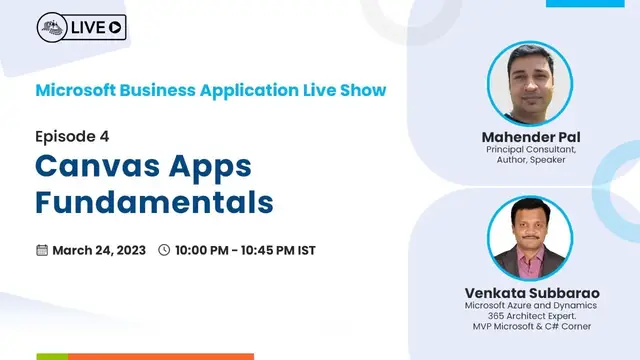
Join this live session with Mahender Pal and Venkata Subbarao for the next episode of Microsoft Business Application on March 24, Friday at 10:00 PM (IST).
In this introductory session, we will be giving a walkthrough on the following topics.
• Learn basic elements of Power Apps
• Build a canvas app
• Customize elements of your app
• Configure and manage app settings
• Get Started with Functions in Power Apps
• Share an App
C# Corner - Community of Software and Data Developers
https://www.c-sharpcorner.com
#CSharpCorner #CSharpTV #CanvasApp
Show More Show Less View Video Transcript
0:00
Thank you
0:29
okay greetings everyone thanks for joining us today for another episode of business application
0:40
and today we are going to talk about that canvas app so in last session we had for the power
0:51
platform and you know that you know we are basically uh running that two parallel tracks
0:59
side by side so now we will be starting today for the canvas app and uh you know in both the tracks
1:08
so we will one track we will be doing dynamics 365 first party apps and in another tag we will be
1:14
discussing about the app that is part of the power platform okay so uh just to confirm vector you can
1:21
see my screen right yes okay so yeah so let's uh have a uh you know quick uh overview of the agenda
1:30
today so today we will start with the basic introduction about the canvas app so we'll see
1:34
that what is canvas app and why we need so what you know what are the different tasks that we can
1:41
perform and why basically we create and what could be the requirement to you know go for the canvas
1:46
app and we will discuss about the fundamentals of the canvas app so how you know we create it so
1:52
what are the factors that we keep in mind what are the different type of controls that is available
1:57
which we can utilize in the canvas app and once we are done with that we will see you know how we
2:04
can configure the settings that is specific to the canvas app and we will then we will see that if
2:10
you want to share your canvas app with the other users so let's say for example you are owner and
2:15
you want to share it with other users how we can do that and lastly we will discuss that what are
2:20
the license options available for the canvas app okay and after that we will have the demo
2:27
so let's have a quick uh you know a discussion about like uh ourself so myself mahandar and i
2:33
have with me my friend Venkata so we are basically both have been working with Dynamics 365 quite
2:40
long now so we both are a Microsoft MVP and C-sharp partner MVP as well so Venkata you want to say hi
2:47
to our audience hi everyone okay so I won't uh you know spend much time on that uh today so let's
2:56
jump into directly and start our session because we have uh you know a couple of slides here and
3:01
And then we have lots of things that we want to cover in the demo. Right
3:08
So the first thing about like, you know, when we start discussing about the Canvas app and let's talk about the little bit history that, you know, before that
3:19
so sometime back we know that you know uh recent uh a couple of you know uh year back or you know
3:26
you can say that it's like uh maybe eight or ten years back that uh nobody was using mobile devices
3:35
in much this much scale that what we are using right now right everyone is using a smartphone
3:42
right but at that time there was no smartphones there was very simple phones and only few people
3:48
used to have the smartphones and we used to have the apps that mostly you know business application
3:54
used to have the on-premise okay so there was no not much focus on the cloud apps or you know
4:01
whether it's a microsoft or any any other vendors that is available in the market so there was no
4:07
much focus on the cloud okay but then the time changed and the focus shifted from on-premise to
4:13
cloud and the SaaS environments and then the you know mobile devices also you know increasing and
4:20
you know people started using the smartphones and then we you know saw the era of the mobile apps
4:27
right earlier we just used to show that our you know websites on the desktop or you know on the
4:33
monitors or the laptops but after using the mobile devices the smartphones everyone started watching
4:39
that you know website or you know opening the business application or office application on the
4:45
mobile okay then it comes the era of the mobile apps right so we have different framework that
4:52
you know we used to use for developing the you know mobile app that was basically depending on
4:58
that what type of mobile device you are using so if you are using android so there was an android
5:03
framework if you are using iphone there was a iphone framework so depending on your mobile device
5:08
we used to have different different uh you know framework to develop the mobile app right but
5:14
that time there was a you know disconnect between them so if you you are developing app for one
5:20
framework it was not easy to use the same app into the another framework right so you have to convert
5:27
that code you have to do some other things or you know use the some technology that can combine
5:33
these two you know frameworks and then show that application in the ios as well as in the android
5:40
right so it was it was difficult right so we got that smartphones people started using that but
5:47
still the business application was not you know much used on the mobile apps then you know the
5:54
game this microsoft introduced uh you know power platform and similar to that other vendors also you
6:00
you know introduce other tools which were basically you know used to develop the mobile
6:06
apps very quickly or you can say that you know business applications so whatever business
6:11
application you know used earlier on the on-premise used earlier on that you know
6:17
changed shifted to the cloud environment and now they shifted to the mobile devices right
6:22
so in the same way power platform also you know got introduced and they microsoft introduced the
6:28
concept of the power apps so power apps basically allow us to build a business application very
6:35
quickly and you don't need to be a you know very expert on building the mobile device you know
6:42
mobile apps or you don't need to be a you know expert on any any language or any programming
6:47
language or you know ui expert or something if you are a simple you know citizen developer or
6:53
you simple know how to you know you are an it person or you you just know how to handle your
6:58
you know mobile or how to you know run your you know use some web application you can easily build
7:04
your mobile app using the canvas app using the power apps okay so canvas is app is basically
7:10
considered a lightweight app where we basically perform different kind of operations so it depends
7:16
so let's let's take an example that you are working on a warehouse right and you are getting
7:21
some product that is coming to your warehouse and you have a register where you are doing that entry okay we got this product today and these are that you know sq number that i going to put it there so all those details basically let say you are capturing on
7:35
the your uh you know register or maybe you are just using the ms office and you are capturing
7:42
all those records into the excel right but you need to open that whenever you want to you know
7:48
do some entry or you want to do some adjustment you need to open that excel file and you need to
7:53
be there and then you can do those changes right but that basically uh you know sometimes there
8:00
could be a data inconsistency between this like what products you are getting how many products
8:06
you have in the inventory and you want to see that what is the stock right now right that can't be so
8:11
much quick in term of that excel files if you are using excel file right but then here comes the
8:18
canvas app in the canvas app we are still going to use the excel file but for the data operations
8:25
like you know adding some new records or looking into that what is the status we don't need to open
8:33
that excel we can create a app we can create in the different different screen so for example i
8:39
want to check the what is the inventory status so i can have one screen that is basically for checking
8:44
the inventory status one screen for you know doing that entry if i want to do you know new entry to
8:51
my excel file and one could be let's say i want to modify some entry right so you can quickly create
8:58
a mobile app using the canvas app and whenever you are you are you know let's say you are at home or
9:04
you are you know outside the office you don't need to go to the office right if you have access to
9:09
to the internet you can go that and you can you know access your data you can access your excel
9:15
file which is hosted on that you know somewhere on the one drive let's say okay and you can do
9:20
all that updates and you can quickly get the data right so that's how that that's just a one example
9:26
but it depends like what is your functionality what you do depending on your day-to-day activities
9:31
you can build your application for yourself right there are hundreds of you know applications are
9:37
built in the canvas app you know you can say that almost every day i don't know like how many apps
9:44
are created on the canvas app right so it's very easy that's why like you know whenever you have
9:50
some requirement and you can see that okay this you know fit to my canvas app and i can easily
9:56
build it using the canvas app okay so and it's very responsive so you can use on the multiple
10:02
devices it's not that you are building a canvas app that you can only use it on the mobile no you
10:08
can also use in the tablet you can also browse it from the browser you know from your laptop from
10:13
your desktop so it's basically responsive right so it rendered based on the screen size whatever
10:19
screen size whatever device you are using it will change that you know its layout according to that
10:24
okay so and uh if you want to start with the canvas app you have the templates you there are
10:31
existing templates are there you can utilize those or if you want to create uh you know from the
10:36
blank you can start it so you will get a blank canvas and you can design it according to your
10:41
requirement right whatever your requirement is you want to see the data you want to do the
10:46
form entry all these things can be done here very easily right now so designing is done but of course
10:54
like when you are working on some app you might have some kind of the logic right you want to do
10:58
some kind of data validation that can be also done so you can write very simple formula just like
11:04
excel you have that excel you know formula right we can do that different type of functions those
11:10
can be also done in the canvas app so you can write your power x fx expression there and you
11:16
can easily implement your logic depending on your requirement right so now we have a uh you know
11:24
overview of the canvas app so let's let's start with the you know fundamentals like whatever
11:29
things that you know we require and what are things that we need to understand when we are
11:34
working with the canvas app so first thing is that when we want to create a canvas app the first thing
11:41
that we need to you know take decision on that you know what will be your main focus here so
11:48
we have basically two type of format that is available here that we can see here that we have
11:54
two type of options that is available the first one is the tablet and the phone okay although it's
12:01
basically you know responsive so even if you are building you know your canvas app setting that
12:06
format here tablet you can also use it on the phone and similarly if you are building for the
12:14
phone you can also use it on the tablet but by default it take the layout right that whatever
12:20
format you select by default it use that layout for the app so we take the decision here and we
12:27
provide that you know what are the name that we want to use for our app then once you can select
12:32
that and you can click on the create so to reach out this you can you know go to the make power
12:38
apps.com and there you can start you know select your environment if you have multiple environments
12:44
you can select it or you have just one environment then you can you know start building your app from
12:49
there so there is a new option is there and you will click on that you will see three options
12:54
basically so we can create three type of apps one canvas app and then the model driven app and the
13:01
portal apps okay so today we are discussing the canvas app okay so once we decided okay we want which type of format we want to select as soon as you will
13:15
click on the create you will be landed on this you know power app studio so this is basically
13:21
you will get a blank screen here depending on that so for example i'm taking the blank one so
13:26
I'm starting the tab from the blank then I will get a blank screen here but if you will select
13:31
some template and then you will create so you will get all that template content already here
13:37
you will get the screens and controls already placed here which you can just modify based on
13:42
your requirement right so here we can see that this is a blank canvas and in the left hand side
13:50
we have a tree structure here so we have you know create different type of controls here if you
13:56
want to connect with the data source so those all the things can be done here if you want to apply
14:01
some kind of logic using the power automate you can select it here and on the right hand side that
14:06
comes with the property window so whatever control you are using here whatever control you will
14:12
select it here in the right hand side it will provide you the property option which we can you
14:17
know change that look and feel of the control so for example right now we have a screen one so you
14:23
see that we have a screen one property that is you know visible here okay so this is uh what we have
14:30
the you know power app studio so that where we can design our canvas app
14:38
so when uh you know you will be landed on the canvas app studio you need to create the different
14:45
screens okay so screens you can take like example of a page right so for example you if you are
14:51
building any app so in the app we see different different pages right or let say if you are browsing any website you see different different pages similarly in our app as well we can create different type of screens so here you can see that we have different
15:05
templates options are there so if you want to select blank you can take that or you have the
15:10
topson you know scrollable or that list one on the forms so these are different different templates
15:16
are available here so list is basically where you know you will get that grid type of control what
15:22
we call gallery here in the canvas app and there you can set your data source and then you will see
15:27
the multiple records that you can work with them okay and if you want to create you know any kind
15:33
of form where you can submit the data or modify the data then you can go for the form options
15:39
right so these are the different options that is available so you can select your screen and then
15:45
you can start designing your app. Now, so whenever we are you know creating our app
15:57
most of the time we are working basically with the data right, we are working with some kind of
16:04
data that we want to render on the our app screen okay, we want to get some data or we want to store
16:10
some data so it could be any database it could be excel file it could be a you know any third
16:16
party database or it could be a data verse that is basically you know in the power platform so
16:22
that depends on that where your data is stored okay depending on that you can see here that you
16:29
know these are the dataverse tables that is there so if you want to utilize these tables you can
16:34
select them or if you want to create on the fly you can also create a new table and you can decide
16:40
that you know what will be the uh you know structure of this table and then you can utilize that table
16:46
into your canvas app okay and then we see here we have different other options as well that we can
16:52
use as a data source so all the data source that is available we connect them using the connector
16:58
so connectors are basically which you know work in between our app and the data source and it you
17:03
know make it possible to back and forth sending the data and communicating with the data source
17:08
you know so that that thing is available on the data source so this is a very very important when
17:16
you are working with the canvas app so you need to decide like which data source you are using
17:21
and depending on the data source we also have a you know it will impact your licensing cost as
17:28
well so we will discuss that on the licensing slide but here so once we selected the data source now
17:37
so we got that screen and then we selected the okay this is the data source that we want to work
17:42
now so we are connected with the data source now how we want to render our data so we can see here
17:50
we have a different type of controls that is available which we can utilize to create the
17:55
forms to create the gallery to create that you know different input controls are there
18:02
different buttons controls are there that we you know want to do some kind of trigger some kind of
18:07
actions so those type of control that you know we can see that is available for us all these
18:13
you know controls you can utilize into your canvas app and you can design uh you know as i said that
18:19
you know we have the gallery option which basically you know we have a horizontal or vertical gallery
18:24
and you can work with the multiple records there okay so those multiple records basically help you
18:30
to work with the you know if you you are working with the multiple data and you want to go for the
18:36
next screens and select or edit that so those type of things we can use with the gallery controls
18:42
right and then we have the forms in the forms we have different type of forms like you know
18:48
the edit form is there where you want to edit some existing report new form is there where
18:54
you want to insert some data into the database okay view form is there which is just a read only
18:59
okay you don't want to do any kind of modification you just want to view the data okay and we have
19:06
different media controls are also there that can be placed and you know you can utilize them to
19:11
build your app okay so we will see them on the demo how we can use and configure them
19:16
now we have that data we have the controls what about the logic as i said that we can use that
19:27
excel like formula here to implement our logics right so you can see we have different categories
19:32
of the functions that is available so we have the filters so if you are bringing some data and you
19:38
want to apply some kind of filters okay so for example i just want to see the data that some
19:43
some customer is coming uh you know i'm getting some customer report from my database and i just
19:48
want to see that the customer who are you know you know basically from particular city okay or who
19:54
are basically from particular country okay those kind of things that you can apply using the filters
20:00
and you can do that uh you know comparison using the different functions that is have we have here
20:07
and you can see that this is basically that you know place where we apply our power effects
20:12
and you can see that we have the text expression that is applied where we are using that you know
20:17
office 365 users and we are searching based on that you know some text which is there
20:22
and based on the text we are searching that okay what is the author and all these details are there
20:27
okay so these type of things that we can use on the canvas app and apply logics or data validation
20:35
depending on the requirement and also use that you know different math functions are there very
20:40
common just like what we have in the excel okay so we now our app is ready
20:50
let's say you have done the designing using the control you connected to your data source you applied the logic so now we have you know some settings that you
20:58
want to do for your app so if you there is a setting options when you are
21:03
working on that you know Power App Studio there we have the different
21:07
options that we can use to configure so for example here that you can you know configure
21:11
that app icon so how it will when it will be placed on that you know store or you know it's
21:17
available onto your environment so what icon you want to show it there okay so you want to change
21:23
the name of your app you can do that you can provide the descriptions you can you know configure
21:29
the colors and icons of all these things here then we have some display options are there by default
21:35
you know how much layout will be there what will be the width and size that things will be there
21:41
okay so we have the upcoming features so you know there are many features basically which are you
21:48
know in stage of preview right they are not released yet but they are in preview so microsoft
21:54
allow the users to just try them okay so in this option we can enable those features and we if you
22:01
want to apply this new incoming feature to our canvas app you can make them you know on or off
22:07
okay and then last one is the support in under the support we have the different uh you know
22:13
training options are there you get the direct uh you know url of the page where all the kbs will
22:19
be there that you know if you want to take some help about the canvas app like you know how to
22:24
use formula how to change the screen how to use the any control gallery control and all those so all that links are available under the support page okay so these are the options that is
22:36
available where we can configure the setting for our app so now so we are now again on
22:46
the another step so we have done you know designed our app and we have done some settings
22:52
as well now it comes that sharing okay so you created that app right now you will be only able
22:59
to see that app right but you want to share that app to the other users as well right so
23:04
sharing allow us to share our app with the others user so here you can select the name you can enter
23:11
the name of the user you know then once you will enter that and it will show you the list of the
23:15
user that is part of your organization and then you have two different options so you
23:21
can select as a you know simple user that who will be using that and they won't be able to do
23:27
any kind of modification to that app but if you want to make any person any user co-owner then
23:34
they can do the modification in this app so you can select this and you can allow them that okay
23:40
i want to allow this user to make any modification to the canvas app then you can select as a
23:45
co-owner okay so these are the two options that is available for us so as soon as you will share
23:52
this app then this app will be visible to the other users so when you they will go to that you
23:57
know make my make power app dot com and they under the apps they will be able to see all that apps
24:04
for their organization which is shared with them okay so this is what we have for the sharing
24:14
now the last topic that i want to cover is the license part okay so in a broad way we have two
24:23
categories here the first one is the subscription plan where you decide that you know monthly
24:31
subscriptions okay based on the monthly subscriptions you have different plan that you can select
24:37
and then you pay for the monthly on that fee okay whatever fee is there depending on the plan
24:42
you pay it monthly but another the first one that we have is the power app plan so this is the you
24:50
know simplest one that we have we can start with so here you can take that you know five dollar
24:57
plan so this is basically for per user per app you know per month so if you you are using that
25:02
one app and per month you need to pay the 500 dollar for this app okay another one is the per
25:11
user plan so let's say for example you you want to work on the multiple apps okay so you you are
25:16
you know developing multiple apps or you are a user and you are on a different work on the
25:21
different department and you have different apps made for the different department and you want to
25:26
use all these apps okay then you need to go for the per user plan where you need to pay the 20
25:31
dollars and you can use unlimited apps per user can use the unlimited apps so you know there is
25:37
no foundation on that okay so these are the two category that comes into the subscription plan
25:43
now the third one is the pay as you go okay so pay as you go plan is basically connected to your
25:51
as your subscription okay so however you are using that app so this is basically there is you know
25:56
10 dollar per user per app per month plan so as you go with that depending on that how many unique
26:03
apps that you are you know using so which unique app you are using so in the azure your calculation
26:09
is done and then you they do that billing from the azure subscription okay so these these are
26:16
the options that is available for us uh you know for the license on the canvas app okay so that's
26:24
what i wanted to cover today you know so we discuss about that fundamentals of the canvas app
26:30
and how you know we can design that what are the controls that is available now let's see the demo
26:35
and we will discuss how we can create it you know in the demo so i'm going to pass mic to my friend
26:41
venkita so i'm going to stop now you can share your screen right
26:52
so hope you can see my screen yeah you can say it okay so hi everyone uh this is venkat again so today now uh as of now you've
27:07
seen all that uh the content that is present the concepts in the ppt slide now i'm going to
27:13
give a walkthrough of how it is present okay so as usual normally make.powerapps.com should be used
27:24
for this one okay and then you have to go to this particular home and once you go it right
27:33
it obviously comes to here and we do have the multiple ways of creating any particular app
27:40
that is the canvas app one is through the data sources that is to dataverse sharepoint excel
27:47
SQL and image and figmon okay and there is these are all directly that where you will be selecting
27:57
first the data source so based upon the data source and app will be built on it so if you if
28:03
you are a techie person if you might have worked on entity framework earlier right we do have the
28:08
database first approach db first much approach and model first approach like that right in the
28:14
same way. So we do have to create any canvas app, right? There are multiple ways of doing it. First
28:20
we can select that particular data source based upon the data source. We will be building it
28:25
The second one is just by directly building an app from the scratch and then add it to this
28:32
particular data. So first, let me go through it by going by selecting the as in data versus in
28:40
particular data source so if you observe in the past previous slides the data source has been
28:48
selected as in data verse okay so in the okay once it gets loaded right we do have the number
28:57
of data sources that are present so i do have an existing data was connection that is present
29:03
so it will take some more time here so as of now as if you observe right for this particular
29:10
tenant already i do have the different tables that are present so as of now what i am doing
29:17
just i am connecting the connecting to this particular accounts data was stable so what
29:23
was happening at the background right so power apps the studio or the make.powerapps.com is
29:32
making me behind, like it is building the different forms of the, like for viewing the data and for inserting the data
29:42
and for the deleting the data. That is to perform all the credit operations
29:46
kind of an app that is going to, that it is going to be shown to all the particular users
29:52
So till now I have not done anything. Just I have selected the data versus a data source
29:58
And then just I have established the connection and now our apps at the back end the studio was making me uh to do this so if you
30:08
observe my app was ready if you observe um this is if you observe this is a list of accounts that
30:17
are present if i wanted to insert any uh account example this is hydrabat so account name is
30:27
uh frb oh and my phone number just i can view so what was happening at the background uh
30:41
an account has been created and if you observe right the account has been created and i can see
30:48
this particular data so what is the thing that hasn't this is a list of all the accounts and
30:54
then i have created an account that is the creation of an account and this is what the display if you
31:00
observe in the background uh in the few slides back in the ppt there are different forms that
31:06
are present like the read only forms and also the editable forms and all if you observe this is a
31:11
kind of a readable form and this is an editable form so i can edit this one and if you observe
31:22
edition editing has also been completed and if if i go back and see here all the details has been
31:29
updated okay so also i can also sort this particular list of accounts that are already
31:38
present so if you observe right any app if it has only the data not that much design that is present
31:45
simply out of box way in make.powerapps.com it will provide us this kind of functionality
31:52
so now uh if i wanted to delete this one right obviously i can delete this one
32:00
so at the background this deletion of this particular account was happening
32:04
uh so it will take some time so if you observe that particular account was not at all present here
32:12
so if you observe here what kind of forms that has been uh shown right here
32:22
so let me zoom it here so if you observe this is my particular app i do have the edit screen
32:33
that is present and the detail screen which is nothing but a read-only screen and the
32:38
browse gallery browse screen this is nothing but a gallery control that is being used here
32:45
where to show all these particular details if you observe in the ppt you might have observed
32:51
the number of number of ways ways that we can show this particular data right so here it has
32:58
been used we are using this particular gallery so this was a separator that has been used here and this is the gallery
33:12
and these are all the different controls that are present this is a text box control this is a search
33:20
icon and the rectangle, all these details that are present. So before going to that, right
33:31
So let me go back to here. So now with the help of this particular data was we have created an app
33:42
Now let us go with the another data source, obviously, right. Number of people who are using currently, right
33:49
might be doing excel as in back end right so there are multiple questions that you encounter okay
33:57
we are using excel can we use the canvas apps or this low code no code methodologies or can we use
34:04
the canvas apps and all yes you can use it so obviously now what i am going to do just i have
34:11
selected excel as in data source so now what i am doing here just i am going to select again so
34:18
selected the data source and then i will be going to select a connection so i do have this particular
34:26
connection so if you don't have any new connection existing connection then you can establish the
34:31
connection but for the time being i do have a connection that is present and if you observe
34:38
right this is my gmail spreadsheet okay and in this i do have this particular demo expenses sheet
34:47
that is already present here so let me uh delete all this particular data okay so now what i'm
34:54
going to do right just i'm going to select this particular sheet so what was happening so an empty
35:04
app has been taken so just it will take some time okay so an app has been created for that particular
35:15
creation right we need a data source and we have selected a data source that is nothing but the
35:19
google shirt uh google sheets so let me refresh this one and then a connection needs to be built
35:32
so okay let me select the connection one more time so let me refresh this spreadsheet as well
35:49
so if you don't have any connection right then you you have to establish this particular connection
35:55
and then uh just i have selected this particular sheet if you observe this is my sheet in this
36:02
particular sheet this 2023 is my sheet name okay this is a spreadsheet total spreadsheet in this
36:07
the tab name is 2023 so i'm going to the app and then just i have selected this uh 2023 as a sheet
36:15
so what was happening so based upon all the columns that are present here right so an app
36:22
will be built at the background with all these particular details so i have not written in any
36:29
single line of code but based upon the data source that is excel sheet and the number of columns that
36:35
are present there my app was building on its own because of the super intelligence that is present
36:43
at the background that is the out-of-box features that has been provided by the microsoft
36:49
through this particular make.powerapps.com or the maker portal you can see okay so these generally
36:56
there are some acronyms that has been used like make.powerapps.com few people will say and few
37:02
people will tell about like maker studio and all so if you observe this is my particular sheet let
37:08
me bring that so what i am going to do right just i am going to update the i am going to insert some
37:16
data this test data i have some expenses july i do have some expenses
37:25
and these are some monthly expenses
37:35
of yes you can say the monthly expenses and then just i see i have given as an s number as an
37:46
number generally it will be it can be auto number so see if you observe i don't have any
37:52
details here so let me zoom it out so i don't have any details once i go to the app and then
38:00
click on these details so i the data has been selected don't trust me so go to this particular
38:07
sheet boom i do have the details that are present i do have these monthly expenses 200 100 and 500
38:17
300 and the test data and also if you observe right any app that you create it will have this
38:23
app id so an lab if you ask an lab okay when cut there could be some magic that is present can you
38:30
prove it this has been uh carried out through the app yes if you observe this was the app id that is
38:38
present and if you observe this particular one that is present so actually this is an app so let
38:44
me close this particular one and i will show this particular app
38:52
settings if you wanted to change this particular app i can say
38:59
demo app so there are upcoming features that are present so uh you can try it out all these particular preview
39:12
features but uh don't in the production right that is in the live environment or in the production
39:18
environments don't go with the prior preview features and there's a few of them are experimental
39:25
these are still uh you can experiment them but they are not for the general availability and
39:30
also a few of the things that are retired so my app was ready with this particular data source
39:36
as in uh spreadsheet now how you can uh so you can name this one
39:48
so if you observe right you carefully light a and spinning wheel that is being spinning
39:54
which is nothing but uh internally at the background it is being uh saved okay so if i
40:01
wanted to publish this app right just you can do it this is the way you can publish this particular
40:07
version so if you observe again the details has been published
40:25
and if you observe here the app version history just know this has been live
40:31
Okay, so let me go back to the here to the screen and go back to here
40:45
Go back to this particular apps
40:56
And then if you observe right, this was the demo app, which just we have created it. Okay
41:04
So how you can directly do it is by using just, you can click on dates
41:11
And if you observe, right, this was a canvas app that was built on the data source
41:18
That is the spreadsheet. If you observe this was the details If I wanted to change the expenses like this you can edit this one if i edit this obviously if you observe this 250 has been directly uh been reflected okay so this is how
41:37
you can uh do it and also right if you wanted to edit this one you can click on this edit
41:47
if you click on this particular edit right you can do it and if you wanted to know the details
41:51
of this particular app then you can easily get that so as i said you before the powerapps id is
41:58
double eight it starts with double eight right so which is uh nothing but uh here this particular
42:04
powerapps id that will be present if you wanted to share this particular app right to any of your
42:11
friends what you can do right just you can copy this one and in a separate tab you can open it
42:18
so if you observe the demo app was ready so if you wanted to share the app url then you can simply
42:26
go back to here and then just copy it and if you observe what are the connections that are present
42:34
just it is an excel spreadsheet that is present of the gmail and also if you observe right
42:42
Just now we have published this one at 10.38 and 7 p.m. IST
42:51
Let me zoom down a bit. If you wanted to export from one environment to another environment
43:02
then we are going to use this, but I am not going to cover all those details
43:07
and if you wanted to see what are all the app settings that are present if you wanted to change
43:13
it then we can do it okay so now let us go back to the home screen one more time and then
43:26
let us take another one which is so image preview so here right
43:32
uh by using this particular image right you can simply uh upload any particular image if you observe
43:41
in this particular preview one it was saying simply if any of your customer says that yes
43:47
he draws this particular uh ui look up and he expect this kind of functionality on a piece of
43:54
paper right simply we can take that particular picture and then we can upload it so you can ask
44:01
me a question so when get okay fine can you prove it to us yes why not so let me choose one particular
44:08
file so just this was an image that i have taken just uh formats has been mentioned in the earlier we do have couple of formats that is the layouts
44:26
we can call the tablet and the phone as i am using mostly here uh the
44:33
web version of it right so that's why it was showing as a tablet
44:37
and now tablet has been present and then i am going to just click on this next
44:45
so if you observe right i do have an image that particular image has this one so what is that it
44:53
is a college registration form it has the name it has an text okay automatically my image was looks
45:02
like this so so this was the this was the image that i have uploaded that is college registration
45:20
form name it has text box is it has a text box and the place has a text box and this admin button
45:26
okay so if you observe automatically what was happened that image has been scanned here and if
45:32
i observe this is a text box i have an liberty to add it as a text box like that and then if you
45:41
observe the place this is also a text box if you want it you can keep it as other variables as well
45:48
and if you observe this is an uh one where i can keep it as an button okay so now
45:56
what was happening uh so just i'm going to click on next see i can connect to a data
46:03
works table okay so i can create a new or i can do so what i'm going to just i'm going to create a new
46:12
one so i'm going to create a new one so just uh i can create a new table
46:27
so just i can click on next so what i am saying right just okay uh let's let me do all these
46:34
things so automatically it has created it has selected a couple of the all the three columns
46:41
that is name age and place these are all the text fields that are present so just i'm giving it as
46:49
as is uh name text all these things if you observe a table has been created with all these things the
46:56
image one just i have given as in the data was stable so what was happening at the background
47:03
based upon that data that is present on that particular image and custom table has been created at the background see i have not created that particular table just by defining okay this was my column this was my
47:20
column this was my column and all so i have simply bypassed all these things just by following and
47:27
step by step process so it will take a few seconds for us to create an app so what was happening
47:34
actually the image whatever that is present based upon the image the contents components has been
47:39
selected so based upon these particular components as i have selected to create a table of the custom
47:45
type so in the data verse automatically a table gets created with these particular columns
47:51
once this particular table gets created on the top of this particular table as a data source that is
47:56
a data was stable an app will get built okay so it will take in a few seconds that the creating your
48:04
app that is going on so till now i have not written any single line of code obviously if any customer
48:11
ask you like okay can can you build an app in few days like that simply you can challenge the
48:18
particular customer or you make the customer to surprise or you can make the customer to understand
48:23
the importance of the local no coin and these power apps right by simply doing this particular
48:31
kind of uh a demo with him okay and this is you can say this is a production ready kind of
48:40
app because it is scalable and it can be easily uh used for the next development if you have it
48:47
okay so as it is taking some time here so as we are going uh out of this particular time right
48:58
okay so yes yes i'm getting this particular app that is making ready so i would like you
49:06
to observe this particular app how it gets built okay so if you observe my form has been ready obviously
49:20
and name is text that is present and this is how an app will be present if you observe
49:27
this is the form and it has these forms and also these are all the text labels that are present
49:35
okay so like this uh right there are a few other things that are all also present
49:46
which we are going to cover in the in the coming sessions okay and there are
49:52
there is a beautiful documentation that is present here so just i will give you here
49:58
a few more things like all apps that are present if you wanted to see all the apps that you can do it
50:07
and there are a few more templates that are also present that we are going to explore
50:15
in the coming sessions so hope you have uh enjoyed this particular demo so mahendra mahinder so you
50:24
would like to add something yeah i just want to add one thing uh you know can you just uh you know
50:29
click on the new and just go to that selection where we have the data source selection here
50:34
i just want to you know include that one point here yeah so right maybe maybe select that uh yeah
50:44
from we want to select the data so i want to see the data source window you know yeah just want to
50:49
explain like you know basically if you are you know using that office 365 and you have that office
50:55
365 license then you can use the okay yeah just on this page so here as we can see that some of
51:02
the connector that we see in the you know right hand side we have a diamond right so this basically
51:08
denote that this is a premium you know connectors so whenever you are working with the any premium
51:14
connector then you need the license that we discussed like you know per app plan or per user
51:20
plan okay but if you have a you know simple just like for example if you are using that excel file
51:25
or that you know non-premium connector then you can use the simply your office 365 license and you
51:31
can build your canvas app right so yeah that's just what i wanted to cover and i think uh yeah
51:38
you have like you know explained it very well that we have different ways to develop that app and
51:43
we have not written any single line of code and this is a true you know low code no code uh
51:50
you know feature here that uh house you know intelligently we can build different apps you
51:55
know just in a couple of seconds and just you know use wizards where you know we can just select
52:01
that option and configure it and then we are ready right so yeah i think this this is what we wanted
52:08
to cover today uh so once again uh thanks everyone for joining us uh today and we will continue on
52:15
on the different track now and uh i think uh next month we will have some gap there is some other
52:21
you know schedules there are another event happening on the you know c-sharp corner
52:26
committee so there won't be any live event recorded but we will have our you know sessions on the you
52:32
know maybe uh second last or last uh week so that that will be published on the c-sharp corner so
52:39
you can get you know information from there yeah okay thank you thank you for joining us today
#Mobile & Wireless
#Mobile Apps & Add-Ons
#Training & Certification
#Skins, Themes & Wallpapers
#Educational Software