Up next in 10



Editing SharePoint Central Administration Home Page
Show More Show Less View Video Transcript
0:00
After installing SharePoint 2010, first thing you are going to see is SharePoint 2010 Central Administration
0:10
This application allows us to manage applications settings and monitoring and backup the whole SharePoint 2010
0:21
So, if you look at the screen, this is my SharePoint 2010 Central Administration
0:27
As you can see from the options here, you will see application management where you can manage web applications, create site collections, manage service applications, manage content databases
0:41
The next option is monitor. So you can review problems and how to solve those problems in jobs running, including the services running for the SharePoint 2010
0:52
The next option is security where you can set up your groups and user accounts and all
0:58
kinds of security and pages. General application settings are basically connections, then system settings, backup
1:07
and restore, upgraded migration and configuration. I'm going to discuss these options one by one in my forthcoming videos
1:20
So what else can you do on this page? You can actually customize this page the way you like
1:27
There is options to customize this page. So there are two ways you can do it
1:32
You can click on either page. If you click on page, you will see this menu items in toolbar here
1:38
This is actually a new addition to SharePoint 2010. So if you are using 2007 you probably won see these options But this is more like Microsoft try to make it more like a Windows Office 2010 look and feel
1:58
So you can edit this page from here or you can also use the site access menu item
2:04
So in site access if you click on edit page this will let you modify the web parts on this page
2:10
cannot change the existing existing links there but you can add update and delete the new web
2:18
parts you add to the page so let's click on edit page what we are going to do is we are going to
2:23
actually add a few web parts to the space to customize our page so let's click on there
2:30
when i click on this as you can see there are in the right side i see a control and link called
2:38
add a web part. So if you are familiar with SharePoint you know what this does. This allows you to add a web part to this page
2:45
and at the bottom also I see add a web part right here
2:49
so if you click on any of these. So I'm going to click on this one
2:53
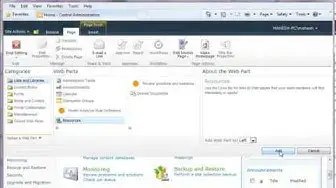
as soon as you click on add a web part you will see the web part categories and
2:58
web part controls listing opens up there. In the left side you can
3:03
pick a category and in the category you can select a web part
3:07
part or you can also upload your own web part if you have created your own web part
3:13
So here you have all the web parts belonging to that category
3:20
So what I'm going to do is I'm going to add one web part here Announcements
3:26
It tells you about the web part and you know where to upload it and then say add
3:32
As soon as you click add button you can see announcements is added here and now using
3:36
this you can actually add a new announcement So stop editing will actually stop editing this page and it will move back to the standard format Now here I going to add one more web part and I going to
3:51
call this resources. Resources will allow me to add any kind of links to this like say for example
3:59
so you may have a website where you want to add a useful links for your developer so you can come
4:04
here and add whatever links or whatever website you feel like is important for your users who
4:11
visit this SharePoint 2010 webpage. So add. Now as you can see, my resources web part is added here
4:21
So here what I can do is I can add a new announcement
4:52
You can also set when your news is expired. So, let's say you know this is good enough for a couple of weeks
4:59
So I'll just set there and save. As soon as you're done, you can see your announcement is added there
5:10
Now I can just say stop editing. Stop editing is actually stops editing my page and now you can also come back again and
5:20
add a new announcement again. So like home page editing is done So if you click on this you can see more details about that you know and you can
5:46
set alert me, delete item, manage permissions, and edit items which I'm going to discuss
5:52
later but to give you an idea how you can add you know more web partial home
5:58
page so I'm going back to now add a new link where I'm going to add some resources
6:02
so I'll say C sharp corner.com and I'll say C sharp corner to learn about C sharp programming
6:14
this added a new link here I'm going to add one more link say sharepointtalks.com
6:30
and you can test it here so it opens your URL there wherever you go
6:48
boom so save so that said you can add few resources here you can add
6:56
announcements here and you can also upload any like if you want to add some
7:01
specific web part you created for your your team you can just deploy it and then
7:07
upload it here so in this video we learn how to customize your home page using
7:12
existing features available in SharePoint 2010 Central Administration in my next video I'm going to continue exploring more features in SharePoint 2010
#Skins, Themes & Wallpapers