Up next in 10



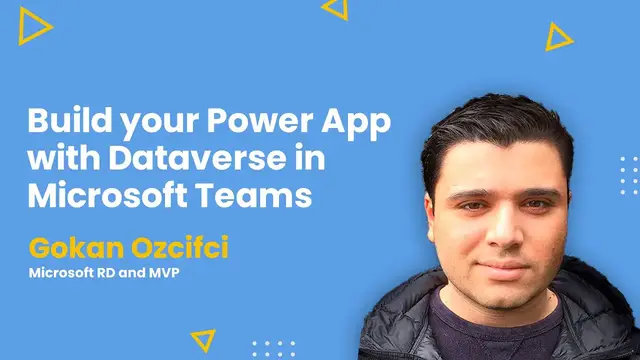
Build your Power App with Dataverse in Microsoft Teams - AMA ft. Gokan Ozcifci
Show More Show Less View Video Transcript
0:00
Thank you
0:29
Hi, everyone. Welcome back to C Sharp on a live show. I'm your host, Stephen Simon
0:36
and we are back with another episode of Ask Me Anything series. After a long time, like after
0:42
almost like a couple of weeks, as you know, we have kind of halted all our live shows at C Sharp
0:48
Live as all our team members and the community here in India are focused more toward helping
0:53
people for uh go with Africa by COVID-19 uh so that's what our focus has been uh for this month
1:00
and for upcoming weeks uh but uh i can this this live show was already scheduled and it's been a
1:07
while i i met my mate Koken who is the guest of this show today so i was really excited i am
1:12
actually excited so welcome back once again who is joining this is episode number 34 for ask me
1:18
anything and probably we are well over 250 live shows can you imagine that i i say we stream eight
1:26
days in a week the amount of live streams that we have done in in this pandemic is it is a lot i mean
1:33
yeah we have done a lot of that apart from that uh a quick announcement before we go ahead and move
1:38
uh actually talk about the today's show is uh about the life that we do we're not doing this
1:44
month but on mondays we do azure ai show that's on 10 a.m eastern uh tuesday i forgot the banner
1:50
to add but on tuesday this product showcase show but on wednesday we have c sharp on the mvp show
1:55
where we feature community leaders from the from the c chapter community how do they start their
2:00
journey and how do they manage to contribute uh about from their day-to-day uh work life then on
2:07
thursdays we have ask me anything show uh streams every thursday at the name eastern kind of changed
2:13
you can definitely say that today's wednesday uh on on fridays we do both mindset at 12 am eastern
2:19
where my mission was the founder of each up corner who talks about uh you shouldn't be coding uh your
2:24
entire life right go ahead and become a leader that's what he talks uh then on uh saturdays we
2:30
have rock in the code world with dotnet day hosted by david mccarter who is a 14 times microsoft mvp
2:36
he invites people from the entire ecosystem of dotnet he has had mads todgersson scott hunter
2:41
Ketan Dolat, Jeremy Lickness. I mean, everyone from the .NET ecosystem and C Sharp
2:48
and also Visual Studio, many, many program managers. Definitely go ahead and check that live show too
2:54
Plus what we also do is every Saturday at 10 a.m. Eastern
2:58
we do C Sharp Corner Town Hall, where we announce all the updates from this week's C Sharp Corner
3:05
Plus in that C Sharp Corner Town Hall, you can also go ahead and join in as we drop the link in the comments
3:11
you can be a part so uh hi venkit uh hi venkit thanks for joining in hi pickup welcome to the
3:17
live show i see many more people joining drop your location in the comments it's always very
3:22
interesting from which location you're joining you never know you go and go ahead and make some
3:26
friends in from the live chat okay so having said that in today's episode we have google uh uh
3:33
hooker is an amazing person he's uh both microsoft regional director and a microsoft mvp uh yeah i
3:40
I think that's the intro that I have for him for today, actually
3:44
Let's go ahead and invite our guest, actually. Hi, Gokhan. How are you
3:51
Welcome to the live show. Hello, Simon. Thank you so much. Well, it was a great introduction, right
3:57
One sentence intro. Happy to be back. Happy to be here after some difficult moments
4:02
And I'm happy to see you again, my friend. Yeah, that's great for..
4:07
Yeah, so one thing to definitely say that. stay safe everyone this time is tough right so as our guest has gone through uh so hi sarum hi
4:16
welcome from uh nipal thanks for joining in so goker before uh before we step in to talk about
4:22
all this technical stuff how has life been how how are things going on um how's the work uh yeah and
4:30
how are you managing these times i had some difficult times to be honest i got the the
4:35
the COVID, unfortunately, and I have missed a lot of, I was like in bed for three weeks
4:42
I unfortunately missed the MVP summit. I missed the regional director summit
4:46
I missed the SharePoint birthday and even missed your event, the Power Platform Summit, unfortunately
4:52
I really tried to come and share my knowledge for the community, but I was in bed
5:00
I was really struggling and I see a lot of information around India
5:05
Please, everyone, everyone who is listening, stay safe, stay home. I know it's not easy because I'm from a country where it is a poor country, Turkey
5:15
It's not the United States. It's not the United Kingdom. It's a poor country. And I know that not everyone can stay home
5:21
We have the chance to do some IT stuff and we can do some stuff from home
5:26
Not everyone has that chance. Some people have to be outside. They have to be in contact with others
5:31
so I know it's not easy but please, please, please stay home, stay safe
5:37
and wear a mask, that's the thing that I can definitely say to everyone who is listening now
5:41
Yeah, yeah, definitely stay safe and I didn't know you were from Turkey because
5:45
I have some plans to visit Turkey next year, so maybe next year
5:49
this year I'll be your host, I have roots from Turkey, I was born in Belgium
5:55
but my name definitely doesn't sound Belgian, Gokunazivsi that's not the most Belgian name you will see
6:01
it's most likely Turkish I do regularly go to Turkey so if you ever come to
6:07
Turkey I'll be definitely your host and we'll show you the beautiful country
6:12
that's great plus Gokul looks like you changed your background like I
6:17
really love it what's up there let everyone see oh my goodness
6:23
I love that you have a bunch of them right Dragon Ball and Dragon Ball Z
6:30
Well, I have a bunch of them as a statue. Instead of having a wallpaper behind me with teams
6:36
I'm like, hey, let's invest in expensive toys and showcase that. People will love it
6:42
Already, like last time when I did Ask Me Anything, someone from Singapore reached me out through LinkedIn
6:49
and said, man, I love what you have in background. Just show me a few pictures
6:55
Yeah. That's great. I love your background too. I wish I had those, but never mind
7:02
So, Gokhan, so today we're going to talk about, actually, what are we going to talk about? I know it's Power Apps
7:06
You always come with some great content with Power Apps on this AMA. But what is the focus for today
7:12
Yeah, I know that C Sharp Corner is an extremely developer-minded community
7:16
And when I go there, it's like, wow, I'm amazed by the rock stars you guys have
7:21
in the development side of the story of Microsoft and every single Ask Me Anything or blog post or anything that you guys have is mainly developer And the major reason why I joined the community the C Sharp community is because I want to
7:39
bring some diversity, some other stuff than only development. And today's session is actually everything less development
7:48
It's going to be like how you can build a database, a CDS, a dataverse
7:55
within Microsoft Teams passing through Power Apps. And in a few clicks, we'll be building our application, reading through data
8:03
and even building some relationships between tables and entities into Power Apps
8:09
And I'm just going to showcase you that not everything needs development
8:14
Like you can build a bunch of applications, a bunch of intelligence
8:18
without even a single line of code. I know some people will hate me
8:22
because it's the C Sharp community where every developer is here, but my job is to bring diversity
8:29
My job is to bring everyone under one big family, which is a C Sharp corner
8:36
Wow, this already sounds so exciting, Gokul. We actually had a conference
8:40
that had almost like 40 plus sessions on Power Apps, but this is, I think, one of the best intro
8:46
for a session I've ever heard. I'm really excited. Database for Microsoft Teams
8:51
Anyway, this sounds so exciting. And when you code that, you don't need much of the development background
8:57
to go ahead and do all this. That really adds more of the value. So feel free to go ahead and share your screen
9:03
And then we are ready to see the magic of Power Apps and Universe
9:09
There you go. I will then select my screen and share it
9:14
And normally you should now see my screen. Simon, I'll just let you confirm it whenever you see it
9:20
Okay. Welcome, everyone. This is going to be the most demo fancy session you will have
9:28
Unfortunately, I still have a few slides to show to you, but I promise you it's going to be very fast
9:33
Welcome to this session called Build your first Power App with Dataverse in Microsoft Teams
9:40
I will show you as I explained how you can build your app without a single line of code
9:45
and how you can read that within Dataverse. My name is Gokun Ozifsi
9:49
I'm a principal at Neoxi Consultancy, which is my own company, by the way. I'm the CEO, I'm
9:55
the marketing people, I'm the executive, I'm everything, because I'm the only guy
9:59
working at Neoxi. I'm a national regional director and MVP, and my Twitter handle
10:03
is xgokun. So if you have any questions about PowerApp, about Teams
10:07
about SharePoint, or even about this session, well, the best way on
10:10
reaching me would be through Twitter. send me a direct message and I'll directly try to help you about the artifacts of that session
10:20
What is Microsoft Dataverse? That's a new fancy word that we are hearing more and more
10:26
We can see from the definition of Microsoft that Dataverse lets you securely store and manage data
10:33
being used, consumed, processed by business applications. Those data are actually stored
10:40
within a set of tables, rows, columns, call it how you like to call it
10:46
But it is basically a spot, a place, a placeholder for you
10:50
where you can actually store and manage your data. And that image is extremely powerful
10:56
because it shows you the power of the Power Platform. Coming from Power BI, Power Apps
11:02
Power Automate, or Power Virtual Agents, any of them can use connectors, portals, AI builder
11:08
and the new baby, the common data service what we call today the Dataverse
11:14
Well, you saw Common Data Service in Dimage. I already sent a few times CDS, Common Data Service
11:22
Well, you need to know that we have to say goodbye to the Common Data Service. That's the old name that we have been using
11:29
Today, well, it was called Project DataFlux. Then it went to Oakdale
11:34
Well, it was first Oakdale, then DataFlux. And now we call them Dataverse
11:38
And Microsoft decided to change entities, fields, option sets, all of them, to tables, columns, and rows, and choices, to fields such as yes and no
11:48
And the main reason why they did that is because they want to make that piece within the Power Platform more understandable and actually reaching to a broader audience
11:59
They want you as an end user, as a maker, as a power user to use and consume the CDS, the old CDS with the new name, Microsoft Dataverse
12:13
Is it a database? It looks like it's a database, like where you can store and manage your data, but it's way more than only a database
12:20
It literally looks like it's a database, but I will show you why it's actually more than a database
12:25
And there is a great image on the internet by Forward Forever which shows you that actually Microsoft is not new into the game
12:33
They had the XCRM from 2005 to 2018. Then they had CDS
12:39
Then they had Dataflex, which went Project Oakdale. Now it's like Dataverse
12:44
But as you can see, the CRM story at Microsoft is not new
12:48
And it's not just only a database because you can do way more
12:52
a thousand times more than only what a database, a simple database, can do
12:56
And we will see why in a few seconds. Dataverse has an API where you can communicate through other platforms
13:04
It has a connector. It has its own security model. It has its logic like the workflows that you can have
13:10
You can save your data and mash up with data. But we today are interested in Dataverse for teams
13:16
As part of the license, makers, citizen developers, IT pros, even developers can now build any Power App, Power Flows
13:26
Power Tool Agents directly within the context of Microsoft Teams. There is a huge difference between Dataverse for Teams and Dataverse
13:35
As an example, Dataverse has non-relational storage, which Dataverse for Teams does not
13:43
Dataverse has API access where Dataverse for Teams does not, etc., etc
13:48
So there is a huge list of functionalities, artifacts that Dataverse for Teams can and cannot do compared to Dataverse
13:57
So Dataverse on its own is a huge thing to consider. Dataverse for Teams is smaller, compacter, and you cannot do everything you want to do with that
14:07
Here is an example of what you can do and how you can create a table, an entity, a row, and data
14:14
Extremely easy. And I will show that to you. And everyone in the organization will be able to do that in a few seconds
14:21
Is it one single app to rule them all? Well, we can say that. And yes, we cannot say that
14:27
You have to understand that it's a new capability coming to us build on Microsoft Teams
14:33
CDS Dataverse already existed and people had to pay for it, but today we get the Teams app
14:41
and you can now extend it with Dataverse for Teams. It has some features that you have to understand
14:47
such as security, which everything is managed by Azure Active Directory and allowed by conditional access
14:53
You need to understand what Azure is and what conditional access means that the storage is stored in the Azure Cloud that there is logic behind that and that you can use calculated columns fields
15:05
business rules with business process faults, and that there is integration with
15:08
other sources using connectors, Power BI, Dynamic 365, and Power Agents. Yes, it looks like it's a single app to rule them all
15:17
but it has a lot of implications, a lot of things to consider before saying that
15:22
this one apps rule them all. CDS or Dataverse for Teams, today for Teams has a lot of power
15:32
If you have imagination, well, you could do a bunch of stuff with that
15:35
But if you go to the extreme, well, maybe then it's not the case anymore
15:39
as in any other application. Why should you use Dataverse? A little bit technical stuff before we get into the demo
15:48
Well, it's stored in the Cloud and you don't have to worry about where the data is
15:53
You don't have to worry about disaster recovery. You don't have to worry about the backups
15:57
You don't have to actually take care about the infrastructure, about the storage costs
16:05
Well, all of them is managed and easy accessible through the clouds
16:09
It is secured. Well, it is secured. First of all, if you want to do this on-premises
16:13
well, you need to have a firewall, you need to have multiple storage locations
16:19
Well, data is now securely stored so that the users can see and you can even grant access to them
16:25
If you use the Dataverse, you can even have specific rules per data
16:31
So you could say that data is accessible by Goken and no matter from where it comes
16:36
It could come from SharePoint, from Teams, from Azure, from X kind of applications
16:41
If my financials are granted on that file, well, I can have access on top of that
16:45
So what we have done in the past is we have given access to the sites, to the teams
16:52
Now with Dataverse, you can give access to the data. You can access from anywhere, from any connector app, from any platform, your data on Dynamics 365
17:05
It has rich metadata types and relationships are used directly within Power Apps, and I will show that to you
17:12
You have a bunch of data types that you can use. and you can have some logic and validation with workflows
17:18
with business rules, with business process rules on top of that. And if you are really good in Excel, honestly
17:24
you will be good in Dataverse as well because it has the same value on top of that
17:29
When should you not use Dataverse? This is, I think, the most interesting slide for everyone in this session
17:36
Dataverse has a limit of storage, 1 million rows or 2 gigabytes of data
17:40
If you plan to have more of that, well, then Dataverse for Teams is not the place to go
17:46
Check for integrations. Not every integration is possible and not every connector exists or might be expensive
17:52
So before saying that Dataverse for Teams is the one app to rule them all
17:58
well, you might check how cost effective it will be. You need to know that everything will be connected to your team
18:04
I will show you why, because we have to have a Teams environment for creating more Dataverse for Teams
18:09
and the owner of the team will be managing everything. And the Power Platform admin cannot control
18:15
the creation of dataverse environments in teams, meaning that if you have 50 team owners
18:20
they all can create environments into the dataverse so they can use it with other teams
18:27
You can only have like 500 pieces of dataverses for your teams
18:32
And today, if you want that limit of 1 million row and 2 gigabytes of data will be disallowed
18:39
Well, you have to convert that functionality to a production environment which is today not available
18:45
unfortunately, and the change from Teams to production environment will impact the license
18:50
The team and users will need a Power App Premium license to access the data version production environment
18:56
So it is not that always easy. Well, you have to make an ysis and
19:01
understand how far you can go with that. That being said, that's a lot of slides
19:06
So let's now move to the demo environment. What I will now do is I will open my Teams environment
19:14
So as you can see, I'm in a simple Teams environment where I have like two simple Teams
19:20
What I will now do is I will create a brand new Teams theme from scratch
19:25
and I will do it in private, I'll call it C sharp corner
19:32
dataverse. Just to make clear that it's new and I will create that
19:37
So in the backend, Teams will create an M365 group, will create a SharePoint site
19:42
will create an Exchange mailbox, will create a mailbox, so I can access the files
19:48
the data from that group into my team. Normally, when you want to work with PowerApp
19:55
well, what you could do is you could basically come here and select make.powerapps.com
20:01
and then from that interface, the admin center from PowerApp, Well, you can create apps
20:08
Let's create a simple one. Well, you could go start from here
20:12
start from data, and then you could use SharePoint as a connector, or we can create a Canvas app from blank
20:18
Herein you can create a name and say like C-sharp corner, first test
20:26
You can choose for tablet mode or phone mode. It doesn't really matter for that exercise
20:32
but just want to show you that now I'm actually building an app through PowerApp
20:38
but it is not connected to any environment. It has no connector
20:42
It is not connected to CDS or Dataverse. It's an empty app
20:45
Now from here, I can just come and add data given. What you can do is you can search for data
20:53
CDS, Dataverse, or connectors. You could easily say, okay, I'm looking for the SharePoint connector
21:00
and I will add the SharePoint connector just here. I'm using that token, and then on the right side
21:05
He will search for sites, and he will give me the sites where I have access to
21:09
And then I have to choose for document library or list, and I will choose the travel request
21:14
And what you will see now, I have a connection on my left side
21:18
and I have made a connection to my SharePoint. And what people have been doing before is they add a gallery, any of them
21:27
and then they connect that gallery to that connector. And now you will see, hey, I was speaking in SharePoint Fest Seattle
21:34
and I have now my data coming to Power App. That's what we did before, right
21:41
A connector to CDS, a connector to SharePoint. And hey, don't get me wrong
21:46
you have a bunch of other connectors. I'm always using SharePoint because I'm a SharePoint guy
21:51
but if you want to have OneDrive for Business, if you want to have Microsoft Teams
21:56
any other kinds of approvals, well, you can see all of them
21:59
Like the list is huge. If I'm not wrong, you have more than 320 connectors to be used and consumed
22:07
Only one thing to remember, if you see that diamond, well, that means that's a premium connector and that in some cases you have to pay
22:16
The price always is differentiating from connector to connector. Always be sure to check in what you do
22:24
Now from Teams I have my team and I want to have a PowerApp which is actually connected to Dataverse where I can use it directly from Microsoft Teams
22:36
What you need to do is you need to search for PowerApp. If you go here in bottom
22:41
while you have the apps section, while you need to search for PowerApps
22:45
and then open that PowerApp for you. I have it here. What you could do is just hit on that
22:51
Normally in your environment, if you haven't been using that, Well, it should be installed
22:56
You just hit on open and now you will see that I will be in
22:59
the Power App Admin Center as I had on the browser just here
23:04
Well, what you could do is start a new project, open recent ones
23:09
I made a small test just before the session and I can see it from here
23:13
Or you can use already existing Dataverse apps within Teams. What we will do is we will start a new one
23:21
and now he will give me every team where I have access to
23:25
because he needs to create the data verse and link them to the team
23:30
So every team will actually be linked to a unique data verse
23:34
I will select my team and it says like you're the first person creating an app
23:39
It will take some time. Okay, no worries. I will create that. Now it is creating for me an environment
23:45
within Microsoft Dataverse where I can store my data and that one will now be linked to my team
23:52
We'll have to wait a couple of seconds until it creates the team
23:57
There we go. The power app is ready to go. Now, I'm actually going to another screen
24:03
where I can actually build my application. I have to give a name
24:10
I will give it a name. and now I have my environment with my table and with my rows
24:23
But what we will see now is that it's connected to a custom gallery sample
24:26
and it's always the same. If you even go here in PowerApp, outside of Microsoft
24:33
if you add any data here, well, it will be always connected to some sample of Microsoft
24:39
But we don't want to have that, right? We don't want to have that. I can even connect this to a SharePoint list
24:45
but hey, we want to use the dataverse. So therefore, you need to create a new table
24:50
and I will create a new table. C-sharp corner dataverse table. And now if I create a table
25:02
well, that table will be created in my environment in my Microsoft dataverse
25:06
And now I can start with the fun side of things. Well, as you probably know, those SharePoint people
25:13
well, in every list that you create, well, you had a title, a name
25:18
feel, well, we have exactly the same herein. Well, what we can do is you can hit on a plus
25:23
and give a name and select a type. And we have a bunch of types that we could do
25:27
So let's create our first application. Let's create a ticketing system, right
25:31
I want to have an application in Microsoft Teams where I can actually submit some tickets
25:36
I could ask for email, which sounds good. Email. And then you have some advanced options
25:42
You can search for the lines. No worries. I'll do that. Then let's look
25:47
What do we have? We have an auto number because I want to have a unique number for my ticketing
25:52
So I will say like ticket number. And let's have a look for the advanced
25:58
Oh, I can even have a prefix. So I will make like broken ticket because I love my name
26:06
ticket. Then I'd like to have a four-digit number. I can even make five and the maximum value can be
26:13
seed value and the maximum length could be maximum 4,000. If I'm not wrong, it's maximum 4,000
26:20
I'll make the maximum 4,000 or we can even change this to make it something like that
26:27
You can make an automatic number coming to your list. Let's add some more types
26:35
I'd like to add some dates. And then I will just give a date into that date
26:45
I will create that. And then I will choose for a choice
26:50
And this is my preferred one. And we could choose for the Prio. And I could say, like, is it a high Prio
26:59
And I can even choose for a color. A high Prio would be red
27:03
Let's choose for a medium, trio for a ticket. I will choose on the color and then I will choose low
27:13
and I will choose for another color. If you create that, there you have a new column or a new fill will come just here
27:23
Then you can just continue, you can just add more and more and let's add a new one here
27:28
Do you want to be informed? Yes or no. Then you can have a default value
27:36
I'll create that. There we go. I created my table with my fields
27:43
with all my metadata, and I can even change the view from here and make it comfortable
27:48
I can make a default, no worries. You can add row, you can add the column, show and refresh
27:53
If you add just your data, I could say my phone isn't, okay
28:01
And I can add an email. I can't add, as you can't see, a ticket number
28:07
because that's a read-only field. That's something done by Microsoft itself. The incident date was yesterday
28:13
My prio, I select an option. Remember the colors? It's a high, and I want to be informed
28:21
I'm just saving that close. and now what you will see that the application
28:27
will now switch over from the custom sample for Microsoft and now I will actually have my info here
28:35
If you check out the top, well, you see a bunch of options. I can save my application
28:41
I can save it and publish it to Teams and I can preview that
28:46
If you preview that, well, it is the application as you want to see it
28:49
If I add a new record from here, well, it's going to be the same. My phone is not working
28:57
I like to be informed. Yes. My email is going to be the same
29:04
The pickup number, I can't fill anything into that. The incident date was in June
29:11
I'm just getting a number and the Prio is slow. I'll save that
29:15
And that data is now stored into my Dataverse. Easy. Without a single line of code
29:21
I now have somewhere a container where it has all my data
29:26
I have my application, and I can save and publish that to teams
29:30
Let's do that. I will publish this to teams, and I will select my general tab from my team
29:40
I save and close. Now, if I go to my team, under the general
29:48
Well, you see that there is a new tab appearing just here, the C-sharp corner app
29:52
If I open that, now I have within Microsoft Teams my app running on Dataverse
29:58
My data is stored in Dataverse. and hey, look to this. I got my GOP ticket 0001 and 101 just here
30:08
showing you that I have some automation coming with a ticket number. So whenever I have a ticket number
30:13
I could call someone and say, hey, I have that ticket. Could you please have a look for that ticket for me
30:18
And I can just continue adding new records from here, editing records or deleting some records from here
30:24
In a few clicks, I did build my application. But hey, let's continue and let's see
30:29
where the limit is. I have my app. I will just open my app from here
30:39
And let's hope it will not crash. Getting things ready. And there we go
30:44
My application is here. So the bad thing with that is it's taking the whole screen
30:50
and it's not that user-friendly because if you want to change this
30:55
and add some data and add some objects, Well, it's not that easy
30:59
The good thing with the other application is if I delete that, I have the full screen and I can just add anything I want
31:06
I can just come here and add the vertical gallery, connect to my connector
31:11
I can just come here, add the button, you know, play and build the perfect application if I'd like to
31:17
But with the Dataverse side of stuff, you know, it's already pre-filled for you and it's already, you know, full screen
31:25
So what you have to do or what you can do is actually continue building on top of Dataverse
31:31
What we will do is we will add some new things, as you can see
31:37
I like to add a new screen. If you come back here, well, you can add a new screen
31:42
I can choose for scenarios. Like I like to have a calendar page
31:47
I like to have an email one, and PowerApp will then build things for you
31:51
But if you have the layout, well, you could choose for blank ones, empty ones
31:55
and I have my one here. and this is the same experience as on the other one without the dataverse
32:01
I can add a bunch of stuff. Let's build some navigation first to show you how easy it is
32:07
I come under the plus and I can add some shapes. I will add a next arrow just here
32:16
Now, I can play around with that arrow. I can just come here to the properties
32:21
and I can change a bunch of stuff with the properties. I can even change the color
32:25
but there is one that I'm really interested into is on select. So whenever I select that arrow, what should I do
32:32
Today, it's on false. And here I can do a bunch of stuff. And one of them that I really like is navigate
32:38
I like you to navigate to screen two. Well, you could easily close that and this will work
32:47
But if you add a comma, well, you can choose even for the transition mode
32:52
it will ask you, hey, you'd like to go on the cover mode
32:55
on the right cover, on the fade, on cover. Well, just let's choose Uncover
33:01
I will do the same for my screen too. I will add a new shape, which is then the back arrow just here
33:10
I will do exactly the same on the OnSelect property and say
33:14
navigate to screen screen one. Again, with a comma, I'll choose the fade one
33:26
I have no clue what it does, but it's going to be the fade one. If I come back to my screen and open my first screen
33:32
and hit on preview, you will see I have my app. Hey, I have like a 27-inch or 35-inch screen
33:41
It's like a huge screen, That's the reason why the logo is not here at the bottom right
33:47
It's on the center of the screen. That's normal. If I hit on that button
33:51
while you will see I'm actually on the second screen, if I hit back, I'm on the first screen
33:55
You can build easily an application built on Dataverse with Microsoft Teams
34:02
What you could do is you can come here and play around with objects
34:06
You can add easily the vertical gallery and then add some connectors
34:11
So what I will do is I will come here and search for a connector
34:15
Again, I'm using the SharePoint one. You could use anything else, any other data source that you want to
34:23
I'm adding a SharePoint, and now it asks me a question. Do you want to have a connection directly to the cloud, which is called cloud services
34:31
or are you using an on-premise data gateway, which is like data from on-premises
34:36
I'm saying like, hey, I'm connecting directly to the cloud. and now he will take my token which is basically this one the admin at xgoken.tk and it will show
34:49
me the teams where I have access to I will easily just take this one and maybe now take the test
34:55
and connect to that and now I have a second connector which is connected on teams I will
35:01
just come here and select the data source and choose for test and now you will see that there
35:08
is one item into that list and I'm seeing that list. If you don't like the layout, well, you can
35:13
definitely change layout from the properties pane. You can go for the title. You can even go for blank
35:19
which doesn't make any sense, but hey, you can do it. You can choose for the titles of title and even
35:23
go for image and gallery. And then you can still work on top of that. What's the difference? Well
35:31
Well, here on the first page, well, you got actually modify, delete, and even add a new record
35:39
On the second page, well, you have your gallery, but if I hit on preview, well, you can't do anything with that
35:45
It's just showing, oh my gosh, I just hit on the wrong button. But basically, you just can see, and it's up to you to build the knowledge behind that for building the edit, the delete, and the add new record button
35:59
So my apologies, I was just too fast. I just hit it on the task by planner button
36:05
So let's go back to PowerApp, and hopefully it will work. Because I've seen multiple times that if you just hit multiple times on PowerApp here
36:16
sometimes it doesn't load. And that's the reason why I said let's hope that the demo gods are with me
36:21
So I will just refresh. It looks like it's, yeah. and I did not save my application
36:29
Oh my gosh. I'm so, oh my gosh. So it's no worries. We'll just start over again
36:33
So I have my app. I will just come here. Normally it has the auto save every two minutes
36:40
So I really hope that it has saved the screen If not we just do it again It will take us a few seconds
36:52
Come on, please. OK, it's asking the permissions to SharePoint. That's good
36:59
That means that it has. There we go. It has the screens. Good
37:03
I have my second screen, as I mentioned. Well, you have to build that intelligence around that
37:08
You have the edit, delete, and modify button. Cool. So what you can do is you can definitely add more screens
37:15
You can add a lot of options from here. You can add shapes
37:19
You can add media, like the camera control, and that's the one that I really love
37:24
And the camera control. Oh, it's not here. It's on the other one
37:30
Okay, cool. But you can add a bunch of other stuff just here and use them
37:35
All right. So that being said, you can publish and save this
37:38
and if I go back on the main screen here, well, you have that link as see more
37:45
If you hit on see more, well, you will see a new screen, which is like we're moving from the home page to the build
37:52
and per team that you have access to and where you have created an environment
37:57
well, you will see every artifact, which is part of that one. If I come back to my C-sharp corner
38:02
well, you will see that I have an app and I have a table. If I hit on see all, well, now we are actually getting a new pane where you can actually see every single detail of your app and your table
38:17
Well, you have the all section where you see every single object you have in your environment
38:22
You see every single app you have. You can see the chatbots
38:27
You can see the cloud flows. And you can see, and which is the most interesting one, your tables
38:33
There's my table, the C-sharp corner database table that we have created
38:37
And now you can see every column that you have just here
38:42
Normally, it's not on custom. Custom means those ones that I did create
38:48
If you hit on all, well, that's basically where the power starts
38:53
Somewhere at Microsoft, you have a bunch of people working for you
38:57
and building the best model in a database way. so they know that this and this and this and this actually columns are extremely valuable for you
39:09
and they just build it for you. It's a huge list and you will see how more applications you create
39:14
how more and how longer this list will be. You can see relationships and we will create a relationship in a few seconds
39:20
and you can even see your views and see how the data would look like
39:24
If you just change this to custom, then you will see only the columns that you have created
39:31
If you add a new column, well, herein, I can add a new column
39:34
and I can make that very simple tokens column. If I look for the data type, oh, my gosh
39:42
you have a bunch of more options herein than we have in the Power App
39:48
I now have a whole number, time zone, language, currency, floating point number
39:56
multi-line text, etc. Many of them are even not available into the PowerApp
40:01
There's a huge difference between creating a column within PowerApp or within the designer of PowerApp because you've got much more options here
40:09
What I will do, I will just maybe choose for URL. I don't know
40:14
done. And please, please, please don't forget to hit that button. I've forgotten a thousand times
40:23
and all the work you have done will be actually gone forever. Please, every single time, hit on
40:29
save because with Power Apps, it's tricky. There is an auto save and it saves it for you
40:35
But here, if you don't hit on save, well, you will lose every single thing that you have done
40:41
just here. You can even from the table side add a new table. Well, before that, let me show that to
40:48
you. You can even fill in your table with data. If you hit on get data, and please, please, please
40:54
I beg your work, because it takes a lot of time to open that screen. The last time it took like
41:00
almost more than 30 seconds to open one screen, and I don't know if it's something to me or it's
41:05
the dataverse issue, but now I just hit on a button, it doesn't do anything
41:11
Well, basically it does. It's still trying to open that page. It's just taking a lot of time
41:16
I don't know why. I'll just wait 5, 4, 3, 2, 0.5, 0.4, 0.3
41:27
Oh my gosh. It will open, somehow open, but I will be probably somewhere else when it will open that image
41:33
Hey, no worries. But basically, you can get data. You can bring from a bunch of connectors data to your table
41:39
or you can even yze this in Power BI. If you hit on that, it will download the file
41:45
that you can actually import into Power BI. From herein, you can create a new Canvas app
41:52
You can create Cloudflow. You can even create environment variable, but you can also create a table
41:59
So let's create a table, and I would like to call it table from designer
42:05
And then you can give a name. I will give it a name
42:09
And then go on to make it simple. So we can remember that
42:14
And now I have a table that should be provisioned in a few seconds
42:20
And there we go. I have my table just here, right? And within my table, I can create columns
42:25
I can say, like, okay, I can have a name, not maybe gender to make things easy
42:31
I can choose for a data pipe. Let's choose for choice. Could be
42:43
And that's the thing when you do real life demos, default value, yes
42:48
Okay, I have that one, there we go. And don't forget to save
42:53
And now I have another table with a few columns just here in
42:58
Now you can actually build a relationship between those two tables. And you can just easily come to that table and hit on relationship
43:07
and add relationship to many to one. And I can just select my table, which is table from designer
43:13
which is my second table, and bring relationship into that. Or you can easily come to the column and say, like, add a new column
43:21
and choose for the lookup field and then go to the table from designer and add data on top of that
43:28
So doesn matter which one you choose let choose this one and I will choose lookup field Just giving around please don use that in a production environment
43:43
I'm just using that to remember that I've done this. I'm using for a lookup field
43:47
and it's going to be table from designer. There we go, and I'm creating that new column into my environment
43:54
I'm going to save that, and now I have a relationship between those two tables
43:59
That means literally if I go to my PowerApp, and I will just come to home
44:06
and then I will open and edit my C-Sharp Corner app. Oops, I didn't edit it right
44:13
I just hit on that. I'm just going to. Oh, that screen from importing, it just showed up
44:19
My gosh, I just closed it too fast. After five minutes, that screen just opened it
44:24
So I just was too fast and couldn't show you the screen, my bad
44:29
So you can easily come back to your application and hit on the gallery and then edit the fields
44:34
And then you can add a new field. And then you will see that there is a lookup field
44:38
that we just created here in available. If you add that here
44:43
well, you will see that lookup field will just be appearing just here. I will just close that
44:48
And if I preview that, well, you will see that if I edit that
44:53
there should be items, but there is no items. Well, why? Well, the question is because we didn't fill in
44:59
the data in the table. So what we will do is we will come back
45:03
to our PowerApp under Home and then go to See More. And then under
45:10
my team, I have the See All option. And then I will come back to
45:15
Table and then come here, Table from Designer, and fill in data into that one
45:21
So how you can do is edit data and then add some data
45:24
I will add token and then I will add Simon. Just giving random data hearing
45:31
I will close that. And now I have some data into my table, right
45:38
If I come back to my Power App under Home, and if I open the C Sharp Corner App
45:43
I will override that because it was open now. Because co-authoring is not possible with Power App and Teams
45:50
so it asked me to override the permissions. I'm giving it a yes. and now if I edit this back and bring the lookup field
46:00
just as we did a few seconds ago, I preview that. I'm editing the option
46:08
and now if it worked well, I should see Gokun and Simon. And there we go. I have Simon and Gokun
46:13
So I was able to build an application based on top of Dataverse
46:19
which had a column and fields and a table. We were even able to add a SharePoint connector
46:25
and even able to add a second table and even bring data from the other table
46:30
just here into my app. All of that with almost no code
46:35
Well, you need to know where to click and what to do and maybe to know a few functions here on top of that
46:41
But easily, if I publish this to my teams, if I select my tab, which is here
46:50
not the second time, one time is good, I can save this. And now if I go under my team and go under general
46:57
well, what you will see is I have my lookup field. If I edit this item, I can even choose a responsible
47:03
which could be Simon. I can save that. And this one, maybe the responsible could be Gokin
47:09
and save that option as well. I have been talking for 40, 45 minutes
47:17
without taking even a second of break. And I think that's all what I had to say
47:24
It's 47. Like, we have, like, five minutes left for questions. Simon, I will ask you the question
47:31
How was the session? Did you learn at least something today? I really loved it, Guggen
47:36
And I really enjoy your session. The best part I love with this session, you always come with this improvement that Microsoft has to do it
47:42
Like, sometimes it doesn't load. And I do remember in one of our aim, as you did say
47:46
the special characters are not acceptable somewhere. I mean, I don't know how much time you spend on working on this Power Apps and all this, but you always come at a point where you do give a feedback to Microsoft that there's still room of improvement in the application
48:03
I'm trying to do my best. So I'd like to thank you, to thank you, all the attendees
48:08
My main goal is to learn from you, to learn from the community, and to give back the progress I've made by sharing the knowledge
48:16
And that's the reason why I always learn, progress, and share. If there are any questions, I'd love to take them, Simon
48:22
Yeah, there are definitely a lot of questions. I think a lot of questions
48:27
But let's start with the first one. I really like it. Goken equals to Goku
48:31
I really love this comment. Goku. Okay, so this one, let's go one by one, right
48:38
We still have, I think, five minutes for it. It's how are Dataverse for teams and Dataverse different
48:46
Okay. As I mentioned in the beginning, you have the CDS Dataverse
48:52
which is extremely powerful where you have a bunch of functionalities and features that you can do
48:57
where you can access data. The most important thing, as I mentioned
49:01
is permissions. You can give permissions on the data. You could say that data is accessible for Goken
49:09
and no matter from where it comes, you can access the data. As a developer, as an IT pro
49:14
I don't have to take care about what application I'm using. It's about the data
49:19
If I have access to the data, as the data is in the Microsoft Cloud
49:23
and I'm coming with my Microsoft credentials, I can access the data from anywhere
49:28
In Microsoft and database for teams, well, you need to have access to your team
49:33
and everyone in your team can see the data. So there are a bunch of differentiations
49:38
and I will share my slide deck with Simon and Simon, you can do better than these
49:41
I have a bunch of links that shows you, and I have already only covered the security
49:47
but you have the API, you have the data residency, the security
49:50
all of that stuff being actually covered with Dataverse. So Dataverse for Teams is a small part from the Dataverse universe
49:58
You have to see it like that. Yeah, yeah, I get it. It definitely makes sense
50:03
Let's take another question. I think this would be a quick answer. When to use organization and user table
50:08
I think this came in when you were talking about creating tables. When to use organization and user table
50:15
an organization and user table I don really get the question but I think I understand what you mean When should we create a table I think the question is
50:28
when should we create a table in Dataverse? Well, basically when you create an environment
50:34
your app, well, you get your first table which you can pre-fill
50:38
When should you create a table? When you have a segregation of data
50:42
Like if you have the ticketing engine, I've just created in a few seconds
50:47
If you have another data, well, please create another table. The only limitation I see today is about the rows
50:54
If you have more than 1 million rows or more than 2 gigabytes of data
50:59
well, then Dataverse for Teams is not the best option. Then you have to go for Dataverse and work with Dynamics 365
51:06
If you go for Dataverse for Teams, you have a limitation in rows and in data
51:11
Dataverse for Teams is good for small or medium applications to be used every single day and data is not that important um if
51:20
you have like data which and i know some some organizations where the data should remain for
51:24
more than seven years because they're like a banking or the financial sector well then data
51:30
versus for things might not be the best option yeah yeah it's definitely for an organization
51:34
right within the organization that that's how it kind of works that's what the idea is uh and then
51:39
I think this question came in when you were talking about the relationship, but we asked, does it support all SQL relationships
51:45
I think most of them it should. It should. I don't know how many, because I'm not a SQL guy
51:51
but pretty sure all the relationships should be supported as well. Because at the end, it's the same IT core, it's the same environment
51:59
so pretty sure it should. Do you see any more comments you want to take
52:05
Can you see the comments? Any more questions you want to take? I haven't have a look
52:09
Oh, let me have a look. Oh my gosh, so much. Yeah. If you just scroll down
52:14
you'll find the latest one. Let's take this one. It says, can I access this table with
52:20
API if yes, any request limit? Yes, you can request. If you're using Dataverse and you have
52:27
some tables in your Dataverse, you can access that data. Even like the Maxwell's graph
52:32
you can access any data from the, That's the whole idea, to have a central location where data is located
52:40
where you can build any application. I now showed Power App, but you could even have Windows Mobile
52:47
Xamarin applications, Pordova, SharePoint Framework solutions where you can access that data
52:53
Are there any request limits? I'm pretty sure they are. What exactly it is, you have to check on what platform you're using
53:02
Yes, table data is accessible through API, that's for sure. Great that you mentioned Microsoft Graph
53:08
I really love Microsoft Graph Explorer and all that. I think Microsoft has built a really good product
53:13
bringing everything together. And yeah, one API works for all. So that's really great
53:20
Yeah, go ahead. Honestly, Dataverse today sounds not familiar for everyone because it was really dynamic centric
53:29
But now being perfectly integrated with Power App, with Team, it's going to take a broader audience
53:35
a lot of people will start consuming it and who says more consumption says how more possibilities
53:41
and how more boxes that we have to fix so i really encourage everyone which is in the chat which is
53:46
in the live to consume and report feedback to microsoft yeah yeah that's good let's take final
53:53
question gogan i won't take much of the time let's take my one it's from patrice and i think this
53:57
question kind of makes sense uh uh uh she's asking how to get started with power effects
54:02
So if you go on any of those Power Platform, like even if you go to make.powerapps.com
54:12
if you log in, well, you have on the bottom side a lot of websites, links on how to get started
54:18
Even if you hit on Google or on Bing, what is Microsoft Data Brew is the first thing
54:22
that Microsoft is proposing to you is how to get started. And honestly, if you ask me
54:28
and if we leave Microsoft on a site, I would say build your first home app
54:32
what is the most annoying thing that you have home? Like, oh, maybe it's like invoices
54:39
I like to scan invoices because I'm an independent. I'm a consultant
54:43
I need to bring that to X, Y, Z. Or train tickets, I need to keep them for my employer
54:49
Like simple apps. And try to build a use case around it and build your first app
54:55
And try to fail. Honestly, don't be extremely happy with the first results you have
55:00
you should always bring the lab higher and higher and higher and use that artifacts we have in-house
55:09
And whenever you are actually done with the in-house things, well, then please have a look
55:14
on how Microsoft is doing stuff, what you have been doing wrong. And it's only by learning on what you have been doing wrong
55:20
that you can actually learn and bring stuff together. So what I would say, read first all the documentation
55:27
start with the whole map, and then try to be more professional with professional apps
55:31
and then build them in the enterprise. But first thing always, Cristiano Ronaldo didn't become the world's best footballer
55:39
just by training, right? He was also playing home. People did invent Microsoft in the garage, right
55:48
It was not directly an enterprise. So it's the same ideology. Try first home, then evolve to an enterprise environment
55:57
That's great. some really great questions coming up and the comments in the chat
56:00
So thank you everyone who has commented and joined the session. Any final thing, Gokan, before we go ahead and wrap this episode of EMA
56:09
Thank you so much. A lot of questions. I can still see a few coming
56:13
So if you still need answers, please feel free to reach me out on Twitter
56:19
I'll be happy to explain that to you. Please stay safe, stay home, and wear a mask
56:24
That's all what I want to say. and I really hope that you have learned at least something and please don't hesitate to share what you have learned
56:30
because we are a big family. We are C Sharp Corner. Yeah, thank you
56:35
Thank you, Gokhan. That was an amazing session. A lot just covered in 45 minutes
56:39
and I believe everyone will join and will join this session at PACE
56:45
I would definitely learn a lot from it. We're going to put this video on C Sharp Corner too, not just on YouTube
56:49
It will be there on C Sharp Corner in next 24 hours. So you can also go ahead and check there
56:54
Thank you, Gokhan, once again. and yeah i'll see you in the azure summit right that that would be great so thank you everyone for
57:01
joining see you very soon at you