live_tv
Livestream Starting Soon
00
Hours
:
00
Minutes
:
00
Seconds
Up next in 10

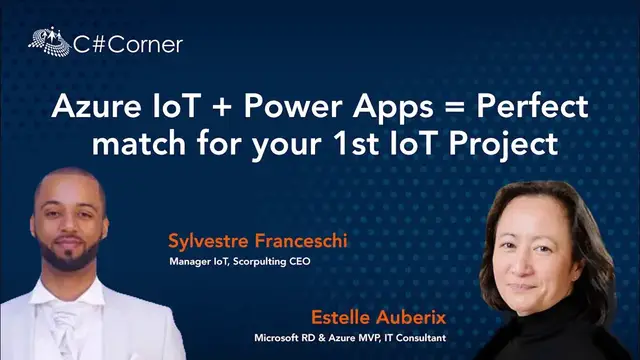
Azure IoT + Power Apps = Perfect match for your 1st IoT Project || Power Platform Virtual Conference
Nov 6, 2023


In this session, we are going to show how to create easily your first Internet of Things Project with no code.
The whole session will be supported by practical examples that you may find useful.
About Speakers:
Estelle Auberix
Experienced Chief Executive Officer with a demonstrated history of working in the Information Technology and services industry. Skilled in Cloud Computing, Edge Computing, IoT and Blockchain. Strong entrepreneurship professional with a DESE (Master in International Trade) from Conservatoire National des Arts et Métiers focused in Asian emerging markets.
Sylvestre Franceschi
Scorpulting - CEO
Passionné par le domaine des objets connectés et donc de la communication M2M mais surtout des APIs
Formateur IoT, Node.js, API management.
Spécialisé dans la réalisation de DataHub
Conference Website: https://www.2020twenty.net/power-platform-virtual-conference/
C# Corner - Community of Software and Data Developers
https://www.c-sharpcorner.com
#powerapps #powerplatform #virtualconference #csharpcorner
Show More Show Less View Video Transcript
0:00
Hello, so I'm Instalbriggs, Microsoft Regional Director and Azure MVP
0:08
I'm a cloud and architect solution and specialize in cloud, edge cloud, IoT, cybersecurity
0:17
and my hobby is robots and quantum computing. You can join me on the social networks through Twitter or linking otherwise
0:30
Hi everyone, I'm Silveth Franceschi and thank you very much Simon for the introduction
0:37
That was a beautiful video. So I'm an IoT and cloud consultant
0:40
I'm an expert about IoT and robot over EI
0:51
So the session agenda, we're going to make it quick because we had a lot of things to
0:59
talk about. So a quick introduction, then a presentation about Power Apps and Azure IoT
1:07
old services. What is really important, the connectors and gateway concept. Then a quick
1:15
presentation of an application and to finish the advantages and going further after this session
1:24
So to introduce, we have PowerHaps platform is part of the larger Microsoft Power Platform
1:38
So it includes Power BI, Power Automate and Power Virtual Agents. In this session, we are going to use only Power Apps
1:50
And all these applications can be connected with the data connectors, AI builder, or dataverse
2:02
The general architecture that we can see here is you can connect devices or data
2:10
through Azure IoT Hedge to Azure IoT Hubs plus DPS. Azure IoT Hubs and DPS can be replaced by Azure IoT Centres
2:24
which we will present you later in this presentation. To manipulate the data, we can stream them through Azure Stream ytics
2:36
or create some trigger with Azure Function, and we also can storage them directly in Azure Storage
2:45
or CosmoDB, and then that's right. And at the end, we can have the data
2:54
through business integration. For example, it's in Dynamics 365 or Microsoft 365
3:02
Either it can be in the web or mobile apps or API, and we can get the data directly in
3:12
the Power Platforms and Power BI apps. So the use case that we're going to study in this session is the Mikro Forfilement Center
3:24
This is, we're going to share our slides after the presentation. So you're going to have the links in order to access to this example
3:35
This is an example created by Microsoft, and you can directly deploy it in Azure IoT Central
3:45
So what is interesting is that with this example, we will have some sample of data through IoT connectors
3:54
and also IoT Edge architecture. And then we will have all the data
4:03
and visualize them in Azure IoT Central. And then we can connect IoT Central directly to Opera Apps
4:12
in order to get the data and to have more action depending on the value of the data
4:24
So PowerApps, how to begin with PowerApps? So you can have a three days PowerApps trial and there's a link in order to sign up for the PowerApps
4:38
After you will have to pay depending on your using. But you also can use the community plans
4:48
The limitation of the community plans is that you can deploy only one app per one app
4:54
But it's okay if you have to learn or if you use the apps only for you
5:03
So to plan your Power Apps project, you have to make several actions
5:09
So first, you have to plan it. How to plan it? It's by interrogating, asking to your business colleagues
5:19
or the final users in order to be really near of the user needs at the end
5:28
Then you will design your apps and make it through the tools
5:34
that Microsoft provide you in the Power Platform. you will be able to test your apps before deploying and refining it
5:45
So the building blocks for the PowerHapps are to make the PowerHapps directly in the web interface
5:58
which is powerhapps.microsoft.com. You can use also the PowerHapps Studio, which is a YZWiles tool
6:06
and you can with the Power Apps admin center, you will be able to manage all the rights, the rules and the security in your Power Apps
6:20
So what is really important with the Power Apps that you have three ways to deploy your Power Apps
6:29
not to deploy but three kind of power apps canvas power apps, model
6:36
driven power apps or a portal. How to choose between this kind of power apps
6:42
so if you are aware about the user experience it's you can use
6:52
the canvas apps because it's really dedicated for that if you have mainly
6:58
your data models you will use model-driven apps. And if you have to share your apps with external users
7:10
or on external websites, you will have to use portals in order not to have to pay too much license
7:22
for your final end users So what is really important with PowerApps is that you can generate directly mobile apps when you create a PowerApps And the mobile apps can be for Windows iOS and
7:44
Android device. And it allows you to use all the apps that you created. So you will have
7:52
to deploy your apps and to download only the Power Apps, the mobile Power Apps from Microsoft
8:00
and then you will access directly to your Power Apps. So just a quick demo, it's mainly some screenshots because we don't have very much time to
8:13
switch between the screen. When you connect to your Power Apps interface, you will have this kind of
8:23
screen. So, this is a home and you can choose which kind of Power Apps you want to create
8:32
It's in a Canvas app or a Model-driven app or from a portal app. But you can also use some
8:42
templates and there's few of them depending of your final needs. But if you have a lot of
8:53
differences between the templates provided by Microsoft, I really advise you to create your
9:05
apps from blank because sometimes when you have too many changes to do, it's
9:11
more difficult to use from a final app rather than from a blank app
9:22
So if you create a canvas app, because this is low code so you
9:29
don't have to be a developer, so just follow the steps. When you use the canvas
9:34
app you have to click on the canvas app from rank then create your name and
9:40
follow the other step. After you will have a YZWIL interface and you will
9:46
you will be able to choose each element that you want to put in your app and to
9:52
connect with your data. This is the object of the final demo. This is almost
10:00
Almost the same when you choose to create your mobile app, your model-driven app from Blank
10:09
the difference is that you're going to start from your data. So your mobile-driven app is going to be built from the structure of your data
10:21
So be sure that the structure is right for your data because your final app really depends on it
10:30
From the portal app, it's a little bit easier. It's pretty kind to create a website with the assistance of the tutorial of Microsoft
10:48
So, I'm going to let Silvest to speak about Azure IoT and to present all the concept about it
10:58
Thank you very much, Estelle. So how to begin with Azure IoT Central
11:02
We have to create another free account. You can create that about over the website Azure
11:11
And we can create a service IoT Central over Azure with a free plan for seven day trial
11:20
Or if you want, you can charge it with the late plan
11:25
with the right plane. So the Azure IoT technology, you can pass
11:36
Please, Estelle. Sorry. Thank you. Over Azure, we have five elements, big element, big family over Azure IoT
11:44
You have the Azure IoT Security Center for the IoT device, services, etc
11:51
You have IoT Central Application Template. to deploy full managed services about IoT with some services about IoT
12:03
Or you can manage Azure IoT solution like Azure IoT Central or Azure IoT services like Azure IoT Hub
12:12
It's a service over Azure. Or you can manage device and the edge on-premise with Azure
12:22
and with Azure device Edge solution. Yes. You can go to the next
12:33
Thank you, Estelle. So you have IoT Hub and IoT Central. We have two big elements on Azure
12:41
Azure IoT Hub is a path solution and Azure IoT Central is a SaaS solution
12:46
So you can have a full managed services with Azure IoT Central
12:54
And Azure IoT Hub, you can manage your device and your measure with the IoT Hub
13:07
We have some differences. So Azure IoT Hub requires the user to create
13:14
a repository to define a managed device message template. and you can provision your device with Azure IoT Hub
13:24
And Azure IoT Central is a solution to define and manage devices template centrally based on device T
13:32
I will show you on the next slide how to do that
13:39
Thank you Estelle. Azure IoT Central architecture as well as device created
13:46
Using the Azure IoT SDK, you can also connect Azure IoT Edge device to an IoT Central application
13:53
IoT Edge lets you run to cloud intelligence and custom logic directly on IoT device managed by IoT
14:00
Central. You can install a dead work cloud on the device, maintain IoT Edge security standard on the
14:06
device, ensure that IoT Edge modules are always running or not, report module else to the cloud for
14:15
remote monitoring, manage communication between downstream, live device and IoT Edge devices
14:25
I will make you a quick demo over Azure IoT Central. I share my screen
14:36
I'm going to stop sharing. Yes, thank you. Thank you. Do you see my screen? That's right
14:50
Okay When you start with Azure IoT Central you are on this enterprise which will let you do something like manage devices
15:05
You are already provisioned. Or manage some device groups, make some rules over the device
15:15
take some ytics and start with some job. And as I said before, you can create a template, a device template
15:25
For example, you can create a device template, a MIGSIP. It's a device, it's an IoT device that connects easily with Azure
15:35
and some services for IoT and Azure. And you can take some measures like accelerometer
15:45
the gyroscope, humidity, temperature, etc., and manage your interface to see something like that
15:57
You can see the temperature actually you have at Estelle Homme in France, in the south of France
16:06
So we have 26 degrees at Estelle. And we have that in Mojiti
16:18
And you can run some command to display some text on the device of Estelle
16:25
And you can see all raw data we have to get on the IoT central
16:58
Thank you. When you start with IoT
17:08
Yes, thank you. When you start with IoT Central, you have to get this interface so you can create an application
17:19
to manage your system with IoT device. You can make multiple applications to manage multiple systems
17:28
And you can manage every device by application. When you create your app, you have a dashboard
17:43
and you can create your first device's templates or start with a quick start demo or make some tutorials
17:52
or some documentation it's a it's a a platform you can manage easily even if you're didn't
18:02
you don't you are not a developer thank you and the other the other service you can manage is azure youtube
18:15
or Azure Util Central on Azure. Azure Util Hub is just a hub to get some messages
18:25
or device else time. As Microsoft lets you to create some simulator
18:41
like a mix-up simulator to connect with Azure Util Central or Azure Atrium, and you can switch on or switch off the LED on this interface
18:50
or take some pressure or temperature or humidity measure with this interface
18:56
In this interface, you can make some code into Python. Or, if you want, you can make some code into C language
19:09
so what is important when you can you you want to create a connection with your data
19:18
is to use the connectors and the gateway so at the beginning i told you that there's almost
19:24
300 connectors already available for the power of the power platform but what is really really
19:32
important it's to you you should use the gateway in order to connect your datas especially if your
19:39
data are stored in local in local so the connector are three connectors available you have two kind of
19:48
of connectors the standard ones which are for sharepoint outlook youtube and you have the
19:56
premium one which are uh was not free that's a sql server server monkey or mailchimp
20:05
and the connectors are shared in two classification the enterprise one and the
20:13
non-professional so what the difference between the two classification is enterprise data are considered to be for professional and non-professional
20:27
are really about individual data and which one are under the law in Europe
20:38
under the law on the LGPD so you also can create your constant connector if you
20:46
don't find the right connector in the in the 300 already available you can
20:52
create your own connector you have to be a developer if you want to create your
20:56
connectors and in order to create your custom connectors you have to connect your directly
21:04
the API to the app or the Power Apps or the Power Flow the Automator because Flow is the
21:14
whole name for Power Automator. Although you can connect your API directly to the
21:20
logic app. So the process to create your custom connectors is you build and secure your own API
21:31
generally with API management if you have all your data in Azure. You describe your API and
21:37
define the connector. You use your connector. You can share your connector. It's optional
21:43
if you are only if only your enterprise or your your entity is is is using the your the connector
21:55
you can share inside your entity but and if you want to share it outside your entity you have to
22:03
be certified by microsoft what is important to remember about the connector and that you can
22:11
you can use only one connector to connect three different databases from different owners
22:18
That is really simple. When you use a custom connector you can use it either with Power Apps Power Automate or Azure Logic App And you have three approaches to create your custom connector
22:38
You can create it from a blank custom connector. So it's from scratch
22:46
Or you can create it from an open API definition. either you can create your custom connector from a postman connection which is really practical
23:00
something it's really important that if the connector already exists you can't create your own connector in the the rules of microsoft you will have to uh to use
23:17
the already the existent connector instead your own connector so it's because this is the mindset
23:29
of the low code you have to go to the easy way and if the connector already exists this is not
23:36
the easy way to create a new one so the concept of the gateway is all your data are going to pass
23:46
through a gateway in order to be secureized, to secure your data and also to secure either your
23:54
app in the cloud. So this is a really secure gate for your data and that's really important
24:04
when you have some guarantee to give to your end client. So how can we create an app? This is a demo. So when in our example, we deployed the fulfillment
24:22
project from Microsoft which created directly an IoT Central app. And so this IoT Central app
24:32
is going to be visible in your Azure portal but only if you don't choose the
24:41
free option. Because when you create an IoT Central app you will have
24:49
several choices and the first one is the free choice that you can
24:58
test the app during seven days but as this is free, all the data and other apps are on the Microsoft
25:09
servers but not on your portal. So if you choose the first option which is the free option
25:19
don't be surprised if you can't see your IoT Central app directly in your portal
25:25
If you choose paid option, you will have directly your IoT central in your portal
25:34
So this is a demo fulfillment center that we can see directly in this one
25:40
And the logic app I created is not I created after in order to use it in the mobile app, in the power apps
25:52
So the fulfillment center is already deployed directly through a Microsoft deployment button
26:04
It looks like that. So you will have directly a dashboard with all data with some simulated devices
26:12
but you also can create your own devices. own devices. So in this example we instances a new devices like a mxship the ones that have got in this
26:25
So when you want to create a new devices you first have to create a template
26:34
So you just have to choose directly the template and to find if the template already
26:42
existed. So for the mxship it already exists, you just have to create a search or to check
26:50
all templates. What is important with this kind of templates is that they are all certified
26:57
by Microsoft. So when you choose your template you will be able to create your own devices
27:05
So we created three devices. One is the hardware one, which is MXships NIS
27:14
This is a real one. We also created the MXships Simulator template
27:23
which because in the IoT Central, Microsoft gave you the opportunity to create some twin devices
27:30
and to generate some fake data. it's really important if you want to use some machine learning for your
27:41
app or for your needs after. So when you created your devices then you can
27:56
connect it and so I deleted the primary key, secondary key for secure reasons but
28:07
you know when you click on the connect button you will have this kind of screen and you can see the
28:13
high disc up the name of your device and a primary key and second secondary key. Generally
28:22
we use the primary key in the app and if you have to share
28:28
a key of your device with outside contractors or with other people
28:37
from your team you can share the secondary key why don't you have to share
28:47
the primary key because if you want to change the key You won't have to change it in your code if you dedicate one key for your code and another key for the sharing
29:04
And if you have to stop to change, it's really easy to generate a new key and not to have to change your code instead
29:14
And for the MIGShip, this is the end of the parameters of the MIGShip
29:22
And you can see that for the IoT central settings, you have to report the device ID
29:29
the name of the ID, and the primary key that we just have to paste and to copy and paste your primary key
29:41
And then this is a picture of the IoT screen. And you can see there's a blue light
29:52
It's just behind the green light. So the green light is for the Wi-Fi
29:59
and say that the device is well connected to the Wi-Fi. And the blue light is the indicator that the device is well connected to Azure
30:15
So then when the device is connected to Azure, you will have all the data reporting directly in the IoT Central
30:24
and you will have the database directly in it. And so at the moment of the screenshot, I have 23 degrees Celsius
30:34
It's not Fahrenheit, it's Celsius, so it's warmer in the south of France
30:40
And that's how we get the data in the real time. So the thermostat is fake data
30:52
it's a simulated device generated directly by Microsoft in this app. But as you can see, it's some kind of like in Power BI
31:06
you can create your own dashboard, select your tiles, and get the data in the tiles what you want
31:21
it's pretty same it's the same system as in power bi when you create your your dashboard in power bi
31:31
so then this is uh okay um the in the in the iot central you can create some rules
31:40
and the rules are the action or the triggers that you you you're going to create and so you can
31:47
directly parameters your alert in IoT Central. So, and to connect it to the other Power Platform apps, at the bottom of the screen
32:07
you can see that you can connect your alert directly through an email, a webhook
32:14
Azure Monitor in order to monitor every data that you also can connect it to
32:21
Microsoft Power Automate or Microsoft Azure Logic App. I used to use the Azure Logic App because I'm confident in Azure and I'm more
32:38
a rookie in in the Power Platform that's why. So when you want to create directly with Power Automate
32:45
you will have to choose your connectors and then to fill the form directly and follow the steps
32:54
It's pretty easy like that and there's two connectors for Azure IoT Central this is a V2
33:04
and v3. The v3 is in preview but we use directly the v3, it's pretty stable, but you have to know
33:17
that if your PowerHubs account is not the same as your Azure account, you will have to do some
33:28
some action in your Active Directory and you will have to allow the multi-tenant
33:35
sign in your app because if you have only the single sign in your app your connector won work And so that when when you choose the Azure IoT Central v3 directly in the Power Automate
33:56
you can see that it's already connected to Microsoft 365. And in this example, it's with the Outlook
34:06
The last chance is when you create the Azure Logic App workflow
34:11
It's pretty the same like the Power Automate, but you have some different information to fill in the form
34:25
So this is a new connection. So in this screen, you can see the Azure Central V2 and the Azure Central V3
34:34
To be honest, I never use Azure Central V2. and I don't really realize the difference between the both versions
34:46
And at the end, this is a pretty simple application that I created
34:56
So this is a mobile app created from a canvas app for apps
35:03
And so this is pretty simple. I have the name of the device, a picture
35:10
So it will be the same picture for each kind of devices
35:17
And I get the data from the IoT Central interface. So I took the whole data of temperature, humidity, pressure, and gyroscope
35:32
and I put the both data for temperatures and pressure. So if in this app, it's pretty simple
35:42
Temperature and pressure are also a button. And if temperature or pressure appears in red color
35:51
that means that this is an alert. So I can push on the button
35:55
and I'm going to trigger some new action like sending an email in order to prevent that we have to check why the
36:06
temperature is not normal or is too high or not that's why. It's pretty simple but
36:12
you can you can create everything everything you want depending on of your
36:19
needs so silvest yes I'm going to let you to finish the session we discussed about
36:34
advantages and the grain closer so do you so it's going to visit a quick start over the power
36:46
platform and IoT central as you see you can manage IoT solution and application whisper up in a few
36:55
in public and you you can develop some some user interface and some business application and provide
37:05
professional developers customization tools to integrate into your product propriety sorry for example i'm i'm a developer if i have to manage to create a solution from scat i i won't
37:20
be able to go as fast as we see today, but you have some limitations. You cannot manage
37:29
at the perfection the solution and your use case But if you want to show something into your organization I think it a very good solution to provide a quick solution
37:51
So the PowerApp versus traditional dev, we have the same process, but the process is faster
38:04
And if you want to make some application, you have to design, develop, test and release
38:14
And agile development, you have to develop. And as we see, you can do the four steps at each iteration to have a final release
38:46
So we have some documentation of PowerApp. You can learn how to manage PowerApp with Microsoft documentation
39:03
You have a .com documentation. You have a MS Learn pass. You have a platform to learn everything over Microsoft
39:15
So with PowerApp 2. And you have a help solution with PowerResort.Microsoft.com 2
39:26
Yeah, I'm sorry to interrupt you, Sylvester. Yes, the app is because in the Power Platform, you can be connected to the community
39:41
And it's really helpful because you can ask. It's like a forum dedicated to Power Apps or Power Platforms
39:50
And you can share your apps, your problems. and generally there's always somebody
39:56
who's going to try to answer your question. That's why Microsoft created this kind of community edition
40:07
with Power Apps because it's a way to generate a lot of people in the community
40:14
and to have a lot of contributors around Power Apps. If you want to go further through Azure IoT, you will have the documentation
40:26
There's a specific documentation for IoT fundamentals with all modules of IoT
40:36
but there's also a specific documentation about IoT central. And just before this session, I just saw a tweet from Ranga Vadlamundi, which is a chief project of IoT and Microsoft
40:57
And there's some news about Azure Active Directory with IoT Central. and there's some kind of touchy problems about the sign-on with Azure IoT
41:17
Central especially if you use some connectors or if you have to connect
41:22
through external API so there also a learning path path dedicated to a to IoT so you we share the link for that and there a specific channel in China nine
41:40
specific to a Internet of things which called this is the Internet of things
41:46
show and it's pretty rich and there's a lot of examples, a lot of
41:54
of recs about how to use IoT infrastructure, IoT services in Azure and there's also a lot of tutorials but that's really
42:08
quick tutorial. Generally it lasts half an hour or one hour so if you have uh for for your between uh during your lunch time or if you have a little
42:21
time uh that's really quick to um to to hear or to to to watch if you want to become certified um
42:30
to uh currently there's two opportunities two really big opportunities so ignite was last week
42:37
so there's still the ignite cloud skill challenge which give you a 100 percent virtue so it's total
42:44
free or certification it's available to the end of this month so you have the link about that um
42:52
there's um some pretty limitation about uh ignite cloud skill challenge so be careful because you
43:00
you can do a several challenge but you will have only one virtual and generally the i think that
43:07
the virtual is going to uh to be related through the challenge you are you you um you finished so
43:18
uh if you finish so several uh i already did the three or four challenges but uh i will have i know
43:25
that I will have only one voucher and I don't know if I will have the choice of
43:31
of my exam that I want to pass or not because I think that the vouchers are going to be available
43:43
from April 7th something like that so it is some kind of to be aware of
43:55
But there's also a three days to learn challenge. You will have a half price voucher for any certification you want
44:04
And it's available till the end of June, of next June. And what is interesting is that the challenges are not the same
44:14
between the Ignite CloudSkill Challenge and the 30 days to learn it challenge
44:19
And in the 30 days to learn it challenge, there's two specific challenges related to this session
44:25
There's a Power Platform, App Maker, and the Azure IoT developers. I think, I don't remember very well, but I think it's something like about 25 or 30 hours courses for each challenge
44:42
so you will have a good opportunity to learn and to pass free exam or free certification
44:53
after your learning path if you want so because it's free don't miss this opportunity
45:00
but at the end of the question thank you for joining us
45:05
if you have any questions do not hesitate I'm still here to answer it