Up next in 10

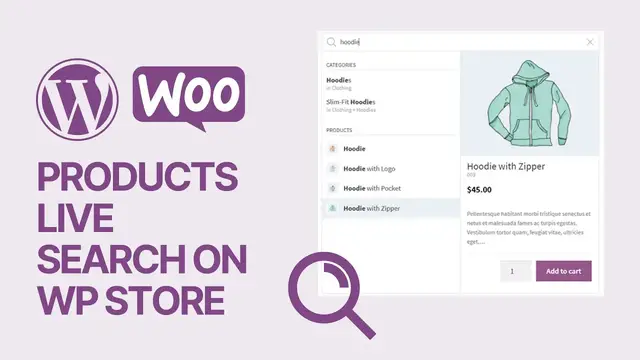
How To Add Products AJAX Live Search on WooCommerce WordPress Store For Free_ 🛒
Oct 29, 2023

In this video, you'll learn how to enhance your WooCommerce WordPress store by adding a dynamic and powerful AJAX Live Search feature for free. Explore the steps to implement this user-friendly search functionality, making it easier for your customers to find products on your e-commerce website. Whether you're a WooCommerce store owner, a web developer, or anyone looking to improve the shopping experience on your website, this tutorial provides the know-how to boost your store's search capabilities, ultimately leading to a more satisfied and engaged customer base. 🛒
Show More Show Less View Video Transcript
0:00
What's up guys, here's Claudio from VisualModel WordPress themes and in today's video you're
0:05
gonna learn how to create a live search for our WooCommerce products into our WordPress
0:11
website store, shop, eCommerce. So you know when you go to some big eCommerce and it has a big long search bar that you
0:21
start typing and it shows you some photos of some products. This is an Ajax live search
0:26
into this video you're gonna learn how to add one on your wordpress e-commerce store using
0:31
woocommerce for free in a simple fast and effective method but before i can continue please take a
0:37
moment to hit the subscribe button like this video and share this content with a friend of yours i
0:41
have no idea how much it helps because you bring daily videos about wordpress seo plugins
0:45
optimizations and many many many more topics in order to use internets on your site's favor so
0:51
after this done let's get this started very first thing to do it's make sure that you already have
0:56
your WooCommerce installed on your WordPress website and have some products on your shop
1:00
If you don't know how to do this, just go to YouTube and search for WooCommerce Visual
1:06
Moodle in order to learn from our guides. After this, let's go to our WordPress dashboard
1:14
From the dashboard, we're going to reveal the left sidebar of menus over our mouse over
1:18
plugins and click on add new. Into the upper right corner at the field next to keyword
1:24
we're gonna see a search plugins text on it type Fibo search okay Fibo search
1:31
Ajax search for WooCommerce as you can see it's a very well hated plugin and
1:36
you can install for free in my case the plugin is already installed and
1:40
activated okay so I have no needs to click but yours gonna have a install
1:45
button and an activate button and as soon as you do this you're gonna be into
1:49
into this page right here No needs to worry You can install for free You can use for free You have absolutely zero needs of pay anything in the case that you do not want Okay So as soon as you install the plugin going
2:03
to shows you this page, how to add. Okay. And you have five methods to add this search box into your
2:10
website. The very first one, it's on your navigation menu, this part of your site. Okay
2:16
the upper menu you can apply the search box right here in the case that you want you can apply as a
2:23
block using the Gutenberg block editor you can use this shortcode as long as you copy the shortcode
2:29
and place into any page it gonna shows you and as a widget or as php we're gonna explain how to use
2:35
a couple of those methods i would like to start using the widget the method number four how to do
2:42
this once again view the left sidebar of menus on your wordpress dashboard hold your mouse over
2:46
appearance and click on widgets okay this is gonna loads you the widgets menu okay i'm gonna be
2:56
searching for my e-commerce widgets okay so e-commerce independently of the team that you are
3:05
using it may have some tabs right here okay so search for the ones that then appears on your
3:09
shop in my case it's named WooCommerce because I'm using the visual model teams okay but on yours
3:15
the name may change so I'm gonna click into the plus button and search for five books search this
3:24
button right here so here is my search box let me update let's reveal the text and as you can see
3:33
there is a search bottom into the sidebar and if I start typing for example wine I
3:41
Can see a couple of products into the live search. This can increase your sales. This can optimize the
3:47
The view of your store So the traffic the amount of pages viewed per user the amount of products view it okay so it shows the categories the wines how to
3:58
apply this on your navigation menu okay so let's apply this into another section
4:03
of our site once again move your mouse over the appearance menu on the left
4:08
sidebar and click on menus okay as long as you do this go to this option right
4:16
here review this middle section add menu earrings and screw down to see this
4:21
option Fibon search bar click into this option add to menu and here is my Fibon
4:28
search box I can customize this in the case that I want okay so click on save
4:32
chains and if you click into the menu eating after saving the chains you have a
4:39
couple of options to play with let me just reload the page you need to reload
4:44
the page in order to see the options. So now you can see into our navigation menu, we have this search box, the same one from
5:00
our sidebar. We can apply this on our page using shortcode. So using Elementor, using Visual Composer, using WPBakery plugin, just using the widget
5:09
You have other options to apply using the block. Okay, so if you are, for example, into some page and you made this page using the WordPress native editor, okay, the Gutenberg
5:20
All we have to do is click into this plus button and search for FIBO search, okay
5:24
This is the box. We can customize this in the case that we want, okay
5:29
There is a couple of options to change. Some additions can be made into this search box
5:38
We can change the colors in the case that you prefer. There is a lot of options right here that you can play with But independent of the ones you choose it changes according to the site you have your needs This tool is going to help a lot for the potential consumers to find their products
5:56
And that is, I hope you guys enjoyed this video. Feel free to use the comment section below in the case that you have any question
6:03
Don't forget to check out the visualmoto.com portfolio of amazing WordPress team
6:07
our free WordPress plugin that you can install in order to gain pre-built-up sites
6:11
that you can import with a single click, widgets, elements, templates, tools to build up your
6:15
site using Elementor or Gutenberg. Moreover, in the case that you're in needs of an amazing free
6:20
WordPress team, just go to your WordPress dashboard, Appearance, Themes, Add New, search for
6:26
Aonzu WordPress team, click on Install and activate it. Oh, just a note, I did forget to show you
6:32
Let's go back to the Appearance menu so I can show you the options. Even into your navigation menu
6:37
You have options to play with. You can change the layout using the default
6:41
That is the one that I show into the video. The search bar, the search icon, the menu, the icon on mobile and search on desktop and the icon on desktop and search on mobile
6:52
Okay. So you can customize these icons into your mobile navigation as well and everything for free
7:00
Okay. And that is as a final notice in the case that are in needs of your site up and running faster
7:05
go to visualmoto.com purchase the visualmoto pass and unlock access to your full support in
7:11
order to get help doing your site access to your templates library that you can import with a
7:16
single click and make your site look like any of those websites premium blogs templates design
7:22
icon packs and many many more prof features in the case that you want to go premium and it is
7:28
i hope you guys enjoyed this video and i see you tomorrow all the best
#Shopping