Up next in 10


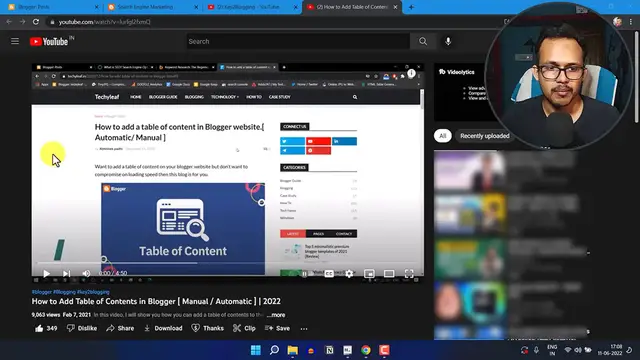
In this updated tutorial video, viewers will learn how to add an automatic table of contents in Blogger for the year 2023. The tutorial provides step-by-step guidance on incorporating a dynamic table of contents that automatically generates links to various sections within a blog post. Whether you're a blogger or managing a Blogger website, this video offers practical insights and clear instructions for implementing an automatic table of contents, enhancing the user experience and navigation on your platform. Stay up-to-date with the latest methods for improving your Blogger site with this 2023 updated tutorial.
Show More Show Less View Video Transcript
0:00
Hi everyone, welcome to Key2Blogging and in this video I will show you how you can add
0:04
an automatic table of content to your blogger website. So about a year ago I made a video on how to add table of content manually
0:12
Here you don't need to add any script to generate the table of content, but most of you demand
0:18
that how to add an automatic table of content to our blogger website
0:23
So let's check how you can do that. So first of all, I will add an automatic table of content like this
0:29
So when I click on the show all button, it will add the table of content like this and
0:35
you can easily jump to the section by clicking on this button
0:39
And here you don't need to add anything, it will generate the table of content automatically
0:45
So for this we need to go to our blogger dashboard and here we need to click on theme
0:51
Now here I will click on edit HTML, but before that take a backup of your theme and then
0:56
proceed to the next step. So let's click on edit HTML. Now I need to scroll down all the way to the bottom of my theme code and I will search
1:07
for closing body tag and I will paste a code just above the closing body tag
1:14
So I will just select the code from here and I will paste it just above the closing body
1:23
tag and this code will only load in the post page. So you don't need to worry much about your page speed and this is very lightweight script
1:34
So it will not hamper the page speed that much. So let me just save the code first
1:40
Now let's go back and I will let's click on post here and I will go to the search engine marketing
1:48
So I have already removed the table of content for this blog post
1:53
So to generate the table of content in this blog post, we need to add a small code in
1:58
the post section. So just copy this code and you need to paste the code in every blog post where you want
2:05
to add the table of content. So suppose I want to add the table of content just below the image or just below the fast heading
2:14
So what I can do is just go to the post editor and I will switch to the HTML view and then
2:20
I need to find where I want to add the table of content
2:24
So this is the image code. So I need to add the table of content just below the image
2:30
So I will add the code like this. Now it will automatically generate the table of content based on the headings present in
2:38
this blog post. So let me just refresh this page. Okay, now scroll down and here as you can see the table of content is added to our blog post
2:49
So when I click on show all it will show the table of content and I can easily jump to
2:53
the section by clicking on this table of content. So here one thing to note that if the table of content is not working, then you need to
3:01
change your post ID. So let me just show you how to get the post ID of the blog section
3:08
So I will just right click on it and I will click on inspect element
3:13
And here as you can see, this is the post ID post dash body
3:17
So in different themes, the post ID is different. So let me just open a different blog post here
3:25
So let me just open a different website. And this is the Fluttero Pro theme
3:32
So let's open a blog post here. And let me just inspect the page
3:38
And here as you can see, the post body ID is post capital body
3:43
So in case of Fluttero Pro or Median UI theme, the ID is post capital body
3:48
But in case of templatify themes, the post ID is post dash small body
3:55
So we need to change the post ID in this script so that it will only detect the heading in
4:01
the post body. So let me just scroll down. And as you can see the post body content, the element to the end of the blog post
4:10
So we need to change the post body ID in this script
4:13
So for this go to the theme and let's click on edit HTML
4:17
Now scroll down all the way to the bottom and search for query selector post body has
4:24
post body. So in case of Fluttero Pro, you have to use post capital body
4:29
And in case of templatify themes, you have to use post dash body
4:33
So make sure to change the ID according to your themes so that it will detect the headings
4:37
inside the blog post and it will not detect headings like related post section and popular
4:43
post like that. So it will only detect the heading within the blog post
4:47
I hope you got the idea how to generate an automatic table of content to your blogger website
4:53
And you can also further customize the table of contents. So let me just click on inspect here
5:01
And here I will select the whole table of content. And then I can change the background color of the table of contents
5:07
Let's change the background color to like I will delete it and I can add a different
5:15
type of background color here. As you can see, you can choose any of the background color you want
5:22
So let's add the background color here and you can also change the font color
5:28
So let's change the font color from here. Like this. So blog is looking good here
5:40
And you can also add a border in the table of content
5:46
Like 2px solid. So in this way, you can further customize your table of content according to the look
5:55
and feel of your website. So I hope you got the idea how to add table of content
6:02
And if you have any doubt regarding this, then you can ask me in the comment section
6:06
And if you don't want to add any script and generate the table of content manually, then
6:10
you can check the link in the description. And if you found this video helpful, then make sure to hit the like button and do subscribe
6:17
key to blogging. Thank you
#Blogging Resources & Services