Up next in 10


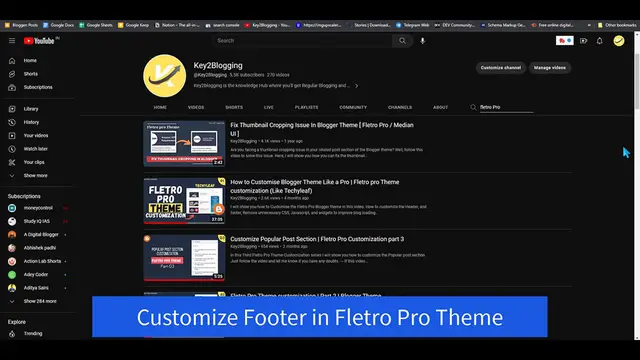
In this instructional video, viewers will dive into the process of customizing the footer in Blogger, specifically focusing on the Fletro Pro Theme. Released as part of a series in 2023, this tutorial provides a detailed walkthrough, guiding users through the steps to personalize and enhance the footer section of their Blogger websites. Whether you're a blogger aiming to give your site a unique look or someone interested in theme customization, this video offers practical insights and tips. Follow along with Part 4 of this series to gain valuable skills in tailoring the Fletro Pro Theme's footer to your preferences and requirements.
Show More Show Less View Video Transcript
0:00
Hi everyone, welcome to KeyTube blogging and in this video, I will show you how you can
0:03
customize your footer section in Flutter Pro theme. So this is going to be the fourth part of the Flutter Pro theme customization series
0:12
and I will be covering how you can customize your footer section in Flutter Pro theme
0:17
So as you can see, I have customized something like this. I've changed the background color here and I've added a description here and I've added
0:25
a verified tick mark here. So how you can do that in your theme as well
0:30
So let's start the video. So I have already made a video on how to add a verified tick mark in your footer section
0:38
So you can check this video how to add a verified tick mark in footer copyright section
0:43
So you can follow that video to add a verified tick mark in your blog or website
0:48
So all you have to do is just add SVG code in your footer section and change some CSS
0:54
settings to make it fit properly in the footer sections. So that is what I covered in that video
1:00
So let's start by changing the footer background color here. So if you want to change the footer background color in Flutter Pro theme, then all you have
1:09
to do is just go to the theme section here and click on the customize button
1:14
So you can easily change the background of your footer just by clicking on the advanced
1:18
button here. And under the advanced, you have to select the footer color and backgrounds here
1:25
So here you can change the footer text color. So if you want to change the footer text color from black to white, then you can do that
1:32
And you can also change the background color. So here we're going to change the background color here
1:38
So let's select a background color like this, this blue background. Now let's click on save here and let's check how it looks in the front end
1:48
So let me just refresh this page. And as you can see that the footer background color is changed
1:54
So you can also do the same background color like this. So let me just click on the color picker here and I will pick the color from here and I
2:03
will change the background color here. So let's click on here and I will click on plus icon and I will paste that hex code here
2:11
like this. Now let's click on save here. So as we have changed the background color, we need to change the text color as well because
2:19
the black color will not show here. So we need to change the text color to white
2:24
So what I can do is change the footer text color to white
2:29
So let me just click on here white. And what is this alternative text color
2:35
So this is the text color in the dark mode. So if you change the website to dark mode, then the text color is set to white in dark mode
2:44
And we can also change the text color in dark mode here in alternative text color
2:49
So I hope you have understand how to use these features in PlayDoh Pro theme
2:54
So alright, we have changed the color of the background and text color
2:58
Let's click on save here. Now let's go to the website and let me just refresh this page
3:06
And as you can see that the background color is changed. So we need to change little bit here
3:12
Like as you can see that the website name is not visible properly
3:17
So we need to fix the color of the website name. So you can easily fix this by going to the layout section here
3:24
So let me just go to the layout here and let me just scroll down and here in the about
3:30
section, let me just click on the pencil icon and there is this title website name
3:35
So I can add inline style here like style equal to and in double quote, I need to add
3:42
the color and I will add the color to white like this
3:49
And let's check if this settings is applied or not. So let's click on save here and let me just refresh this page
3:57
And as you can see that the website color is now changed to white
4:01
Now you can also adjust your link color here in the footer section
4:05
So if you want to change this color, then you can right click on here and click on inspect
4:09
here and here it is the anchor text in footer. So what I can do is I will target this credit inner class here
4:19
So I will copy here and I will click on plus and then I will add a anchor here
4:26
So let's target that anchor class in credit inner anchor tag in credit inner class
4:33
So I can change the color to something like white. Like this, as you can see that the color is changed and I can change the color to something
4:42
like this. So let's change the color to something like yellow that will look good in dark background
4:50
All right, now I need to copy this rule here and I will go to the blogger theme and I will
4:56
click on edit HTML and I will go to the CSS section of my theme
5:02
So you can find this B-Skin tag here and you can paste that CSS code just before it
5:10
All right, now let's click on save here and let's check if the color is changed or not
5:15
All right, let me just refresh this page and let me just scroll down and as you can see
5:22
that color is now changed and you can also adjust the icon color to white if you want
5:28
So let me just select this icon here. So the SBG icon alternative color is set to dark here, SBG.C1 and if you select this
5:39
here about link. So what I can do is I will copy this here about footer dot about link and I will click
5:50
on plus here and I will target the SBG here, SBG and I can change the color
5:58
So I will type like fill and I will fill like white like this
6:04
So here it will target this icon in the footer section. So let's copy the rule here
6:12
So let me just paste you paste it here so you can see this code properly
6:17
So this is the code that will change the SBG code in the about link section to white
6:25
So what I can do is I will copy this here and I will go to the theme again and I will
6:30
paste it here like this. Now let me just save here. All right, the code is saved
6:36
So let me just refresh this page, scroll down and as you can see that the icons also change
6:43
to white and all other icons is looking good. So it will not affect all other icons
6:51
So I hope you have understand how to change the color of this link and how you can change
6:56
the icon color and how you can change the website name. But there is one problem that the website name is showing at the bottom, but in desktop
7:04
it is showing at the first. So how can fix this issue
7:08
So to fix this issue, you need to go to your theme code editor here and you need to find
7:14
that footer section here. So here there will be a footer section here like this footer.creditInner footer.footerContent
7:23
So you can find this like creditInner class and you can find this code and here as you
7:29
can see that the footer front size is set to 12 pixels
7:32
So if you want to increase that you can change it to something like 14 pixels and if you
7:37
save this, the footer text color will be the footer text size will be increased
7:43
And to fix that issue and here you can see that the end child 1 the order is set to 1
7:50
So you need to match it like 1 to 1. So I can change the order from 3 to 1 and I will change the order from 1 to 2 and I
7:59
will change it to 3 and leave it 4, 4. So you need to keep the order like 1, 2, 3, 4
8:06
So it will keep the order as it is in mobile as well
8:11
So let me just click on save here. All right, let's go to the website and let me just refresh this page and as you can see
8:19
that let's open it in a mobile view and as you can see that the website name is now showing
8:24
at the top. That's because we have fixed that using that CSS code
8:29
So make sure to keep the order in 1, 2, 3, 4 and you can also change the font size as
8:34
well in footer or you can just select an individual element here and here you can
8:41
also add a font size if you want. Like let me just add a font size of 16 pixel like this and which you can see that the font
8:51
size is increased here as well and you can also add it through your layout section if
8:57
you want then just go to the layout here and here scroll down
9:02
Let's drag it to fourth wizard here. Let's click on about us here and let's find that description
9:09
Here it is p class about description so I can add inline style here like style equal
9:15
to and in double quote, I need to add the code like font size, font-size and in colon
9:25
I will change it to something like 16 pixel and I will close it with semicolon like this
9:31
style and let me just save here. Let's go to the website and let me just refresh this page and you can see that the size is
9:40
increased in the description. So in this way you can change the size of any element if you want
9:45
If you want to change the size of this about or block then you can also do that
9:51
So here the footer link anchor. So here let me just change the font size here
9:58
Let's change it to 16 pixel and as you can see that the font size is increased to 16
10:03
pixel as well. Now let's click on the SVG here and by default the footer link list SVG line is set to dark
10:13
So you can also change it to something like white and as you can see that the arrow mark
10:17
is back to white. So you can just click on this here and you can just copy the rule and just go to the
10:26
theme section here. So let me just save this fast because we have changed this layout
10:32
All right, let's go to theme here and let's click on edit HTML and here I can find that
10:38
section here. So I don't have to find add this code again
10:43
So I can just copy this top code here and I will type control plus F and find this code
10:50
and as you can see that here the stroke color is footer icon
10:55
So I can change this stroke color here. So let me just copy the stroke color from here, which is white
11:04
So you can add the hex code or you can add the value like white
11:09
So let me just paste it here. Hashtag FFFF like this. So let's save this code
11:16
So this is the footer section. So all the CSS code is contained here
11:21
So you can easily change any values in the footer section. So let's go back here and let me just refresh this page
11:31
And as you can see that the arrow mark is back to white. So this is how you can customize your footer section in Flutter Pro theme
11:39
So I hope you have got the idea how to edit the footer section
11:44
And if you have any more doubt, then you can ask me in the comment section and I will find
11:48
one more thing. So there is this top section here. So let me just click on this SVG here
11:56
This SVG also in dark. So we need to change this color
11:59
So let's change it to white as well. So I'll click on here and let's choose a white color here like this
12:10
As you can see that the icon is back to white and you can just copy this code or you can
12:15
find this code here. So let's click on edit here. So you need to use the inspect element a little bit if you want to make changes in the footer
12:29
section like this. So here you can see that the stroke color is set here
12:34
So let's change the stroke color to white here. So let's remove this and I will paste the hex code here like this
12:45
So the footer to top or the back to top button icon is changed to white
12:52
And by the way, if you found this video helpful, then make sure to hit the like button
12:56
And if you want me to make more videos like this, then consider subscribing to this channel
13:01
and I will see you in the next video. Bye bye
#Online Goodies
#Skins, Themes & Wallpapers