0:00
You set up your antenna on your Samsung
0:02
TV, but still get zero channels or a
0:04
weak signal. It can be frustrating when
0:06
nothing shows up even though everything
0:08
looks connected. The good news is this
0:09
is a common issue and in most cases it
0:11
comes down to set up or signal problems
0:13
that you can fix at home. In this video,
0:16
I will show you how to properly connect
0:18
your antenna, how to scan the right way,
0:20
and how to fix weak or missing channels
0:22
step-by-step. So, make sure you follow
0:24
everything in order. Let's start with
0:26
the connection because even a slightly
0:28
loose cable can mean zero channels. Turn
0:30
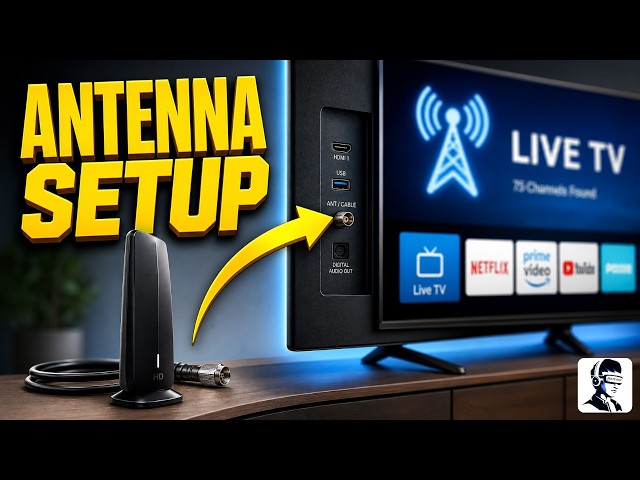
your TV around and look for the round
0:32
port labeled ant in, RF in, or cable or
0:36
antenna. Take the coax cable from your
0:37
antenna, push it into that port, and
0:40
twist it clockwise until it feels tight
0:42
and secure. Do not leave it loose. If
0:44
your antenna has a power adapter, plug
0:46
it into a wall outlet and make sure it
0:48
is turned on. Now, let's make sure your
0:50
TV is on the correct input because
0:52
scanning will not work if you are on
0:54
HDMI. Turn on your TV and press the
0:56
source button, then select TV. If you do
0:59
not see a source button, press the home
1:01
button, go to source, and choose TV from
1:03
the list. Double-check this before
1:05
moving on. Next, we will scan for
1:07
channels the right way. Press the home
1:09
button, go to settings, then open
1:11
broadcasting. Select auto program and
1:14
choose start. When asked for signal
1:15
type, select air, not cable, since you
1:18
are using an antenna. After that, the
1:20
scan will begin. Let it run all the way
1:22
to 100% and do not exit early because
1:25
the TV needs to complete the scan to
1:27
save your channels. When it finishes,
1:29
select close and check your results. If
1:31
nothing shows up, now let's fix that.
1:33
First, check the cable again and make
1:35
sure it is fully tightened. Then, move
1:38
your antenna because signal strength
1:39
depends heavily on placement. Place it
1:42
near a window, keep it away from thick
1:43
walls and metal objects, and avoid
1:45
placing it behind the TV. After moving
1:48
it, run the scan again. If only a few
1:50
channels appear, this usually means the
1:52
signal is weak. Try placing the antenna
1:55
higher because height can improve
1:56
reception. You can also rotate or
1:59
reposition it in a different direction.
2:01
Each time you adjust it, scan again and
2:03
check if more channels appear. Keep in
2:05
mind that the number of channels you get
2:07
depends on your location and signal
2:08
availability in your area. If channels
2:11
show up but look fuzzy or keep breaking,
2:13
this is also a signal issue. Move the
2:15
antenna closer to a window and away from
2:17
electronics or metal shelves. You can
2:19
also check signal strength by going to
2:21
settings, then support, then
2:23
self-diagnosis, and selecting signal
2:25
information. If the signal is weak,
2:27
reposition and scan again. If your
2:29
channels disappear after scanning or do
2:31
not save, go into settings and make sure
2:33
your TV is set to home mode and not
2:36
retail or demo mode, because those modes
2:38
can reset your channels automatically.
2:40
That's it for setting up your antenna
2:42
and getting free local channels the
2:44
right way. You've now covered the most
2:46
common causes, including connection
2:48
issues, wrong input, and signal
2:50
placement. If this video helped you,
2:52
give it a thumbs up and don't forget to
2:54
subscribe for more simple and helpful
2:56
tech guides. And if you want, tell me
2:58
how many channels you found in the
2:59
comments below. Thanks for watching, and
3:01
I'll see you in the next one.