0:00
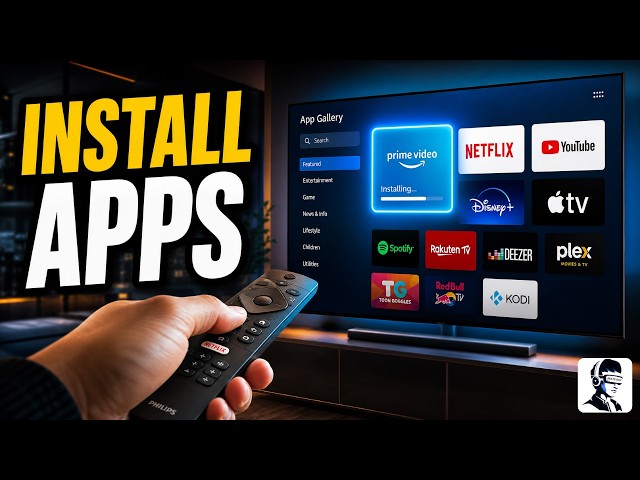
Installing apps on your Philips Smart TV
0:02
should be simple, but sometimes you
0:04
search for an app and can't find it
0:05
anywhere, or it just won't install. The
0:08
good news is, once you follow the
0:09
correct steps for your model, it becomes
0:11
very easy. In this video, I will show
0:14
you how to install apps on your Philips
0:15
Smart TV, whether you are using an
0:17
Android or Google TV model, or an older
0:20
Saffi model. I will also help you fix
0:22
common problems, so make sure you follow
0:24
each step in order. Let's start with
0:26
Philips Android or Google TV models,
0:28
because these give you the most
0:30
flexibility. First, make sure your TV is
0:32
connected to the internet, since apps
0:34
require an active connection to
0:35
download. Now, press the home button on
0:37
your remote to open the main screen.
0:39
When the home screen appears, move to
0:41
the app section. From there, open the
0:43
Google Play Store, which is the official
0:45
place to download apps and has the
0:46
colorful triangle icon. If you do not
0:49
see it, use the search option inside
0:51
apps or press and hold the Google
0:52
Assistant button on your remote and say
0:54
Play Store to open it. Once the Play
0:56
Store is open, use the search icon to
0:58
type the name of what you want. If you
1:00
prefer, you can browse categories like
1:02
apps or games and scroll through the
1:04
list. When you find what you are looking
1:06
for, select it and press install. Wait
1:08
for the download and installation to
1:10
complete. After it finishes, press the
1:12
home button again, go back to the app
1:14
section, and open it from there. Now, if
1:16
you are using a Philips Saffi or older
1:18
model, the process is a bit different.
1:21
These TVs use app gallery instead of the
1:23
Play Store, which means you are limited
1:25
to the apps available there. Press the
1:27
home or Smart TV button on your remote
1:29
to open the main screen. Then, scroll to
1:31
the app section and open app gallery.
1:33
Inside it, you can browse categories or
1:36
use the search option at the top. When
1:37
you find what you want, select it and
1:39
choose add or install. Wait for it to
1:42
complete and it will appear on your home
1:43
screen. If you do not see a specific app
1:46
inside app gallery, it means it is not
1:48
supported and cannot be installed on
1:50
that model. If you are using an Android
1:52
model and something is not available in
1:54
the Play Store, there is a manual method
1:56
called APK installation. This allows you
1:58
to install apps outside the store. Go to
2:01
settings, then device preferences, then
2:03
security and restrictions, and turn on
2:05
unknown sources. After that, download
2:08
the APK file on your computer and copy
2:10
it to a USB drive. Plug the USB into
2:13
your TV, open a file manager, find the
2:16
file, and select it to install. Now,
2:18
let's fix common problems. If the Play
2:20
Store is not showing, go back to the app
2:23
section or use voice search to open it.
2:25
If you cannot find what you are looking
2:27
for, it may not be supported on your
2:30
model, especially on Saphy TVs. If
2:32
something is not installing, check your
2:34
internet connection, wait a few minutes,
2:36
or restart your TV and try again. If it
2:39
installs but is not visible, go to the
2:41
app section and scroll through the full
2:43
list. For errors or compatibility
2:45
issues, update your TV software and try
2:47
again. That's it for this video on how
2:49
to install apps on your Philips Smart
2:51
TV. You now know exactly how to install
2:54
apps on both Android and Saphy models
2:56
and what to do if something doesn't
2:58
work. If you found this video helpful,
3:00
give it a thumbs up and don't forget to
3:02
subscribe for more simple and useful
3:04
tech guides. If you are not sure which
3:06
model you have or one of these steps
3:08
worked for you, let me know in the
3:09
comments below. Thanks for watching and
3:12
I'll see you in the next one.