0:00
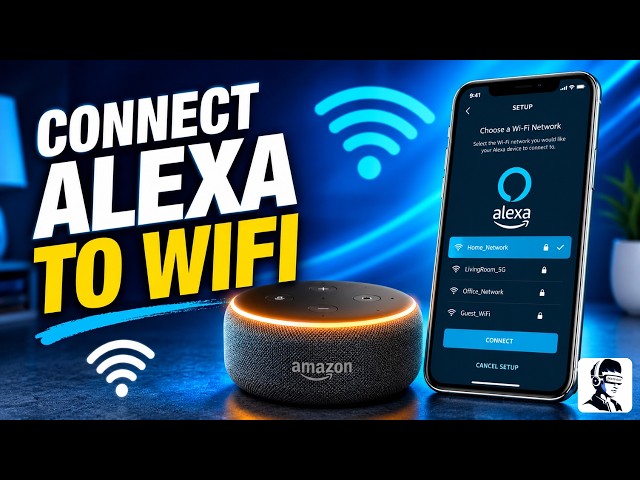
Setting up your Amazon Echo with Wi-Fi
0:02
is quick and simple, but if your Alexa
0:04
isn't responding or not connecting, it
0:06
can be really frustrating. The good news
0:08
is you can fix it in just a few minutes.
0:10
In this video, I'll show you exactly how
0:12
to connect your device step-by-step, so
0:14
it's online and ready to use without any
0:16
issues. Start by grabbing your
0:18
smartphone or tablet with the Amazon
0:19
Alexa app installed. Open the app and go
0:22
straight to the devices tab, because
0:24
this is where everything begins. Inside
0:26
the devices section, you'll see a list
0:28
of all your Alexa devices. Go ahead and
0:31
select your Echo device, whether it's in
0:33
your bedroom, kitchen, or living room.
0:35
If your device shows as offline, don't
0:37
worry. Just tap on it anyway, because
0:39
this is where most people fix the issue.
0:41
Now, here's the important part. You need
0:43
to put your Echo into setup mode. Press
0:45
and hold the action button on the device
0:47
until you see an orange light. That
0:49
orange light means your device is ready
0:51
to connect to Wi-Fi. Keep holding the
0:53
button until the app confirms setup mode
0:55
is active. Without this step, the
0:57
connection process will not work
0:59
properly. Once setup mode is active, tap
1:01
in the app. You'll now be asked to
1:03
choose your Wi-Fi network. Select your
1:05
home network from the list and carefully
1:07
enter your Wi-Fi password. Take your
1:09
time here, because even a small mistake
1:11
can stop the connection. This is one of
1:13
the most common issues people run into
1:15
during setup. After entering the
1:16
password, give it a moment. Your Echo
1:18
device is now trying to connect to your
1:20
Wi-Fi network. This can take up to a
1:22
minute, so don't worry if it's not
1:24
instant. Just let the process finish
1:26
without interrupting it. Once the device
1:28
connects, it's always a good idea to
1:30
confirm everything is working properly.
1:32
Just say, "Alexa, are you connected to
1:34
the internet?" and you should hear a
1:36
response confirming that it's online and
1:38
ready to go. This quick check makes sure
1:41
your setup is complete. If it still
1:42
doesn't connect, double-check your Wi-Fi
1:44
password and try putting the device back
1:46
into setup mode again, then repeat the
1:48
steps. In most cases, this solves the
1:51
problem right away. That's it. Your
1:53
Alexa device should now be connected and
1:55
working smoothly. If this video helped
1:57
you, make sure to like and subscribe to
1:58
the channel for more simple and helpful
2:00
tech guides. And let me know in the
2:02
comments if your device connected
2:04
instantly or if you had any trouble
2:06
during setup. Thanks for watching and
2:07
I'll see you in the next video.