Up next in 10



🖱 Buy the Scimitar RGB MMO Mouse here: https://amzn.to/3jOpwuy (Affiliate Link) 🖱
Chapters
00:00 Corsair Scimitar RGB Mouse Overview
03:00 Corsair Scimitar Mouse How to Assign Keys
07:45 Buttons Move??
09:55 Colour RGB lights!
11:04 Outro
MAKE Gold EASY? Check the links below!
😍 Patreon: https://www.patreon.com/ErosiumTV (*Guides Included!*)
💯JOIN: https://www.youtube.com/erosiumtv/join
🙏 Donate: https://streamelements.com/erosiumtv/tip
Social Media:
Discord: https://discord.gg/VuApYbz
Twitter: https://twitter.com/ErosiumTv
Instagram: https://www.instagram.com/erosium/
Info:
💻 Gold Making Website: https://erosiumtv.com/
🔴 STREAM: YOUTUBE! - Schedule: Mon and Fri - 8PM GMT (3PM EST)
Title:
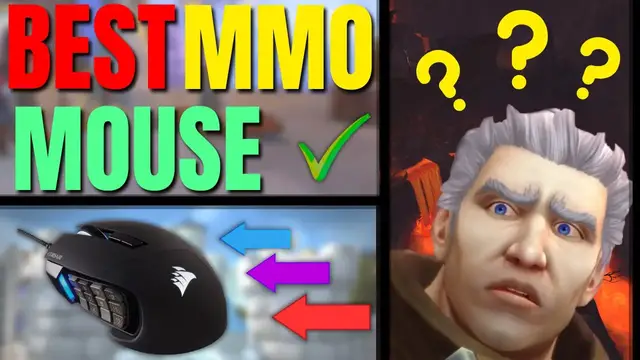
Best MMORPG Gaming Mouse | Corsair Scimitar Review
#mouse #mmorpg #gaming
Show More Show Less View Video Transcript
0:00
What's up gaming heroes and welcome back to another awesome video
0:05
Today's video is all about this mouse right here. The Shimitar RGB Elite
0:13
This is a Corsair mouse and I absolutely love it. So I just wanted to make this video because I did a kind of like a comparison video
0:22
of the top five gaming mice in the MMO industry that I consider to be like decent
0:28
Out of all those mice in that video, I found that this one in particular was the one that I loved the most
0:35
And there was specific reasons like, you know, the thumbpad buttons on the side were textured
0:42
The actual mouse seemed like, you know, your hand would sweat less whilst actually using it
0:48
Just a ton of different customizable things that really just drew my attention to it
0:52
And because it's not a sponsored video, I actually was giving a very honest opinion of this
0:58
I had loads of people say to me, Erosium, are you going to buy that mouse? And yes, my friends, I bought the mouse
1:04
I got myself a treat for Christmas. I thought, why not? Let's treat myself. So I bought it for Christmas
1:09
Now, this video is going to show you some of the really cool, unique features with this mouse
1:15
And I think it's just important to show you because my mind has been absolutely blown by some of these features
1:25
As a World of Warcraft player in particular, I have to use like over 30 to 40 keybinds in-game
1:35
There's so many buttons to press. And one hand, my left hand, can't always press the keyboard that many times
1:42
So having a mouse like this one connected up with 12 buttons on the side, this really, really, really opens up some unique opportunities for me in particular
1:58
So with that being said, when you get your mouse, you obviously have a mouse which has 12 buttons, right
2:06
It has 12 buttons. But we have a problem there, my friends
2:10
And the problem is button one on the mouse is the same as one on the keyboard
2:16
So that's the same for button two. Button two on the mouse is the same as button two on the keyboard
2:22
Same all the way up to number 12, okay? Now, obviously, you're saying to yourself, oh, there's no 12 on the keyboard
2:29
So after nine, it goes zero, which is actually 10. And then it goes the dash, which is actually 11
2:35
and then it goes equal sign, which is 12. That's the same on the mouse
2:39
So we don't want the same buttons for each, right? So to combat this the actual geniuses at Corsair came up with a software called IQ And basically the software allows you to reprogram and remap the buttons on the side of your mouse It so easy Even a sausage like me can do it By the way
3:03
if you want to get this mouse, there's a link in the description. It is an affiliate link, so
3:07
I will benefit if you click it, but I'm really just making this video to help you with that
3:12
software. So let's get into using iCube software. Really simple. When your mouse arrives
3:18
download the free software called iq the software itself should look something a little bit like
3:25
this once you've got this software go ahead and click where it says at the top here it says your
3:31
profiles click on your profiles and create yourself a profile in this instance i created myself a
3:37
profile called erosium mouse because it is erosium's mouse okay at that point very simply go ahead and
3:46
click edit profile. Okay, at that point, very simply just click your profile so you are actually
3:51
editing your profile. Then go to key assignments. This is where you're going to actually change the
3:57
assignments on the mouse itself. As you can see, these buttons are interactable so you can actually
4:02
change them yourself. The only button you can't change is the left click there because you
4:07
obviously need that to interact with your PC on a daily basis so you don't want to be reprogramming
4:12
the main left click everything else is reprogrammable so do bear that in mind so just for a brief example
4:19
i want to let you guys know my buttons as an example button one is actually a mixture of alt
4:28
and the button next next to one uh that in combination so in game when i press button one
4:36
on my mouse you can see it highlights uh one button which is actually two buttons in game but
4:43
for me it's only pressing one button so when it's in game it's pressing both alt and the button next
4:50
to one and then if i press number two on my mouse it's actually pressing alt one in game which is
4:57
very very cool and the way we do this is we actually come here we create 12 keystrokes so
5:03
You just press this plus button at the bottom right here. Let's just drag this program to the side a little bit
5:07
Okay, so if you want to add all 12 buttons, then you would go ahead and you would click add 12 assignments
5:13
At that point, you go down to the bottom, click on the number one, right? And then you would click keystroke
5:17
This will allow you to remap the keystroke. At that point, you then select the number one here for the actual mouse
5:23
But additionally, you can use these here, which is number one through to 12
5:28
It's the exact same thing as pressing one here. at that point you go ahead and you use the key bind that you want to use for my instance i went
5:34
for alt and the bus next to one and then if you look on keystroke two it is alt and one keystroke
5:40
three is alt and two etc etc etc the reason i haven i didn go for control one through to blah blah blah blah i shift through to blah blah blah blah I actually went for alt because I never use alt
5:54
Whereas in game, I use shift one through to five and I use control one through to five as well
6:01
So I didn't want to use those for my mouse as well. So this actually opens up a ridiculous amount of opportunities for you
6:07
So in this instance, as you can see, each of these buttons have various different tasks and things that they need to do
6:14
If we go through to button 10, you can actually see on button 10, we've got Alt and 9
6:19
So I actually need to click Alt and 9. Brilliant. It's now done. I don't need to click Save or anything like that
6:24
It's automatic. It's saved already. OK, so go ahead, close that. And everything's already sorted now for me
6:30
So when I'm in game and I'm actually wanting to press stuff, let's go to a target dummy real quick
6:35
OK, target dummy is here. So say I'm at this target dummy here and I want to press my wild mushroom to do some damage
6:42
I don't even need my keyboard hand. I can use my mouse hand here and I can just go, oh, and that is pressing two buttons at once
6:50
That's pressing alt and it's pressing dash. If I want to press alt one, I can literally do number two, number three, four, vortex, blah, blah, blah, all the way through to whatever it is I want
7:02
It's so fantastic in that regard that as a gamer in World of Warcraft, I have full control over everything I want to do in game
7:12
So say I want to have my mount on A5. I know that's like number six, right
7:17
So I can literally just come outside here and I can very simply jump onto my mount
7:22
There you go. Look at that. No messing about straight away. Sorted. Easy peasy
7:27
And because the clever way that they designed the Corsair Shimeter, all of the buttons have unique textures
7:34
So your thumb actually feels the difference in where it is. Not only that, I was pleasantly surprised and mind blown by this extra feature as well, which I'm just really passionate about
7:45
As I say, I've got nothing directly to gain. I'm not sponsored or anything. I'm just really blooming impressed
7:50
I'm trying to reach for this mini screwdriver that comes with a mouse. That is a mini screwdriver, my friends
7:56
mini screwdriver okay that my friends goes into the bottom of the mouse like so see the mouse
8:03
you see this button bar here let's make this a big screen for you guys to see so if i'm showing
8:08
you here you can see that this mouse currently has the buttons all the way here well if that
8:15
doesn't suit my hand size say for whatever reason i have an abnormally large hand then i want to
8:21
move these buttons all the way across right so we can actually do that with this really cool ability
8:28
so we very simply take this screwdriver we come to this mark here at the bottom of the mouse and we
8:35
would very quickly unscrew it you don need to completely unscrew it it very simple it very easy to use and that actually unlocks this so you can move this to a different location so you see you can push it forward and back forward and back forward and back and then you get it into the position that you like most and it stays that
8:51
so for me because uh my thumb i actually cut my thumb off once um my thumb doesn't have full
8:57
mobility i can't get it straight past that point you can actually see the cut of my thumb from where
9:02
I originally cut it off um but they I was able to like basically heal through it and get it all
9:08
sorted with the doctors uh so I don't have full like mobility in my thumb so as a result of that
9:13
this is really useful to me and I was absolutely like mind blown by how useful this feature is
9:19
so for me that's really useful I have it all the way at the back because I don't have full mobility
9:23
I need to have it all the way at the back so very simply I can just tighten that back up that's nice
9:28
type and this no longer moves you see no longer moves it's actually completely stationary and
9:34
everything works completely fine i could not believe that a company would go to such extreme
9:41
efforts to make sure that the customer was satisfied with exactly where the thumb was
9:46
that my friends is good business practice and i was very impressed with that in particular not
9:53
only that but when we go back to the software as you can see we can actually choose the colors
9:57
the design we want the colors to actually come out so say we go for the interstellar one your
10:03
mouse will actually start to change color for the interstellar you can go for rainbow liquid whatever
10:09
it is you want not only that but also you can actually check on all of the sensors of your pc
10:15
you can know how hot your processor is everything like that it's absolutely insane and i cannot
10:22
believe that we are so gifted with amazing technology like this i'm i'm happy to be alive
10:28
for technology like this my friends so as i say before i have bought myself a shimitar now guys
10:35
i was so impressed with it i had to buy one i just really wanted to hear what my viewers had to say
10:41
about it and you guys seem to really like it so i actually got myself one and i gave my logitech g
10:47
400 and something to my partner who now has a really nice gaming mouse as well and i've gone
10:52
with an mmo proper gaming mouse i'm really really happy about it's one of the best editions i've
10:57
actually added so now i've got a corsair k66 keyboard which i will probably replace with i
11:02
don't know probably another corsair we'll see uh we've got another article coming out about
11:06
keyboards soon so uh check out battle shout for that guys thanks so much for watching i really
11:11
really hope you like this video remember use my link for this mouse if you do want to buy it
11:15
No problem if not. I'm not fussed. I've got to say no money in the game, so to speak
11:19
I'm just chill. I really hope you like this video. If you did, smash the like button, click subscribe
11:23
Leave us a comment in the section below. And I'll see you in the next video. This is Erosium out
Computer Peripherals
Games