Up next in 10



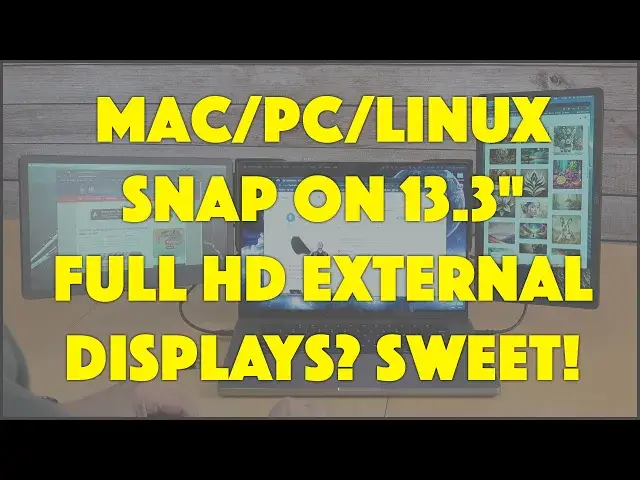
The XEBEC Snap system lets you pop on dual 13.3" HD external monitors to your Mac, Windows PC, Chromebook, even Linux system any time you need the additional screen real estate. It's an ingenious solution from XEBEC that's exceptionally flexible and a great way to have extra displays anywhere, from a hotel room to a conference room, airport VIP lounge to the corner seat at your favorite coffee shop. Tech expert and digital nomad Dave Taylor tests out the XEBEC SNAP system and finds it quite slick...
Check it out at: https://www.TheXebec.com/
Visit Dave's Q&A Web site at: https://www.AskDaveTaylor.com/
#xebec #xebecsnap #externalmonitor #secondscreen #hd #1080p #mac #pc #windows #chromebook #linux #askdavetaylor
Show More Show Less View Video Transcript
0:00
Can this device give you more screen real estate
0:02
Oh, heck yeah. Let's check it out. Dave Taylor here, and I want to talk about screen real estate
0:15
for a minute. Now, I have a 16-inch MacBook Pro, so I got a nice big screen
0:20
But I'm going to be candid. There are definitely times when I wish I had a second screen or even a third screen
0:27
And it would just be so nice to be able to have reference materials on the side
0:31
or to be watching a sporting event while I'm ostensibly working. So many different use cases where having multiple screens
0:39
would be useful. Now, companies are aware of this, and they've been creating these sort of slide-on extra screens
0:47
for laptops. But most of the ones I've seen kind of leave you a little bit wishing things were better
0:54
So they have a tendency to drag your screen back or to not stay where you want them to stay
1:00
or to have a lot of complicated cables. So enter this. This is the Zebex Snap external monitor setup
1:09
and it's really cool. Now, this is the main unit that just
1:14
snaps onto the back of your computer. And it works with computers that have
1:18
13-inch to 17-inch screens. So I can show you now. I'm going to just stretch it out
1:26
put it on the back of my computer, and then it fits, and it's nice and stable
1:32
And you can see my display immediately wanted to actually tilt backwards
1:37
because of the added weight. No surprise there. But there is actually, let's see, I think I have to do this
1:44
There we go. So there's actually a foot on the back. So I can do that and get that added stability
1:51
And then there are little flaps that the screens are going to attach to
1:56
I'll show you that in a second. But what's really cool is it has built-in cables
2:00
So you don't have to do anything special. It has USB-C cables
2:05
And because the MacBook Pro has a plug on each side, I can very easily do that and pull these
2:12
out of their little holders. Let's just get this one out properly
2:20
There we go. And you don't want the cables to be very long
2:24
because you don't want it to be messy. So now I am ostensibly ready to go
2:31
But you're saying, well, hmm, okay, that's all nice and stable, and it all looks good
2:37
Where are the screens? And the answer is the screens are separate
2:42
These are 13.3 inch full HD IPS LCD screens at 1920 by 1080, giving you 1080p resolution
2:52
which is an HD TV screen, basically. 60 hertz, 400 nits, so they're not super bright
2:58
but they're plenty bright enough for most environments. And here's what's great is you can use them
3:03
in landscape or portrait mode. And they have pass-through charging if you need to charge your computer
3:08
and you don't have extra ports like I do. But what makes these really cool is on the back
3:15
So you can see here there are little strips of connectors, and it's magnetic
3:21
So if I wanna put this on the side of my computer, you watching
3:26
It's done, it's connected, it's ready to go. And in fact, it's lighting up
3:31
because my computer automatically recognizes it and it's already configured and ready to go
3:36
Now, let's say I thought, hmm, for today, I'd actually like to use it in portrait mode
3:43
And so I can just switch to that. And unfortunately, the Mac doesn't automatically sense
3:47
it automatically rotate, but Macs, PCs, Linux machines, Chromebooks all have some sort of display settings
3:56
that let you rotate an image on a secondary monitor. So this one I now have, I actually had it oriented for this
4:03
So the menu bar is along the top of this. And now I can adjust it a little bit
4:09
so I can get it to be just the angle that I want. And you're thinking, well, it's pretty cool
4:14
Do you have two? And the answer is yes, I have two. So I could do one in this mode
4:23
So that's horizontal and this is vertical. And what I'm gonna do is in a second
4:27
I'm gonna spin around so you can see what's going on on my screen
4:31
But it's super important for you to see just how easy this is to work with
4:36
And it even comes with, if you choose to acquire it, a travel case and you can slip all three
4:41
of these pieces into there and that works great. Now, one more thing, I'm not gonna do an unboxing
4:47
because it's a box with a display screen in it, but they also have, let's see
4:53
I think this might be the wrong box, in the actual snap bracket box, in this one
5:00
there are USB-C to USB-A adapters. So you can use this on your computer
5:06
even if you don't have USB-C. And that makes it super flexible
5:11
Now, what I most appreciate about this is just how easy it is to work with
5:16
And I can take the screens off and just put them back in my travel bag
5:21
and I can just flip these back and just work with my computer like this
5:26
and don't even think about it, right? Because while they're plugged in
5:31
the operating system doesn't detect an actual monitor so it's not actually setting up a virtual display
5:37
So that happens once I actually put the monitor on. So let's spin these back out
5:44
And now, give me a second, I'll spin around and you can see the screens and how it all works
5:50
because it's pretty cool. Now you can see what it is with three screens
5:54
It is pretty glorious. And I've already oriented the screens properly, but if I go back to my home screen
6:02
and go into system settings and go into displays, you can see that it's laid out incorrectly
6:11
So let's actually arrange it so that this one is on the left
6:17
and the Mac lets you do all sorts of crazy things. So that looks good
6:23
So now let's see, if I move my cursor to the left, it goes onto this screen, you can see it there
6:29
And if I move it to the right, it goes onto that screen, you can see it there
6:32
So that's all good. And that's how you set it up. Now let's say I wanted to rotate this
6:38
so everything was the same orientation. So all I have to do is pop it off
6:42
and then if you look at the back, you can see the connectors support doing it either way
6:48
I'm gonna do it this way. And now it'll show up again
6:54
but it'll be in the wrong orientation. So now we're gonna go here
6:58
and I'm gonna just turn that to standard rotation. And now the menu bar's on the top
7:04
So now we're all good. That's exactly how I want it to work
7:08
And you can see this is pretty amazing. I could move this screen to the left and have it on here
7:16
I could move it all the way over to the right and have it on there
7:20
And this just gives you an enormous amount of real estate to work with, an enormous amount of screen
7:27
which then is gonna easily make you more productive. Now, they do have an on-screen management menu system
7:35
Not a huge fan of it, but it's pretty typical for this sort of product
7:39
And so here I can adjust the brightness. You can see it's getting just a little brighter
7:45
And then just let it time out and that menu will go away
7:48
It has a bunch of settings. Unfortunately, it doesn't seem to remember its settings
7:53
So I find that I have to adjust it again every time I hook it up
7:56
But that is a small price to pay to go from that much screen to this much screen
8:03
Now, I also wanted to show here those adapters, the USB-C to USB-A adapters
8:08
There's two of them so that you can use this with a variety of different types of computers
8:14
And when you're done working, all you have to do is pop it off
8:17
and on a Mac at least, all those windows, then just go back onto the main screen
8:25
And I can even just fold this back and fold this one back
8:31
And I'm back to work and all of this, I can just put back in the carrying bag
8:36
So it is super flexible and it is really, really great to have like this magic fold-out screen
8:44
but really a well-designed system. Now, let me jump back on camera
8:49
There's a lot to like about having this expansive real estate on your screen
8:54
And there's so much I can do as you just saw. You can just spread things out
8:58
and it really can make you much more efficient. And it's super easy to work with
9:03
The screens pop off, the bracket pops off, the whole thing goes into the little laptop travel case
9:10
and you're good to go. So I will say I would be tiny bit self-conscious
9:15
using this in a coffee shop, but for a home office, for a coworking setting
9:21
and yes, I suppose in a public space where you just say, I don't care what people think
9:26
I need this, this is gonna make me a more efficient person, then this is an absolute win
9:31
Now, I will be candid with you. They are a little spendy
9:35
So you need to prepare yourself. This is a fairly significant investment
9:41
especially if you want both screens. Now, you can buy the bracket in one screen
9:46
and then later decide you wanna get the second screen. That's totally fine
9:50
You could also skip the travel case if you're more budget-minded, but honestly, having a safe way to have it travel
9:57
is a smart idea. Now, let me also tell you, there's an aluminum construction, so it's not plasticky
10:04
It has a nice feel to it. This feels like something that's gonna work for me for a very long time
10:09
And let's see, so these screens are 12.4 by 7.4 by 3 tenths of an inch thick
10:16
and they're about a pound each. And then the bracket, obviously, with its expansion
10:20
it actually contracts down to being fairly small, 11 inches wide, 11.7 inches wide by 5.7 inches tall
10:29
and it's one and a half pounds. So in total, the bracket plus both displays
10:35
is three and a half pounds, which is probably not far off from the weight
10:40
of your laptop. That's why you need that little bracket at the bottom
10:44
to stabilize things. It is an important piece. And that's pretty much what I got
10:50
This is definitely a great solution if you wanna have more screen real estate
10:55
Definitely one to check out. Now, we should talk about the price, but before we get to the price
11:00
I'm gonna invite you to subscribe to my channel. Go ahead and click on that subscribe button
11:05
Don't forget to click on the bell icon for notifications as I put new content up
11:10
And I always appreciate a thumbs up if you thought this was of value
11:14
Hopefully you did. So this is the Zebex Snap external monitor setup
11:18
If you wanna get one bracket and the display just on one side, then that is the Snap Dual Screen
11:26
and it is $549. If you really wanna get both screens, and you probably should
11:32
because it's pretty spectacular. If you wanna get that, that's known as the Snap Tri-Screen
11:37
and it's $999. Now, that sounds pretty spendy, because it is, but these screens are as good a quality, in my opinion
11:47
as most laptop screens. And then finally, if you like this travel bag
11:52
and I think it's a must invest if you're spending this much money on these monitors
11:56
you wanna have a way to safely carry them, this is the Zebex Travel Case, and it's $79
12:03
And all of this you can learn more at thezebex.com. And it is pretty darn cool
12:10
I think that I have had a significant jump in productivity by being able to spread my workout
12:16
across these multiple screens. So I'm a big fan. That's all I got
12:21
I'm going back to work. So I'll have to catch you in my next video. Bye. Bye. Bye. Bye. Bye. Bye. Bye. Bye. Bye. Bye. Bye. Bye. Bye. Bye. Bye. Bye. Bye. Bye. Bye. Bye. Bye. Bye. Bye. Bye. Bye. Bye
#Computer Hardware
#Laptops & Notebooks
#Consumer Electronics
#Home Improvement
#Travel
#Virtual Reality Devices