Up next in 10



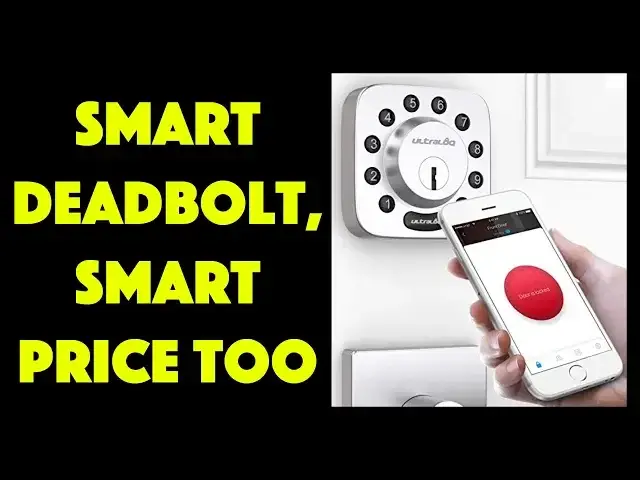
If you're still carrying keys around to unlock your door, it's time to catch up with the 21st Century! Install something like the Ultraloq U-Bolt Smart Deadbolt and you'll be amazed at just how powerful and flexible home and office security suddenly becomes. The installation takes some time, but it's pretty easy. And once you're done, you can unlock your door from 500mi away, give different friends different codes, even set up temporary codes that only work on Wednesday mornings for your housekeeper!
Tech expert Dave Taylor of https://www.AskDaveTaylor.com/ installed an Ultraloq U-Bolt Smart Deadbolt on one of his doors and details the installation process and demonstrates how the lock works both. It's a nice addition to the house!
Check it on Amazon: https://amzn.to/2HeLrVQ
Show More Show Less View Video Transcript
0:00
Should this be your next deadbolt? Let's have a close look
0:04
Dave Taylor here and I'm in my garage. I'm installing, well, I've already installed this
0:17
This is really cool. This is the Ultralock U-Bolt Smart Deadbolt. And it's basically a smart Bluetooth deadbolt
0:25
But, with the addition of their little tiny bridge, it gives you full internet capabilities
0:31
So, it actually offers, let me, actually I have sample stuff, right
0:35
So here's the bridge. You just plug it in. Needs to be probably within 5 or 10 feet of the deadbolt itself
0:42
And then you give it your Wi-Fi password once in the setup. And you're good to go. And from the app, anywhere in the world
0:49
you can get notifications, you can check the log of the lock
0:53
you can add users, you can lock or unlock the deadbolt itself
0:57
All anywhere on the internet. Very cool. So, I'm going to put this down because I want to talk about the lock itself
1:04
So, it gives you 5 different ways for you to get in
1:08
Now, obviously you can just punch in a code. So, I do that. Now I've locked it
1:14
So, one push locks it. Then I can push. Oh, that code didn't work
1:22
In the log file, it'll show me that. So, I can push on the bottom
1:27
And I guess I have to wait until it goes to sleep and then it'll wake up. But while we're waiting, it also works with a key
1:33
So, if you have, for whatever reason, the battery dies or something
1:37
you can just use the key to unlock or lock it. So, that's super easy. And that's a good emergency fail-safe
1:44
Just in case things don't work. But of course, the real win is the app itself
1:49
So, let's go into the app. And from the app, I'm going to go ahead and I'm going to actually..
1:56
Right now, it is... Let's double check. It's locked. Right? So, sure enough, in the app, it shows the door is locked
2:04
So, what I'm going to do is let me actually go ahead and record this sequence so you can see it
2:08
And then, here we are. The door is locked. I'm going to push the button in the app
2:15
And now the door is unlocked. How easy is that? Right? And a notification showed up
2:21
Now, while the door is unlocked, it says door is opened, I'm going to go ahead and push the button again
2:28
And now it's locked again. So, I really like that. But, turns out, UTECH has one more trick up their sleeve
2:35
because they have something they call Shake to Open. So, let's try that
2:43
And... Oh, actually, I think... Yeah, it's locked. So, unfortunately, Shake to Open is a little bit flaky
2:50
But the idea is that if I just shake my phone a little bit, then it sends the signal to the lock
2:56
and the lock should be actually unlocking right now. That one's a little inconsistent
3:01
They're, I guess, probably working on that in the app. And there's also... They have stuff to do with auto-locking and auto-unlocking
3:08
So, you can do that with what's called geo-fencing. So, I can have my phone..
3:12
When my phone... When I get near my house, it could automatically unlock
3:16
Now, I'm not a huge fan of that because if someone lifts my phone, I don't want them to be able to so easily be able to..
3:22
Literally, it's magic, right? They walk up to my door, and it's unlocked
3:26
What a handy feature. Now, obviously, if I have the app, the app doesn't have its own code for you to get in
3:32
So, it's still pretty easy for them to do that. And it even works with Alexa or Google Assistant
3:37
But, the way that works is it only actually will unlock... Um... Actually, wait
3:43
No, it'll only lock. It won't unlock. And the reason for that is they don't want someone yelling through your window saying
3:48
Alexa, unlock garage door, and have that happen. So, they've thought that through
3:54
To me, that actually makes a lot of sense. Even with voice print, you really don't want to have that
3:59
But, really, it's the app that's cool. And I like that, like, my kids can just come up to it, and it's locked. So..
4:08
They can type in a whole bunch of code, right? And the code... This is another really neat feature
4:15
They have what they call the anti-peek keypad. So, somewhere in all those digits was the code that I had set for someone
4:24
So, if someone's watching you, or you're worried that someone's watching you
4:28
you can embed your opening code with random digits before and after
4:33
And it understands, and it will work. But then someone comes up, and they're like
4:37
holy cow, that's like 17 digits. I didn't get all of that
4:41
So, super easy way. Your kids can have a lot of fun with it. Although, obviously, if someone's really good at capturing every single character
4:48
or every single number you push, they can still do it, because they can just duplicate that longer sequence
4:53
So, you know, it's good security, but it's not fantastic security. So, what I want to do is I want to switch
5:00
and show you in a photo montage that I narrate, how the install went
5:05
Because the install actually went pretty easily. And I replaced another smart deadbolt with this one
5:10
So, let's jump to that, and I'll come back. When you open the box, here's everything that's inside
5:15
You can see, it's self-contained, including the screws, including your deadbolt, batteries
5:21
It even comes with a little screwdriver you can use. So, that's step one
5:26
But then you have to pull your old lock out. This is what I had in before
5:30
It was a Kwikset, and it's a very nice lock, very attractive. You can see they saved a few bucks on buttons
5:36
by having half the number of buttons you would normally expect. But, we're going to take all that out
5:41
and we're going to replace it with the new one. First, and perhaps one of the most important steps
5:47
is you need to measure the thickness of your door. That's going to prove really important
5:52
because the small metal piece that comes out of the lock tumbler
5:57
is going to need to be trimmed, depending on how thick your door is
6:02
So, here you can see, this is the center of the hole where the deadbolt will be
6:08
And, I've already put in the actual bolt that moves back and forth
6:12
And, you see the plus sign in the middle? If you use a screwdriver and put it in, and turn it
6:17
you'll find that that actually controls the lock or unlock mechanism. So, that's actually what the little slider metal piece is going to go through
6:26
So, you put this on the other side, and one of the things that sticks out of the back
6:30
is that metal tongue that will go through that plus symbol. So, let's have a look at that
6:35
You can see, now, I'm looking through the back, and the piece that's sticking out has those marks on it
6:41
You're going to cut that to match the thickness of your door
6:45
based on the instructions. Pay really close attention, because if you cut it too short, you might be out of luck
6:51
So, take your time, as with everything, measure twice, cut once. And, then notice the black wire on the bottom
6:58
That wire actually is how the combo lock on the front of your door
7:03
will interface with the smarts of the unit on the back of the door
7:07
and actually access power through the battery. On the back of the door, you'll actually get everything all tightened up
7:14
with these couple of screws, and you can see, again, they've made it super easy
7:18
They label up, and all the different things, so you're never oriented incorrectly
7:23
Notice this one fits in a little bit, rather than having it stick out
7:27
If you're not sure when you're building it, make sure you have it go that way
7:31
and again, you can see I've fed that wire, and it's still sticking out
7:36
That's super important. And, now you can see why. Because this is the back of the actual unit itself
7:44
and I've already plugged in that little plug, off that black wire
7:48
So, now the front, with the combination buttons, and the back, that has the battery, and all the smarts
7:56
they are now connected. So, we're getting there. In fact, the next step is to simply put that wire
8:03
you sort of feed it into the middle of the hole on the door
8:07
it actually works out pretty easily, you just feed it through slowly, and then you go ahead, and there's two screws
8:14
right behind that lowest of the four battery spots, and you put those two screws, you tighten them up
8:20
and basically, it's done at this point. You've basically done all the work
8:25
so it's really not that bad. So, we'll go ahead and put batteries in
8:29
and you can see the deadbolt itself is extended, and this is basically ready to go
8:35
The next step is to simply go into the app, and in the UTech app
8:40
I'm going to go ahead and add device U-Bolt, or U-Bolt Pro
8:45
and you can see it says, turn on your phone's Bluetooth, don't be too far from your lock
8:51
and then tap scan. Your lock shows up, hopefully, and if it doesn't show up
8:58
then double check that you have good batteries, and that you plugged everything in correctly
9:02
It's really, once you got it all set up, it's crazy easy to work with
9:06
but, okay, so we have this, and it's connected, so we're going to go ahead
9:11
and now here's a little insider tip for you, is don't take a picture of your lock at this point
9:18
I had a lot of problems getting it to pair initially, and I finally deleted it
9:23
and went and did the whole process again, and didn't take a picture
9:27
as recommended by the company, and then it worked super easy. So, you give it a name
9:33
and you're good to go. Done. Boom. I have an app, it's paired to my lock
9:38
and I can control it all as exactly I would like, and now I can set all my new codes
9:44
So, pretty straightforward. So I already mentioned voice control. Again, I want to say Google Assistant or Alexa
9:50
it works with. You have to hook up their skill in addition, but if you think about it
9:55
voice control of a lock, you want to really be thoughtful about
9:59
what features are enabled, so, you know, it's a fairly low amount of functionality
10:04
and to me probably the most valuable is that you can ask what the status is of a lock, right
10:10
But, hey, you have your app, so it's easy enough. You can auto-lock or auto-unlock on a time schedule
10:16
and I like that. So I can say that, you know, every night at midnight, lock the door, right
10:22
And you can have it auto-unlock at a time. Maybe, you know, you have some kids coming over
10:27
because you're running a daycare or something, automatically at 8.30 a.m. the door unlocks
10:32
something like that. Or you can do it with geofencing, as I said, so that as I take my phone away from my house
10:39
it locks, and as I bring it closer, it unlocks. Not a huge fan, but that's okay
10:45
It lets you assign as many accounts as you want, and you can set up accounts with custom codes
10:52
and that's really important because there's a lot of deadbolts on the market now that use really smart algorithms
10:57
but they don't let you pick your own code. One of the ones I like is I like to use
11:02
the last six digits of someone's phone number, right? So then if I tell someone
11:07
hey, I've given you a lock code, then they don't ever have to worry about remembering it
11:12
or I can do their full cell phone number or something, and they just boop, boop, boop, punch it in, and they're good to go. Easy
11:17
You can then constrain that. You can say they can only come in certain days of the week
11:23
They can only come in certain times of day. They can only come in 10 times
11:28
They can only unlock the door 10 times, and then their code goes away, or you can even set an expiration
11:33
and you can say, you know, you can come and work. While you're working on my house
11:38
you can use this door code. So for example, maybe a handyman or something
11:42
and automatically in two weeks, it's going to go away. So you don't even have to remember
11:47
to delete their code or something. So I really like all of that. So let me show you a couple more quick screen captures
11:53
from the app. So the first one is, this is just notifications right on my lock screen
11:58
So I really, really like that, because that means that if I'm at a meeting
12:03
or I'm across the country, or I'm just down the street, I can see, oh, someone just unlocked it
12:08
or someone locked my door, or whatever it is, and if you give different people different codes
12:12
you can figure out who's doing it. That's pretty nice. Not sure what happened
12:16
Maybe at midnight, you wanted to double check who came in. So here's a log of events
12:21
and this is in the app, and you can see even a failed attempt to get in was logged
12:26
So if you're seeing a lot of those, might be time to get a camera to figure out what's happening
12:31
Super easy. The whole thing's easy to work with, though I will say that it was a little tricky
12:37
to get it all set up. Mostly, it was this bridge that was hard
12:41
I tried this in a variety of different outlets, near this door
12:45
to try to figure out which one would actually work best, because you want to have it close enough to the door
12:51
that it has a good connection to the door, and close enough to your router
12:55
that it can get on the internet reliably. So the app does help you with that
12:59
but I did have a little bit of going back and forth before I got it to work
13:03
Now, it operates off of batteries. They're on the other side. I'm not going to open it and show you
13:09
because I can show you a photograph. So here's a photograph, and you can see four AA batteries
13:14
That gives you 8,000 unlocks. And the company says that's about a year
13:19
depending on what door and how often you lock it. So this is my door between the garage and my house
13:26
and you might think, why would you put a deadbolt there? And the answer is, well
13:30
what if I forget to close the garage door one day, and it's open all night
13:34
I don't want someone just strolling on into my house. So I want a deadbolt
13:39
and having a smart one just means that if someone's coming through here
13:43
or my kids are, or whatever, then they can use this, and it's super easy to work with
13:47
Now, if you do this on a full exterior install, it can handle temperatures from minus 22 to 149 degrees Fahrenheit
13:56
So even if it's sitting in direct sunlight, it's going to be totally good
14:00
and on those super cold days, it'll work just fine. If you're getting below minus 22 Fahrenheit
14:05
well, I feel bad for you. I suspect it'll work fine. Might need to warm up a little bit
14:11
But that's probably true of any lock, or any deadbolt you'd be working with
14:15
So that's all I got. It's pretty straightforward. I'm a fan of this
14:19
I think that they've done a nice job with this. The price point on this is really good
14:23
We'll get to that in just a second. And before we get there, I want to ask if you can subscribe to my channel
14:29
So I have lots and lots and lots of devices, and you can stay up to date
14:33
So just click that subscribe button. Super easy. Okay, now, the Ultralock, this guy
14:39
the Ultralock U-bolt Smart Deadbolt is $178 on Amazon.com. If you don't want the bridge
14:48
and you really don't care about internet access, or really doing much with the app
14:52
unless your phone's really close, you can save a few bucks, and that then becomes $149
14:58
I would, however, recommend you get this, because it really makes it very cool
15:02
and I really love that I can be far away from the house
15:06
and someone calls and says, can you help me get into your house? I need to do something
15:10
or my kids, whatever, have forgotten their code. I can just punch in on my app
15:14
and boom, it's unlocked. How easy is that? So, check it out
15:19
If you've never had a Smart Deadbolt, it's a whole other world. It's so much more convenient than carrying a key
15:24
I mean, that's so old school. They did that like in the 1500s, they had keys
15:28
Well, 1800s, I don't know. Whenever they had keys, it's a long time ago, right
15:32
So, that's all I got, and I will hope to catch you in my next video. ♪♪��
#Home Improvement
#Locks & Locksmiths
#Home Alarm & Security Systems