Up next in 10



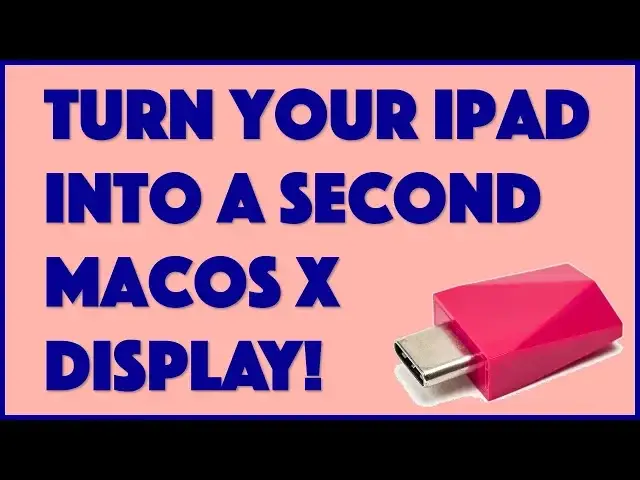
Ever wonder why you have so many screens that don't work seamlessly together? How about that lovely iPad screen sitting just a few inches from your Mac? With the slick little Luna Display, you can easily use your iPad as a wireless second display for your MacOS X device. And it works surprisingly well!
Tech expert and long-time Mac fan Dave Taylor of https://www.AskDaveTaylor.com/ tested out the Luna Display with his Mac Mini and MacBook Pro and found it worked great in almost every situation. Except for one...
Check the Luna Display out at https://www.LunaDisplay.com/
Show More Show Less View Video Transcript
0:00
Can this tiny device turn your iPad into a second screen for your Mac
0:04
Let's find out. Dave Taylor here, and I have to admit, I have long since drunk the Apple Kool-Aid, as we say
0:18
I have a MacBook Pro, I have multiple iPads, I have an iPhone, I got an Apple Watch
0:23
If Apple made sneakers, I'd have them on my feet, probably. But here's the thing
0:28
Everything tends to work autonomously. So I can't just like put my iPad near or plug it into my MacBook and have it work as a second display
0:38
Wouldn't that be nice? That, in fact, is exactly what this does
0:42
This little tiny device is the Luna display and it turns an iPad into a second display for a Mac OS system
0:51
What a great idea. Now, comes with two different interface. This is the USBC version
0:57
but if you have a different generation of Mac, you might need the mini display port version
1:02
They basically function the same and they look pretty darn similar. Simple enough, it does require apps on both the Mac and the iPad, but they're free once you paid for the hardware
1:13
And you'll need MacOS 10.11 or recent or more recent. And then on the iPad, you'll need iOS 9.1 or more recent
1:23
Now, those are both pretty ancient versions of the systems. so I'm sure you're good to go
1:28
And here's what's interesting is it all works via the accessibility features on the Mac
1:33
And it literally becomes a second display. So let me just stop talking and show you how it works
1:39
So here's what we're going to do is I'm going to open up my iPad and we're going to launch the Luna Display app
1:48
And of course now it just sitting and waiting for a connection So I going to open up my Mac Let see if I can maybe get this angled well for you And I going to open up my Mac and I going to plug this into the side
2:02
And it basically auto recognizes. It launches the necessary software. Both devices need to be on the same Wi-Fi network
2:10
But you see that's a second display now. How cool is that
2:15
Let me just double check. Right. And you can see that what I'm showing on there
2:19
is actually my messages app. So it's a little tricky because I have to figure out how to control it
2:28
but I can, for example, let's see, click and drag. And so I can have it take up a little more screen real estate
2:37
And that's a pretty cool feature. Now, it works pretty darn fast
2:42
It's not as fast as literally plugging in a second display. It can't support streaming video
2:48
That was my first thought was like, this is awesome, because I can watch soccer matches while I'm working
2:54
And that's not really exactly what it's designed for. In a situation like that, it's better to have the streaming app directly on the iPad and just use that rather than try to have it be a second screen for your computer
3:06
Now, I will say that because of the way it works through accessibility, the Luna Display software on the Mac actually pops up and gives you arrangement and resolution alternatives
3:17
and that's nice. Now, let's see. Let me show you a couple more quick screenshots
3:24
Here's how the accessibility features tap into this. So the app has some accessibility that you have to set up
3:31
And in system preferences, you also have to set up accessibility for the Luna Display app
3:37
So once you get all that working, as you just saw, it's super like crazy, easy to work with
3:43
Where you know what I would typically do of course is I would have have something like this And this gets really great like if I was a student or if I working on a paper or a document or something I can have my reference content on the little screen while I writing on the big screen and it super easy you just move the cursor back and forth just like it a second display exactly what you would hope now the only caveat I will say the only thing that I found was that because it relies on Wi if you on a very busy
4:15
Wi-Fi network like at a hopin cafe or a co-working facility where tons of people are connected
4:21
then it does degrade performance. And that's a bit of a drag. So it works really well if you have
4:27
your own Wi-Fi network and it's not really being slammed. Having said that, there is apparently a way
4:33
that you can do this even though you have a wired connection. I'm not exactly sure how that would work
4:39
And I'd check in with Luna display before you buy it, assuming that will be the case. But certainly
4:45
with wireless and Wi-Fi and stuff, I am super impressed. I think this is really cool
4:51
and I'm a big fan. Now, before we get to the price
4:55
and let me go ahead and I'll tell you what, let's change what's on there
4:58
So to do that, I just move the cursor over to the iPad, and we'll just close this
5:04
and I'll just bring up what? Let's bring up a Chrome window
5:08
and I'll just, you know, drag it on over there. and the only reason that you can't see what I'm doing is because I have to be able to see what I'm doing
5:19
And then I can go say on to Facebook and, you know, if you're like super hardcore, then you have Facebook sitting there and you never miss an update because this is way better than notifications on your watch
5:33
Possibly you have a Facebook issue, but that's your own personal stuff. Anyway, so that's the deal
5:38
Now before I tell you the price and we talk about its value problem Let me ask if you can click on subscribe and subscribe to my channel Sure appreciate when you do that And hey if you use a second display with your Mac
5:52
let me know how you have that set up. I'm going to guess that it's a hardwired sort of connection
5:57
but if you could do wireless and you could do it on the road or in a hotel room or something
6:01
would that be something appealing to you? Leave a comment and I'll respond. Sweet
6:06
Now, the, let's, well, you know what? I'll hold the box up
6:09
I don't want to disconnect it. So, the Luna display in either USBC or Mini Display port is 799 at Luna Display.com
6:21
And that is not a bad deal at all. This is a really nice option
6:26
And as you can see, and I am going to unplug it and you'll watch what happens. I see it just sort of closes and boom, you're back to its app
6:34
And then, of course, one button and it goes away. And I'm back to just being on my iPad with my regular apps
6:39
Okay, so that's all you have to carry. And they even made it bright red to make sure you wouldn't lose it because how many devices
6:46
do you have that are black and get lost in the bottom of your bag? So there's this
6:51
You might want to figure out a tiny little carrying case for it or have it in a little tiny
6:56
zippered compartment because this is going to be easy to lose. But this is the lunar display right there
7:02
This little tiny duhiki is the lunar display and I'm impressed. This is a keeper and this is definitely something you should check out if you are the kind
7:09
person that wishes you had a little more screen real estate particularly when you're on the road
7:14
So that's all I got. This is Dave Taylor and I'll catch you in my next video
7:39
You know
#Business & Productivity Software
#Media Streaming Devices
#Virtual Reality Devices
#Other