Up next in 10



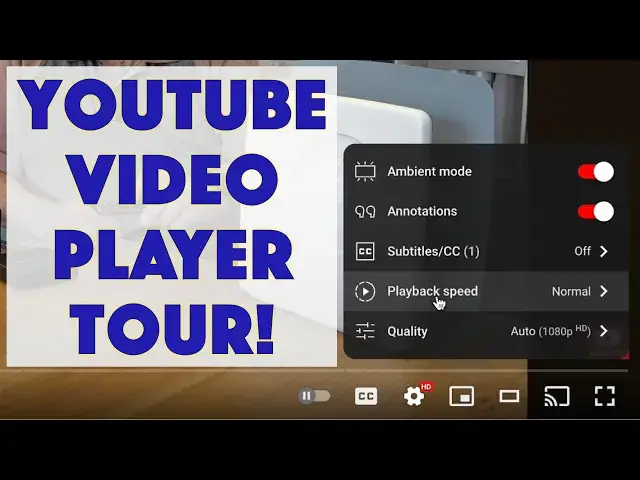
You watch videos here on YouTube, but do you know what every single button along the bottom does? Tech expert Dave Taylor offers up a narrated tour of every button and menu on the YouTube video player. Ready? Let's go!
Visit Dave's Q&A Web site at: https://www.AskDaveTaylor.com/
#youtube #video #player #handson #howto #askdavetaylor
Show More Show Less View Video Transcript
0:00
Have you ever checked out all the buttons on the YouTube playback video window? Let's check that out
0:12
Dave Taylor here and I spend a lot of time on YouTube and in fact I'm on YouTube, but there
0:18
are a lot of buttons on the YouTube video playback window that I think a lot of people don't realize
0:25
In particular, I'll see people say, oh it's really low res and fuzzy and it's just like
0:30
there's just a button you push to get better resolution. So what I want to do in this is give
0:36
you a nice quick detailed tour of all the different buttons on the YouTube video playback window
0:43
Ready? Let's jump into my computer. Here's one of my videos that I've paused it at hopefully
0:48
what's a humorous moment, but notice along the bottom here there are a lot of different buttons
0:54
Now this is pause play and that's an easy one and this one lets you step forward to different
1:01
videos or if the video is chaptered it lets you actually go to the next chapter. This gives you
1:08
volume control and you can also quick mute by pushing on it and then this is volume so you can
1:14
make it loud or not so loud. This gives you the amount of time you've watched and the overall
1:20
duration. Yes, this is a 16 minute video that I'm reviewing here and then if you have chapters
1:27
it actually gives you chapter information and you might see it's down here that it's giving me
1:33
different chapter information here and YouTube does that automatically which is nice. So I could
1:39
actually go to that chapter view and I can say let's go to the specs and now you can see it's
1:45
immediately jumped to 2 minutes 46 seconds so that's really helpful. Now here this one is you
1:53
can turn off autoplay if you don't like the fact that when you get to the end of your video
1:58
it immediately starts playing another one you can turn that feature off and once you've turned it
2:03
off it's off for everything. So YouTube automatically generates closed captions which is great because
2:10
if you don't want to listen to the video or you have some issues with hearing maybe you're in a
2:14
super noisy environment then closed captions are your friend. And then one that's probably one of
2:21
the most important is this little gear and you click on it and it gets you settings. So ambient
2:28
mode lets the system automatically darken everything around the video makes it look a little better
2:34
You can turn on annotations if the video creator has annotated it maybe after they published it
2:40
they realized something was wrong. Here with subtitles you can actually get if there are
2:46
multiple languages you can actually choose a different language of subtitles that's more for
2:52
like a video from HBO or from a local news service or something. Playback speed if you're watching and
2:58
you're like I really want to get through this but I want to catch everything you can say let's make
3:03
it at 1.5 speed and obviously that speeds things up. I generally have things at normal speed
3:11
just how my brain works. And then one of the most important is quality. So if you click on quality
3:17
it shows you all the different resolutions of the video. Bigger numbers are better. So 1080p is your
3:25
classic HD for a television and then if you get up to here 2160 is 4k resolution. Now you'll notice
3:33
that here it's automatically given me HD resolution and that's fine for the size I'm
3:40
viewing but if I was to push this out to a television then I might want to turn it up to
3:45
even higher resolution which is done by simply choosing the higher resolution. Now in this view
3:52
it doesn't look any different but notice this little tiny thing here now says 4k and then here
3:58
you can generate a mini player so you can do other stuff while you're watching the video. This is sort
4:04
of like picture in picture and then this one I like is that you can switch from the default
4:11
YouTube view with all of this stuff on the side which is helpful with chapters but generally it
4:17
tends to have ads or other videos to distract you. You can change that by clicking on this button
4:23
that gets you into theater mode which I like. Now finally this doesn't always show up but this is
4:29
the cast this is part of Chromecast so if I click on this you can see it gives me a list of available
4:37
devices that I can just wirelessly send this video to and then I could watch it on my big 65 inch TV
4:46
instead of on my computer. If I don't want to do that I can just close that window and then finally
4:51
this will take us to full screen which if I do you will not see all of the video that's okay
4:57
and that's mostly everything. Also will note that if you right click on a video there are some more
5:05
things you can do here including that there are some pretty fun stats here and as they say stats
5:13
for nerds this is a lot of very geeky stuff that probably most people won't want but I would say
5:19
the two most important features here are that YouTube itself can adjust volume which is what
5:25
you have on the left here and then that there's this settings that gives you the access to
5:31
different resolutions or different video qualities and notice that YouTube also is giving you a
5:38
thumbnail as you go and if you choose that then it moves usually pretty quickly and then if you
5:47
push up you could actually I'm now holding the mouse down you can get to very specific images
5:54
so now I can get here and then play and then pause and so now I can see I've stopped at a very
6:02
specific spot. Anyway that's everything you need to know about YouTube and how to get the most out
6:08
of their video playback tool. I hope this was helpful and I'll see you in my next video
#Online Video
#Software
#Web Services
#Media Streaming Devices
#Video Sharing