Up next in 10



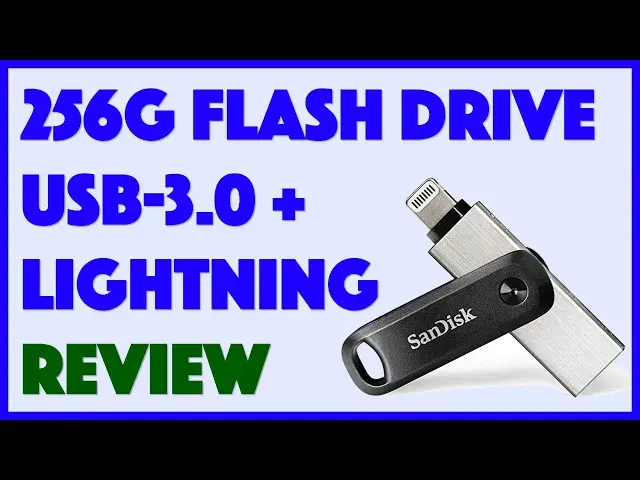
iCloud is a great way to mirror the contents of your Apple iPhone or iPad, but what happens when your device starts to fill up? For that matter, what if you want to share multi-gigabyte files between your iOS device and your Mac or Windows computer? In both cases, the SanDisk iXpand Flash Drive Go is a fantastic solution with its dual USB-3.0 and Lightning connectors. You can back up everything from your iPad or iPhone and share it with friends. You can even copy movies onto the drive and watch them on your iPad without needing to copy the files onto the device!
But there are some things you'll want to know about before you make a purchase decision, even for a product at this low price point. Tech expert Dave Taylor of https://www.AskDaveTaylor.com/ runs through a variety of demos, showing how photo backup to the SanDisk iXpand Flash Drive Go works, and then showing on a MacOS X system how everything's easily accessible.
Check it out on Amazon: https://amzn.to/2vZ9nJO
#sandisk #ixpand #flashdrive
Show More Show Less View Video Transcript
0:00
Back up your iPhone and iPad with this tiny device? Let's check it out
0:12
Dave Taylor here and I'm looking at this. This, let me just open it up a little bit
0:16
this very cool little device is the SanDisk iXpand Flash Drive Go. And as you can see
0:22
it's a little flash drive with USB 3 on one end and a lightning connector on the other
0:29
It's designed to work with any iOS device. So iPhone, iPad, you can use iPhones back from the
0:36
iPhone 5, anything more recent than that is going to work with this. And iPads, as far as I know
0:42
basically the entire lineup. Double check with SanDisk if you want to make sure and you have
0:46
an ancient iPad. And then of course, on the other end, it'll hook up to anything. It'll go onto
0:51
Windows, it'll go on the Mac, it'll go onto a Linux machine, which means that among other things
0:57
this lets you back up super easily. We'll get to that. But it also lets you transfer files and
1:02
data, even huge files like movies, easily between your computer and your mobile device. So the main
1:11
thing that you're going to use this for most likely is to do backups. So I'm going to plug
1:16
it into my iPhone and we're going to do a backup. So basically, you plug it in, there is a required
1:23
app and it will actually prompt you and say, hey, do you want to install the app? Or if you have it
1:29
installed, it'll say, do you want to actually just launch it? So that's all I do. You can see it's
1:35
going through and looking at all my content. And now look at the very top part here. You can see
1:41
it in the insert is that it is actually looking and starting to do a backup automatically of more
1:47
content. So any new photos, any new videos I've taken are automatically copying onto this device
1:54
Super handy. And it's all neatly organized by year and month. So as we'll see in a few minutes
2:01
that actually makes it really easy to browse. Now, my biggest concern, the thing I like the
2:07
least about this is something that you can see right now. It's not super fast. Now I've talked
2:13
to SanDisk about this and they're confused that it's running so slow, but I've tried it on lots
2:19
of different devices. This is even the second unit I have. And I'm pretty sure this is just how it
2:24
works. So it's not horribly slow, but if you have a lot of photos, like I have 300 photos still to
2:30
back up, this is something where you plug it in and you leave it and you go do something else
2:35
So it goes. But let's see what else we can do. So if you go to the gear icon and then I go to
2:42
security, notice one of the things I can do is I can actually enable security on this, which then
2:48
encrypts everything on the flash drive. That's really handy if you're worried that you might
2:53
lose the drive and you don't want someone else to actually access it. If you encrypt the drive
2:59
there's an app you'll need to install on your Mac or Windows machine to let you have access to all
3:04
of that encrypted data. Not a huge crisis. Let's see what else we have here. So another really cool
3:10
thing is if I tap on the little tiny camera icon on the left, I can actually take pictures. So I'll
3:16
take a picture of my camera, right? Let's see. And maybe it can focus. There we go. I'll take a picture
3:22
of my camera and my notes and I can take pictures. I can take video and that video will stream
3:29
directly onto this device. It'll never be on my iPhone or iPad. So this is one way if you have a
3:36
teen daughter who has taken a million selfies or a teen son, it's okay, then this is a way they can
3:43
take another million selfies. Woo. Or you can actually use it if you want to record a lecture
3:51
at college. You could actually just have it go straight onto here from your phone and then you
3:56
have the other advantage of when you pop it out, then it's ready to go onto your computer. You can
4:00
share it with people that are in the class with you, whatever. There's a lot going on here with
4:05
all these notifications. I want to show you also, you can actually copy photos or files from the
4:12
phone to the drive and vice versa. Let's see. You can actually view content. This is really cool too
4:19
So if I go to videos and I will just pick one of the samples they have, this actually is a
4:27
SanDisk video that's included. And if I turn it sideways, I know it's a little weird looking for
4:32
you, but think about this. This means that I can put movies from my computer onto this and then
4:41
watch them on an iPad or an iPhone. That's pretty cool, right? So these are really, really great
4:47
features. It's really handy and it actually can play video and audio in more content options and
4:53
more formats than a regular iPhone could or a regular iPad could. So if you have AVI or MKV or
5:00
anything like that, then it'll actually play those within the SanDisk app. So you'll have to stay in
5:06
the app to do it, but not a huge crisis. Now, it also lets you do things like backup your social
5:12
media content. So in fact, let's just go through this. My last backup. That's a very somewhat
5:20
ternary date. Backup favorite photos. I can free up space of my phone. I don't want to have
5:28
any freed up space because what that means by turning that on is once something's copied onto
5:33
here, it's deleted from the phone or iPad. And that's okay if that's what you want to do, but
5:38
you don't want to accidentally turn that on and say, oh my gosh, where's all my content? So this
5:45
thing's still backing up. It's at 70 of 302. That's not too bad. So you know what I'm going to do
5:50
I'm going to pull it out. And you can just do that. And it knows what's going on. And the next
5:56
time it gets there, next time you plug it in, it'll just pick up where it was. So now let's say
6:01
that we're done with the phone and it's backed up. That's pretty cool. Now let's take this and
6:06
plug it into my Mac. So for that, I'm going to actually rotate it to get to the USB three end
6:13
And then I have a MacBook Pro that only has USB-C. So I have an adapter. These adapters
6:18
are super inexpensive. And I'm sure every single person that has a USB-C only computer has that
6:25
very adapter. Funny how that works. So what I'm going to do is now I'm going to switch and I'm
6:32
going to just full screen let you see what's actually on the iXpand flash drive go. You ready
6:39
Let's switch around. I'll start by inserting the drive. And then I'm going to open up a Finder
6:46
window. And let's see, here's everything on my desktop. It's a little bit messy, but untitled
6:54
That's the flash drive, right? So you can see here that there are apps for Mac and Windows that let
7:00
you access the secure content. As I said, we can go and look at the videos that SanDisk includes
7:06
Of course, you can delete theirs and or just add your own content here. You can do the same with
7:12
their photo library, with their music, or you can just go into like camera roll backup. And you can
7:18
see here, let me just open it up full. It's, you know, neatly organized by year and then by month
7:25
And we'll just randomly pick something. And then I can just pick an image. There's high efficiency
7:32
internet content or container, H-E-I-C. But we're going to just look at the JPEGs because that's a
7:37
little easier. Oh, that one's really way too big. So I'm going to shrink it and pull it on screen
7:42
So there it is. And again, this is super easy to work with. You know, it's so easy to just pop the
7:50
drive in, copy whatever you want, navigate around. There's no software you need to run or anything
7:57
Super easy. I really like it. I really like everything about this drive and about this device
8:03
And I'm going to go ahead and just pull it out and take off the adapter. And so, you know, here we
8:11
have it. This is the SanDisk iXpand Flash Drive Go. There's so much to like about this. And this
8:17
one's 256 gigabytes of capacity. That's bigger than my phone, which is great because this is
8:24
how I'm going to actually be able to free up space on my phone. And we went down this road
8:30
because my daughter, who is a teenager, has a phone that is completely full of video and photos
8:36
So being able to get a device like this and let her use this for redundant backups is great
8:42
because iCloud's cool. But the way iCloud's configured is really kind of bizarre
8:47
because if you have a photo and you back up to iCloud, if you delete it from your phone
8:53
it's deleted from iCloud. And it's just like, what's the purpose of a cloud backup if you're
8:59
just perfectly mirroring the content on the phone? You know, there are ways you can disconnect them
9:05
but I really wish Apple would have it where if I delete something from the phone, it would say
9:09
do you want to save it in iCloud or do you want to also delete it from iCloud? It's exactly how
9:15
I think it should work. But hey, I'm not the guy designing all of this. So it is what it is
9:20
So what that means is there's a great opportunity for this. And this is obviously something really
9:25
easy for her to work with. As you saw, you just plug it in and ignore it. And then, you know
9:30
at some point it says fully backed up, I have a copy of everything. And then as we've discussed
9:35
she can then go and delete like the 10 biggest videos that she has. And that'll free her up for
9:40
a lot more content, knowing that she has a copy on here. And if she puts it into her computer
9:46
she can then have a redundant second copy that's then super accessible right off of her computer
9:51
for her to send to friends, to put into email, to even put into documents, to put it on her blog or
9:58
whatever. All of that, the content is super easy and easy to work with. And especially if you are
10:04
cross-platform, if you have a Windows machine and an iPhone or something, pretty neat device
10:09
The biggest thing I don't like about it, the biggest thing that was a surprise and a disappointment
10:14
is the performance. And I'm a little baffled because when I look at all the different reviews
10:19
and all the feedback from different customers, some people seem to say that it doesn't work
10:23
very quickly, but others say that it works super fast. There was one person saying that it could do
10:29
gigabytes in an hour. And I'm like, well, maybe, but it sure seems like it should be working faster
10:35
than it does. But I guess we did get what, 70 photos in just a minute or two. So maybe that
10:40
is pretty good speed. But if you're going to plug this in and expect it to go and just back up
10:46
everything in just a couple of seconds, it just doesn't work that way. So have that expectation
10:52
that when you plug in, especially like the first couple of times when you have thousands or tens
10:56
of thousands of objects to back up, it might be an overnight process. It might take a while. So
11:02
also worth mentioning, though I think it's pretty negligible, is this is not a self-powered device
11:08
So when you plug this into your phone, it will actually have to tap some power out of the phone
11:13
I haven't tested that, but my guess is it's a pretty negligible difference because these don't
11:18
require a lot of energy. So they're not going to draw a lot of power off the phone. But again
11:23
if you're going to let this run overnight, you need to think about, well, that might actually
11:28
just drain my battery. If it does, totally fine. Recharge your phone, plug this back in, it'll just
11:34
pick up where it stopped. So totally no problems. You're not going to lose a single image or anything
11:39
Lots to like. Now, comes in two different styles. This is the more modern of what they call the
11:45
swivel style because, hey, it swivels. There's also a loop style that is a previous generation
11:51
but it's exactly the same idea. And there's even a style before that that's a little rectangle with
11:56
a slider. All of them from SanDisk. I'm going to tell you the price is just for this style and for
12:03
the loop style for the smaller capacity. But before I get to the price, I'm going to ask if you can
12:08
subscribe to my channel. It's a little button floating on that corner. Just tap or click on it
12:13
and you are subscribed and we can stay in touch. Super cool. Now, this is the SanDisk iXpand
12:20
flash drive go. This particular one is 256 gigabytes in capacity. But let's go down the list
12:27
For the loop style, you can get a 32 gig device that's the same basic functionality for $22.99
12:34
64 gig is $34.49, sorry, $33.49. And then when you get to this swivel style, it comes in two sizes
12:43
128 gig, which is a lot of data, 128 gig for $44.97. Or this one, the 256 gig of capacity
12:53
a lot of space for $69.77. Kind of curious pricing. All of it's on amazon.com. Definitely
13:00
check them out. People love these. They get really good ratings. The only thing to know before you
13:05
jump in is that you might have it run a little more slowly than you wished it did. But hey
13:10
modern times. The next generation will be even that much faster. So with that, I think I am going
13:16
to get back to backing up my photos. And again, so easy. I just plug it in. I just say allow
13:22
And it is, well, it is backing up. That's all I got. So I'll catch you in my next video
13:52
Bye
#Computer Hardware
#Computer Components
#Computer Drives & Storage
#Consumer Electronics
#Networking
#File Sharing & Hosting
#Photo & Image Sharing
#Media Streaming Devices
#Video Sharing