Up next in 10



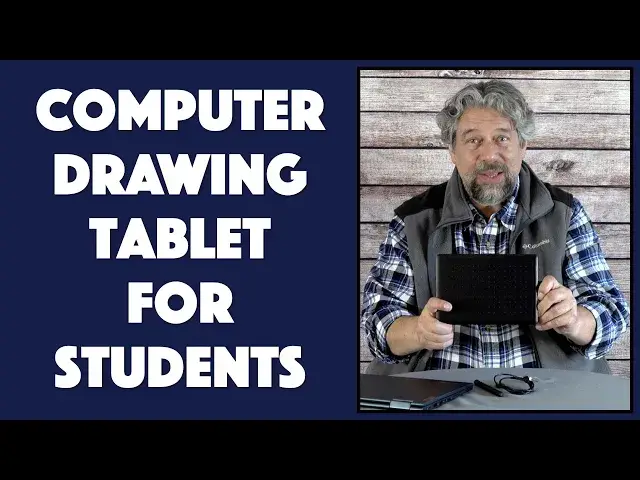
Still struggling trying to sketch, draw or paint on your computer using a mouse or trackpad? Whether you're using a Mac, Windows PC, or Chromebook, Wacom has the solution for you - or your student: The One by Wacom Student Drawing Tablet. Tech expert Dave Taylor of https://www.AskDaveTaylor.com/ hooked one up to a Lenovo Chromebook and demonstrates how well it worked with Google Canvas and similar drawing programs. His art skill might leave something to be desired, but you'll get the idea! And at this price, it's easy to pick one of these up for Wacom for each student in your family too!
Check it out on Amazon: https://amzn.to/3x7cYB0
Show More Show Less View Video Transcript
0:00
It's a drawing tablet that can plug into your Mac, PC, or Chromebook
0:04
Let's check it out. Dave Taylor here, and I'm checking out this
0:14
This is the One by Wackham. It's a student drawing tablet. It's really cool
0:20
Now, here's a couple of close-ups real quick. It's not very exciting to look at
0:24
The back's a little more fun because it's this bright red. But it's basically a tab
0:29
with a touch surface so that when you use their special pencil
0:35
you can do this on the surface and then it's reflected on the computer that it's plugged into
0:41
So, really fun idea. Now, if you've tried to do any illustrations or you have a student in your house
0:48
that's been trying to do even doodles or sketches by using the track pad or worse, a mouse
0:54
this is light years better than that. This is so nice. And there's a lot of cool things
0:59
There's a lot of cool tech here. So there is no battery in this pencil
1:03
This is literally a piece of plastic with a nib and two buttons
1:08
and it just works with the tablet itself using what's known as electromagnetics or EMR
1:16
So this is a pressure-sensitive electromagnetic pen. Now, not every Apple see this as pressure-sensitive
1:24
and the demo I'm going to use, we actually won't be able to see how pressing
1:29
lightly is different than pressing really hard. But with the right app, it gives you even further
1:34
levels of control really slick. Now, it also can set up for left-handed or right-handed. I have
1:41
it set up to be right-handed. So I have the pen on the right. Move this out of the way a little bit
1:47
So I would have it like this, but you can just as easily set it up like this and you're thinking
1:52
that looks exactly the same. Of course, the difference is how it interfaces with the computer. And if you're
1:58
left-handed, you're going to want to do it this way versus this way. You know this, right? So you
2:03
left-handed people, do not have to just end up having someone say, just make it work for you
2:09
Don't worry about it. Now, one other really cool thing is this works with a lot of software
2:16
So if you're using Zoom, if you're using something like Microsoft Team and you give a presentation
2:22
or you're teaching a class, you can use this to control your input. So
2:28
You can bring up an illustration and then you can sketch on this and then that will be overlaid on top of the image
2:35
So imagine you can bring up a painting and then you can say, look over here
2:40
See what's going on in that corner? Isn't that interesting? Really nice
2:44
Now, it also works with other teaching tools like collab board and cammy and explain everything
2:51
If you're a teacher, you know exactly what I'm talking about. But let's get this thing plugged in because I know that's what you really want to see
2:57
and I will tell you, it comes with a 3.5 foot cable that has micro USB on one end
3:06
Not a fan of micro USB. Really wish they would have made a different choice there, but so it goes
3:11
And then USB 3, which is the rectangle on the other end
3:15
Now, I'm hooking it up to this. This is actually a Chromebook
3:19
This is the Lenovo ThinkPad C-13 Yoga Chromebook. So it kind of a high Chromebook But the point is is that not only does this tablet work with Mac and PC but with Chromebooks it actually works the easiest because you don have to install any drivers or anything
3:37
You plug it in, and if the Chromebook is compatible, boom, it's a new input. Really nice
3:42
So let's switch. I'm going to actually record the screen on the Lenovo and show you what I'm doing
3:50
I'm in the Canvas app, and you can see I've already done two previous illustrations
3:54
one of which was a doodle to put it nicely. And the other one, let me go ahead and open it up
4:01
The other one is actually interesting because it was sort of a playing around idea with battleship
4:09
but I opened up an image and then drew on top of it
4:12
And what makes this interesting is that if I go over and choose the eraser
4:18
I can erase what's on top of the image without affecting the original
4:24
image underneath so that's pretty cool and you can imagine here that it would be
4:29
pretty easy and maybe zoom in a bit be pretty easy to play around with this
4:35
and from a perspective of like teaching or something it is very cool to be able to
4:41
just go over and like pick a pen let's maybe use a film marker and then I can
4:48
say let's talk about how graphs work so let's say we have something here and
4:54
goes up to here and then now we have various axes right so you can see that the
5:04
illustration capabilities are really pretty slick and obviously you can change colors so let's actually have that starting point being red and while I'm
5:15
at it I will actually use the pen I'll change color and I will also change
5:24
so you can change the size of the pen and the opacity and everything and
5:29
let's see let's try this and then this is time over speed I don't know let's do
5:42
something like that and I am literally just sketching on the pad and it's just
5:46
picking up everything and if I move the pan just above the pad you can see that
5:53
the cursor moves too. Now it's a little disconcerting that this keeps hiding, so it would be
6:01
kind of nice if it was able to stay out. That might be a setting in the app, but here by comparison
6:08
here's a pencil, and so with a pencil, if I keep going over the same spot as you would with a colored
6:15
pencil, it will get darker. But suffice to say, it's actually really fun to do this. And of course
6:23
the Canvas app, this is one of so many apps. I can just start a brand new drawing
6:27
and I can do this, and I can just do something like some lettering
6:40
I know you have to sit and watch this while I go do it. But it's actually pretty darn fun
6:47
Right there's my demo. And if you were hoping for some fantastic artwork
6:52
well you picked the wrong YouTube video But suffice to say that this is a really fun device Now let me jump back on camera To be entirely candid it does take a little bit of learning
7:06
to figure out how to get the best results from the Wackham one
7:11
So I'm still on that very beginning edge of that learning curve
7:15
as you can kind of obviously see in my illustration quality. So it goes
7:20
Even with that, though, it's super fun. it's really fun to use this instead of struggling with this tiny like one inch by two inch touch pad
7:30
or a mouse or something like that really and one of the other things i didn't even mention is you can
7:36
tape a piece of paper onto the top of this and then use it with that paper there so you could
7:42
take a printout of a drawing and then you can trace over it and you can actually make exact copies
7:49
of drawings which is something i know my kids have enjoyed doing a lot as
7:53
as they've learned how to draw themselves. Now, any of them would have been able to get better results than me
7:58
just so you know. So it's not my whole family that is artistically lacking
8:03
It's just me with this device. But still, super fun. And I will tell you that as someone who's a teacher
8:10
the idea of using this as an input is really, really appealing
8:14
And it works really well. Just as we use a mouse and somehow we see on the screen
8:20
and our brain maps the two, this does the same thing. So you might look at this and say, wouldn't I want the screen here? And the answer is that would
8:30
add a whole lot more money to this device and it would become way less accessible for students
8:34
in your family. But you don't really need it because it turns out that if I'm doing this
8:40
then what's happening on my screen totally makes sense. So I can do this and watch there. And it just
8:46
works. Our brain just works that way. So it turns out to be a really, really nice design. Now, let me
8:52
tell you a little bit more. So here's the pen, pencil, stylus, whatever you want to call it
8:57
It is basically, as far as I can tell, a solid piece of plastic. There is a nib, and it comes with
9:04
three additional nibs and a replacement tool. I guess the nibs wear out or can get damaged
9:10
so you can replace it with another one. To me, there's a little question of physics where I'm not
9:16
using it. It's not like a graphite pencil where I'm literally leaving bits of graphite on the paper
9:22
So I'm not sure how it gets used, but it gets used
9:26
There are also two buttons on the side that give you a little bit more control with apps that understand the exact nuances of this interface
9:34
You can basically ignore that if you don't want to worry about it. And then, like I said, you can do it left-handed or right-handed
9:41
It has micro-usb. It has USB-3, which is a slight issue. If you have a USB-C-only Chromebook, Mac, or PC, then you might find you
9:52
you're having to use an adapter, in which case I would recommend instead looking into
10:22
just replacing the whole cord with micro USB to USBC. Seems like it's going to be roughly the same price and might give you more flexibility. This cable's about three and a half feet long. So as you can see, there's plenty of flexibility. If I want to just sit and work like this, that's totally fine. Plenty of wire for that. And that's really all I have. Let me just tell you real quick, the actual drawing size
10:22
itself is 6 inches by 3 inches Now that doesn sound very big but honestly you know when you have a relatively modest computer it might be almost as big as the screen And again
10:35
our brain just works right. So if I'm here and it's the top left of the screen and I'm here
10:41
it's the bottom right of the screen, I don't actually have to worry whether that's exactly the same
10:46
measurement as it would be if I actually measured the screen. We can just do that stuff automatically
10:52
pretty smoothly. So really the only other thing to talk about is the price. But before we get to the
10:58
price, I'm going to say two things. Number one, it does take some learning. So if you get this for
11:05
one of your kids because they're an up and coming artist and you want them to have a new input
11:09
device, warn them that it will take a while for them to get the hang of it. And you really probably
11:15
are going to end up having to buy some software to work with this because the best software that does
11:20
the best job of understanding the pressure sensitive stylus and everything are not free
11:26
So canvas was free, but as you saw, I get relatively primitive output
11:30
I'm not going to be doing any masterpieces with that, however many hours I actually practice
11:35
and work with this. So that's worth knowing. And the second thing is I'm going to give them points off for using micro USB
11:43
That's an old, tired connection, and I really don't like them when I have to worry about the orientation
11:49
So that's something that maybe the next gen will just be USBC
11:54
And then even if they have USB 3 on the other end, at least now you can just plug it in and not worry about orientation
11:59
or about damaging it by trying the wrong orientation. Having said all that
12:04
it really adds a really great layer of fun to your interaction with your devices
12:09
because it's just a different way to look at input. And if you're doing drawings, if you're highlighting
12:15
if you're on a Zoom call with someone and you just want to have a better or different interaction
12:20
All of this is available by just plugging it in. And when we get to the price, you'll be pretty startled
12:26
But before we get to the price, I'm going to ask if you can give me some feedback. Give me a thumbs up if you appreciate this
12:31
Leave a comment telling me what you wish I would have demonstrated. And feel free to go ahead and subscribe to my channel
12:37
I really appreciate when you do that. All right. Now, this is the One by Wacham student drawing tablet, and it's 5995
12:47
at amazon.com. That is a pretty modest price that's for something that's going to open up your
12:53
horizons and really change the way that you interact with everyone else through your computer
12:59
and how you interact with your computer itself. It's simple, it's easy, there are no batteries
13:06
there's really no consumables other than I suppose the stylus and with three extra nibs in
13:12
the bag that comes with plus the one that's already in the pen. I think you're probably set
13:17
for a good long time. Definitely worth it, definitely fun, definitely worth checking out
13:23
I am definitely going to practice a little more so that my doodles get to be a little bit
13:27
closer to what I'd be doing on a piece of paper. But it's going to be a really fun project
13:31
So with that, I'll hope to catch you in my next video
#Primary & Secondary Schooling (K-12)