Up next in 10



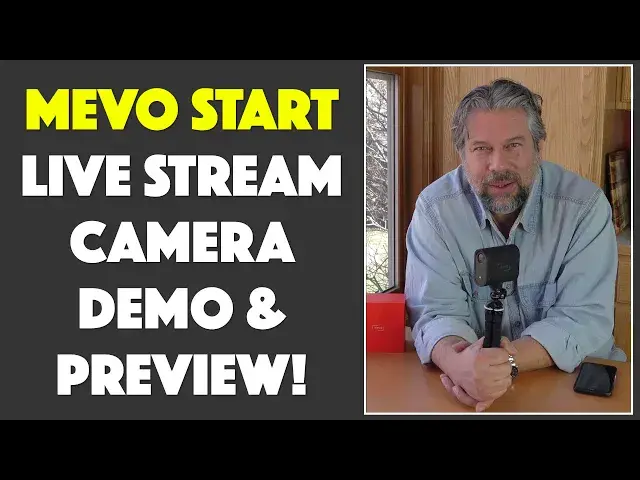
Ever thought about trying to livestream your cooking, teaching, crafts, hobby or just to chat with people in real time? MEVO has long been a leader in the live streaming video area, and the introduction of the new MEVO Start marks a new era in super easy and fun live streaming that anyone and everyone can manage. Tech expert Dave Taylor of https://www.AskDaveTaylor.com/ had a chance to preview the MEVO Start Live Streaming Camera and assembled this complex and informative demo and preview.
Look on Facebook for demo live streams - https://www.facebook.com/d1taylor
Pre-order (before summer 2020) or order the MEVO Start at https://www.mevo.com/
Show More Show Less View Video Transcript
0:00
Live stream anywhere to the major services
0:02
Let's have a look. Dave Taylor here, and I'm looking at this
0:14
Well, this. This is the Mivo start. Now, this is a live streaming video camera and microphone system that works with your
0:23
smartphone and can stream to a ton of different services. And the most important thing is it makes it super
0:29
easy. So I'll put it on this little mini tripod because that gives me a little more flexibility
0:35
but you know, you get just the base unit, basically. You can put it on a full size tripod
0:40
You can just have it sitting on your desk or on, I don't know, your bed, whatever you want to do
0:45
And, you know, this little tripod, I think this was like $11 on Amazon. And it's very flexible
0:50
So it gives me the ability to do things like pointed at myself and have it ready to go
0:56
Now, what makes this really cool is that this is not the first product MIVO's made for live streaming
1:02
In fact, they're pretty well known for live streamers. It's a great little product, and the company basically makes super easy to work with all-in-one self-contained devices
1:13
This particular one, the Mivo start, isn't quite yet on the market
1:17
So I have to admit, I have a very late beta production version
1:21
Now, it basically requires an iPhone or Android device. There's an app that you need to get from Mivo, and all the smarts for the phone, all the
1:32
smarts for the camera are actually in the app on the phone
1:36
So the phone pairs with the camera, and then you have all the control you can want
1:41
Now, this device itself is an 80211 AC Memo Wi-Fi dual antenna system, and it streams
1:49
in 1080 HD. an 84 degree lens. So if I'm pointing this at you, you're going to get a pretty wide angle view
1:56
If you think of 90 degrees as a right angle, it's almost 90 degrees. That's a nice wide view
2:04
Now, it also has three microphone holes on the top because it has an onboard audio processor
2:10
so it gets rid of all the extraneous noise and gives you good audio
2:15
Now, when I first got it, I actually tended to have the gain on the audio all the way up, and I got some clipping
2:21
If you've gone to our Facebook channel and you've looked back at some of the Mivo start demos I've streamed and then saved, the audio is sort of all over the place
2:31
But that's because I had to learn how to set it. So a good starting point is to put it right in the middle and then decide if it's too soft, if it's too loud, whatever
2:39
But we'll get there. I'll give you a live demo. I just want to talk about it a little bit first
2:43
So, 1080 HD live streaming. That is compatible with Facebook, LinkedIn, Twitch, Twitter
2:51
YouTube, Vimeo. What I really like is that you can actually just save it to the SD card that's actually on the device
2:59
You don't have to live stream at all. Now you just have a second camera. So if you're doing anything at all, you can just record it, chop that down, and then share that video
3:09
So if you're doing a cooking video and you're showing people how to make impanadas
3:13
that first one where you totally screw up, you could edit that out if you want to so you look like a real pro
3:19
When I watch the Food Network or something they never do anything wrong Well except for in some of the challenging cooking shows But generally it just like everyone does everything perfectly which makes me suspicious that there are some mistakes they editing out
3:33
Now, this also gives you through the app some live editing features
3:37
It does a really neat job with zoom where you just pinch and zoom and you basically define a rectangle and then it moves
3:43
It zooms into that rectangle. And you can make it smaller and then it will zoom in or you can make it bigger and then it will zoom out
3:51
So really slick. Coming down the road from Mivo is going to be live multi-camera support, which is going to be really cool
3:59
If you have a couple of these, you can have one zoomed in and really tight on you and what you're doing
4:04
And another one, the wide angle, giving you more context. I watch a lot of how to play game videos
4:10
One could be on top, just pointing down. And another one could be showing you and the other players, right
4:17
And all that, you can do live stream, switching back and forth right there on your app
4:21
or obviously on your iPad or something. Really slick. Now, chargeable battery. So how long does the
4:27
battery last? Six hours. You can live stream for six hours. If people are watching you live for
4:33
six hours, they have serious dedication. Very impressive. Not sure you'd want to watch this video
4:38
for six hours. And we've already talked about the audio processing. Let me give you a quick show
4:43
of here's the back of the unit. You can see there's power on the top. And then there is a 3.5 millimeter
4:50
external microphone jack. So if you don't like the built-in mic, you can use your own
4:55
you can hook it up, you can do a wireless mic, whatever you want to use. As long as it works
5:00
on 3.5 millimeter on one end, you're golden. And then below that is USBC for charging, and it comes
5:07
with a USBC charging cable. And then below that is the little microSD card slot. Now, I can't
5:14
figure out what its maximum capacity is, but I'm sure it's at least 128 gig, which is going to get you
5:20
lot of video even at 1080p so that's enough chit-chat let's go ahead and I'll give you a demo of how it
5:26
works now I've turned it on one of the tricks to do at least with this production prototype with
5:32
the prototype version of the new app is turn it on wait till the light in front goes green and then
5:39
everything's super easy so now what we're going to do is I'm going to record what's on my
5:44
phone screen and let's get that going and then I I'm going to let you basically just watch on there as I talk and we'll just sort of cut back and forth
5:55
So I have to open the app through something called Test Flight because it's not actually an app out of the app store
6:01
And you can see here, so this is ready to go and all I have to do is tap on Connect
6:07
And we have, hopefully, it takes just a couple of seconds to establish his handshake
6:13
And by the way, this is really close. It can be up to 100 feet away
6:18
That's a nice range. Now, you don't want to just see the camera that I'm shooting with
6:22
So let's do this. I'm going to actually point it at me. This is going to be sort of a weird thing
6:28
And now I can use the phone to look at, see if I full open it up
6:34
Now I can adjust it. This is where this little tripod is so nice
6:38
It makes it really easy to adjust things. So now I've adjusted it and you can see I am actually on the phone
6:45
So now let say that I am ready to roll and I want to just go ahead and start streaming So I tap the red button and now I have all these different destinations and I doing it at 720p because I have some sporadic bandwidth
7:02
issues at my house. I can do full 1080 but honestly 720 is pretty glorious for the vast majority of
7:08
uses. I can choose Facebook, YouTube, Twitter, LinkedIn, there's a lot of different options. Vimeo
7:15
I can do multi-destination but I can also just choose as I'm going to do record to SD so we're just going to record to the
7:23
SD card and then I push record and we are going and so now it's actually
7:29
recording so now instead of seeing what's on my phone well let's see let's stay on
7:34
the phone and then I'm gonna do that little box and you can see how it zooms in
7:38
and then on the top right you're seeing that's actually what's being streamed
7:43
right so I can say hey what's that behind you dude so let's go and make that
7:48
really small. Oops, I didn't want to do that. We'll go to wide. And so I can close the box up
7:56
I can use my finger to drag it over. And now you can see it's a coffee maker. So all that's very
8:04
good. I zoom back out and we are all going well. So now what I'm going to do is I'm going to
8:10
just go ahead and I'm going to stop the recording. And all I have to do is slide to stop
8:15
There are some other features you can do while it's recording. I haven't used them very much because I tend to use this as sort of a secondary camera
8:25
Where I've had a lot of fun with this has been actually having it live stream while I'm recording a video for my YouTube channel
8:32
So it's like someone sitting in the background watching all the crazy chaos and the outtakes and everything
8:38
Now, what you don't see on the screen is important. You don't see any text
8:43
So if I was live streaming and people, were typing in comments and messages, I don't see any of that here. This doesn't stop me having
8:51
another device, and that device might actually also be actually viewing the stream, but then also
8:57
seeing the text. So let's go ahead and stop this, and my recording is in the library. Tap to
9:03
view. Great. We're just going to go ahead and leave it there, and then I'm going to go and actually
9:07
stop my recording, so let's turn that off. And now I'm back to this camera, and this is still
9:15
live. It's still giving me, see, that green light, so it's still ready to rock and roll. And it's
9:21
that easy. It's that easy to live stream. It's so nice. Because if you're using a computer or something
9:29
it's, there's a lot of complications. Look at that. Look how easy that is. Look how small that is, right
9:35
This is easily something you could take with you on a hike. You could set it up on a rock up in the
9:40
mountains and you can just talk to this, record onto this with the built-in microphone and everything
9:47
And then when you get back down, you either just grab the SD card or copy it with the app and you are
9:53
good to go. It's that easy to work with. So I got to say, I'm a really big fan. Now, let's look at the
10:01
video I recorded on the Mivo. So let's switch over to that. And so now it's actually recording
10:06
So now, instead of seeing what's on my phone, well, let's say
10:10
let stay on the phone and then I gonna do that little box and you can see how it zooms in and then on the top right You seeing that actually what being streamed right so I can say hey what that behind you dude So let go and make that really small
10:27
Oops, I didn't want to do that. We'll go to wide. And so I can close the box up
10:34
I can use my finger to drag it over. And now you can see it's a coffee maker
10:40
So all that's very good. I zoom back out. And we are all going well
10:45
So now what I'm going to do is I'm going to just go ahead and I'm going to stop the recording
10:51
And all I have to do is slide to stop. So not the most glorious footage
10:55
There's lots of things I could have been doing that would be more exciting. But be that as it may
11:00
I think that's a great demo of why this is such a nice little self-contained device
11:05
If you're live streaming anywhere or you just want to have a really easy setup with a camera that's ready to roll, you know, yeah, your phone can do a lot
11:14
but your phone's kind of fiddly, and it's hard to, like, figure out how do I plug in a microphone
11:19
Can I put my phone on a tripod? Can I see what I'm doing? You know, all of that
11:24
Having the app makes it super easy to control what you're doing, and then having this, especially with the little tripod or a larger tripod
11:31
makes this ridiculously easy for me to just set it up where I want, and I could even back it way up and get more of a wide angle
11:39
or I could turn it around, and you'd be able to see what I'm seeing
11:42
You know, so much flexibility, so small, so easy to work with
11:47
I am a huge fan of the Mivo start. I really like Mivo generally, but this start is going to be a really sweet device when it comes up online, and it's something you can buy
11:57
Now you can only pre-order it, but before I talk about the price and where you can go to pre-order it
12:03
let me ask if you can subscribe to my channel. I get access to a ton of gear, and I'm super honest about strengths and weaknesses
12:10
so go ahead, click that subscribe button, and we shall be friends digitally forever
12:17
Well, you can unsubscribe, I suppose, but why would you do that? Seriously
12:22
Okay, enough. Now, Mivo Start, live streaming, video, and audio system. Ridiculously cool, super easy to work with
12:33
Grandma could get this thing figured out. It's that easy. And it is $299 at Mivo
12:40
available for pre-order until the end of April 2020, possibly plus or minus a couple of weeks
12:47
But definitely worth checking out. They got a lot of specs. I hope the demo has been really helpful
12:52
There's nothing I don't like about this. It's just really easy. You know, that initial setup, the initial configuration, you might actually scratch your head a little bit
13:01
But once you get over that hump, this is just a ready-to-roll device
13:05
You turn it on, you wait until the light turns green, you launch the app, and you're
13:10
you're ready to rock and roll. Super, super easy. So, highly recommended
13:15
Definitely worth checking out. And with that, I will say to you down there and to you up there that I will catch you in my next video
#Consumer Electronics
#Camera & Photo Equipment
#TV & Video Equipment
#Email & Messaging
#Voice & Video Chat
#Media Streaming Devices
#Video Sharing