Up next in 10



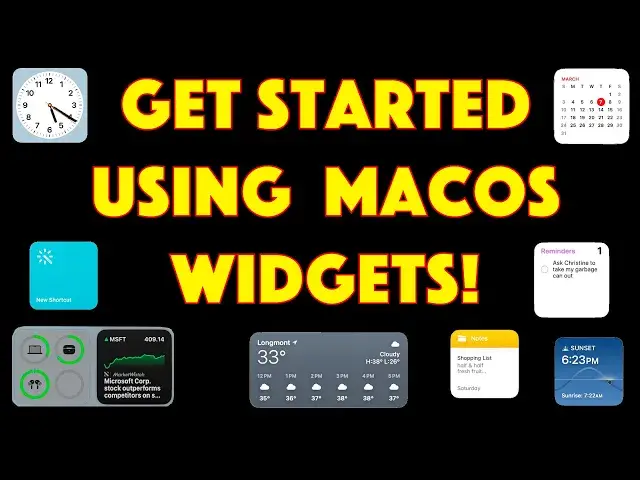
An app that sits on your Desktop and shows you the current weather, time in Paris, or even a rotating gallery of your favorite photos? That's just a small subset of what you can do with widgets in MacOS 14. And yet, very few people use these, which is inexplicable. Tech expert Dave Taylor shows you some of the basics in this breezy tutorial, all about Widgets on MacOS.
Please visit Dave's Q&A Web site at: https://www.AskDaveTaylor.com/
#macos #widgets #macos14 #askdavetaylor
Show More Show Less View Video Transcript
0:00
Got a Mac? Are you using widgets
0:02
Yeah, I didn't think so. Let's talk about widgets. Dave Taylor here, and it's been a while since Apple introduced widgets for the Mac desktop
0:17
but I never see anyone using them. And that is a sad thing because they're easy to work with and really, really helpful
0:24
So let me spin this computer around and let me show you the basics of how to work with widgets
0:30
This is my M1 MacBook Pro and you can see I have a big desktop and I have very few icons on it
0:36
That is how I like it. But to get to widgets, all you have to do is control click on the desktop and then choose edit widgets
0:46
And then this slides up from the bottom and under all widgets it gives you some suggestions at the top
0:53
But you can go down to specific widgets of course and clocks and home and
0:59
photos. So there is a ton of different widgets here. So I can say weather, I live in Boulder
1:08
Colorado and let's see what the options are. Maybe sunrise and sunset would be nice
1:13
So I click and drag it to where I want And I just going to put it up here Notice that it creates a square So at this point you can double it if there are any options This one doesn have any
1:29
Or you can show you in a second. There's another way you can do that. But I also want to have a clock
1:35
And I'm going to go ahead and change the city for the clock. So let's do this one
1:40
This looks more interesting. So I can put it here with the four clocks
1:45
or I could put it up here, or of course I can put it really anywhere I want to notice that it is aware of the desktop
1:54
So those other icons moved out of the way. So here, let's double click and you get this really cool world clock view here
2:04
And you can see I'm tracking Auckland, New Zealand, and London and New York, and Denver, and Monterey
2:10
However, that is not affecting these. These have their own clocks. So that is something a little bit annoying maybe, but we might be able to change that
2:20
So at this point, since I've clicked on the desktop, then that desktop widget window at the bottom has gone away
2:27
So now what I'm going to do is I'm going to do a control click here, and now it lets me make changes to it
2:35
So I can edit widgets to go back where we were. I also can make this small which gives me this interesting interesting really small view Let put that one down there And what I want to also look at is can I change what cities
2:53
And the answer is, of course I can. So instead of Cupertino, let's see if I can change that to be where I live
3:04
Denver, USA. Okay, so that's Denver. and now instead of Sydney, let's go back to Auckland, New Zealand
3:16
And instead of Paris, I will choose London. So that all looks good
3:23
And when I switch this around, there's that. But now I can't really tell so easily which is which
3:29
There's tiny little labels, but I actually prefer to have the labels underneath
3:33
So we'll go back to medium. and it then moves my desktop icons around
3:40
So that's the basic of widgets. And now on this one, if I control, click, you can see the only option I have here is to remove it
3:49
So let's remove it. And now that I've done that, let's go ahead and change that to a regular wallpaper
3:56
So I'm sorry, a regular weather widget. So I'll go here and we'll pick this nice big one
4:02
That a lot of information and that looks good I going to click here And of course if I control click then I can change the size and I can also edit the location that it using for the forecast
4:15
But this is my location. I am in Boulder and the weather looks pretty good for March
4:22
kind of all over the place with a high of 36 and then a high of 57
4:26
But that's it. That's as easy as it gets in terms of using widgets
4:30
Just remember, control click on your desktop opens up this whole world
4:36
I think widgets are pretty darn useful. I hope you found that intriguing, and I hope you're going to give them a shot too
4:42
Now, I do want to invite you to subscribe to my channel, click or a tap, and you're subscribed
4:47
Don't forget to hit that bell icon for notifications. Give me a thumbs up if this was helpful
4:53
I usually review products. Sometimes I do how-toes like this one. So it's all exciting, interesting, and who the heck knows what my next video is going to be
5:03
Well, you could be the person who does because you can be subscribed and have notifications
5:09
All right, that's all I got. I'll hope to catch you in my next video
#Software
#Online Goodies
#Skins, Themes & Wallpapers