Up next in 10



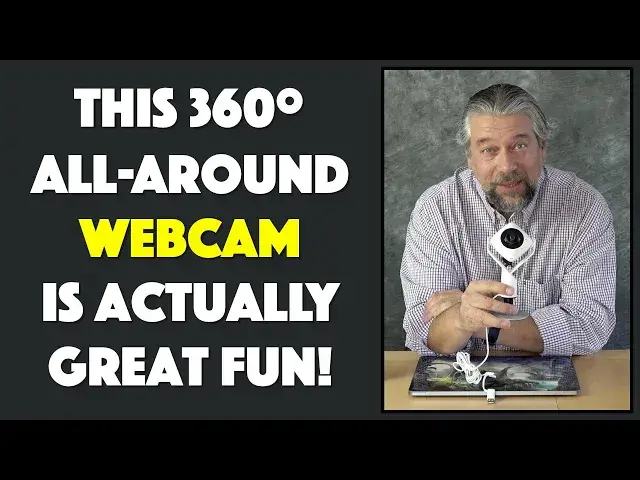
Not only can you significantly upgrade your webcam presence on Zoom, Skype, Microsoft Meet and Google Meet, but you can do lots more with the cool J5create 360º All Around Webcam [model JVCU360]. Tech expert and Zoom trainer Dave Taylor of https://www.AskDaveTaylor.com/ plugged in a 360º All Around Webcam to his computer and found it's quite fun with its super wide angle, panoramic mode and other handy features. It's also plug-and-play with Mac, Windows and Chromebook devices, adding up to a great upgrade for that crummy Webcam built into your notebook!
Check it out at https://www.bestbuy.com/site/j5create-360-all-around-webcam-white/6434106.p
Show More Show Less View Video Transcript
0:00
Take your video chat to the next level with this crazy webcam. Let's check it out
0:12
Dave Taylor here and let's be honest we're spending a lot of time with our webcams and you could use the webcam on your laptop probably and
0:21
You'll look okay and zoom and Microsoft meet and Google meet and I don't even know Skype all these other systems out there
0:29
Right, it works pretty well. It's in a pretty decent spot Some of them are a little lower down, but there's more you can do with webcams. That's where this comes in
0:39
This is a crazy invention. It's really fun. This is the J 5 create
0:45
360 degree all-around webcam model JVC you 360 and It is a full wide-angle lens that you can use pointing at you
0:56
But you can also tilt it up and then it actually gives you a full 360 view
1:02
so really pretty interesting idea and Has a nice long just about 10 foot cable so you can have this far away from you now
1:13
What's the usage case here? Well, one of the big ones is when you're sitting around a meeting room, which you might not be doing a lot of right now
1:20
But we will be again when you're sitting around a meeting room How do you have a webcam where everyone in the room can be on camera
1:27
That's exactly one of the use cases for this But it's also useful if you have people who don't want to just jam into the picture
1:35
But want to be in different places in the room Now one of the things you can do is as I just showed you can unscrew
1:41
The base and you can actually put this on a tripod so that gives you even more flexibility
1:47
But it's a nice weighted base. This whole thing has a really nice build quality, which is great
1:52
So it's tripod compatible, but you can also just use it like that
1:56
and this is what I like is to have it like here and Then I can use this and on the other end of the cable is USB C with a USB 3 adapter
2:07
So whether you have the old-school rectangular or the more modern USB C
2:12
It is a literal plug-and-play device. So I just plug this thing in. This is a MacBook Pro and boom
2:20
It's ready to go as another camera so I can use this for anything
2:23
I can use this for even screen recordings or something as you can see the four lights have lit up and
2:30
What else can I tell you? It's 1080p, which is 1920 by 1080
2:35
So it's a full 1080p at 30 Hertz. So it's a really good quality signal in a second
2:41
We'll switch and I'll show you what it's seeing and step you through the six different modes
2:46
It has it has a lot of different options Has on the directional microphones and a mute button. So here's a close-up on the left
2:54
You can see there's the mode button and on the right is the mute button
2:59
but what you might not realize is that the ring around the lens is a
3:03
Touch ring and the purpose of that is when you have it in a situation
3:08
Where it has a lot of people in the room Maybe a full 360 view you can use that to indicate who should be centered
3:16
Because that's the person that's speaking or presenting it's pretty slick actually
3:21
In fact, let's just go ahead and switch and what I'm doing here is instead of recording and something like zoom
3:27
I'm just going to use QuickTime on my Mac same effect So all I have to do is I have to pick the right input camera
3:33
And let's see if I have the option of doing that. I might need to quit and start again
3:38
So I'll do that and then I'm gonna let you hear the audio from this as we step through the different video modes
3:46
So, let me just switch the camera around All right. So here we are
3:50
I'm recording directly off of the 360 all-around webcam and you can see this is with 90 degree angle and it's a little
3:58
Distorting but if I go ahead and push on the mode button all the different modes show up
4:03
so let's now switch to a hundred and twenty degree and It's a much more distorting view. I think with this level of angle or this wide an angle
4:12
It's probably better to have the camera much further away because I get pretty distorted when I get pretty close
4:19
But where this really gets fun is when we switch to the other modes
4:23
So now let's try this mode and then for this mode. I'm gonna need to tilt the camera. So
4:31
That works better. So now you can see that I'm central on camera, which is great
4:37
But meanwhile you get a 360 view of everything around me including my daughter sitting in front of the window
4:43
You can barely see her but you can see there's a cat So all of that. It's certainly an interesting and different view, but let's see what these other modes give us
4:54
So this one is just a full panorama So if you have been playing with panoramic mode on your phone
5:00
You already have a sense of what this view looks like But have a quick peek and look at what chaos is actually behind my camera
5:08
There's a lot more going on than it seems from on camera, isn't there
5:13
So let's do two more modes. So this mode is a split
5:18
So it gives you the panorama and it gives you the ability to choose
5:23
Who should be on camera and now I'm going to actually use that dial
5:28
To turn the focus center and Obviously while I'm doing that it is a mighty big finger
5:36
But now I'm front and center on the lower portion of the video and the upper portion would give you for example
5:43
Everyone else sitting at the conference room. So then one more mode. Let's see
5:48
I think we have this mode which is a split where you can have two people on the central part on the bottom
5:56
So there's me and then I think I haven't quite figured out how you pick the other person
6:01
But there's a way to do that too. And then you still have the panoramic mode on the top
6:06
So really it's really pretty fun. And then of course if I go one more mode
6:11
This is the one that's most like a regular webcam and right now it's looking at my ceiling
6:17
So I really need to tilt that down a little bit and that's what this all looks like
6:21
So it's really fun how much value this has at home I'm not sure but for a business setting or for a classroom or if you're doing distance learning or something all of this can be
6:33
Fantastic. Now, let me switch to being back on camera pretty crazy stuff, right
6:37
So again using this at home when you're tucked into the corner of your room so that you can actually do a zoom call
6:44
Or something probably not super helpful But when you are in a group setting if you have a room full of family and you just want to call grandma because you
6:54
Can't visit her. So you just want to call and wish her a happy birthday or something
6:59
This is super fun. Even little Joey who's running away from the camera is still on camera
7:04
So really pretty neat stuff and when obviously you get into a business setting having this in the center of a conference room is
7:12
Fantastic and that's where that long cable comes in helpful, too Because at that point you can really let anyone actually be responsible for managing the camera
7:23
Because the camera can be pretty far away from their laptop now
7:27
I'll tell you I've done webcam chats where we've had multiple people on our end and
7:33
It's really annoying because someone ends up losing use of their laptop Because of course if I use this laptop and there were people sitting around me none of them would be on camera
7:42
So then I'd have to position my laptop. So they're on camera, which means I don't get to use it
7:48
So an external webcam is a no-brainer improvement So not much else to talk about other than the price, but before we get to the price
7:57
Let me ask if you could subscribe to my channel just a click or a tap on that little red box that says subscribe
8:04
Ingeniously enough and you're subscribed really appreciate when you do that All right. This is the J create
8:12
360 degree all-around webcam and it is 129 99 at best buy comm you could pick one up today and be doing these crazy cool webcam video chats
8:24
Tonight so worth thinking about right really fun I'm really a fan of this and I also will just say that generally speaking just having an external webcam is a real win
8:35
It gives you so much more flexibility I can put it fairly far away from me and then I can be working and then maybe even show someone and say oh
8:45
Hang on. Here's what I have on screen, right? So much more flexibility much more capability and that you know 1080p HD is pretty crystal clear
8:55
So more likely than not your built-in webcam is not very good. So even that would give you an upgrade
9:01
So definitely worth checking out and with that I think I'm gonna go back to that crazy 360 panoramic mode
9:08
Which means I'll catch you in my next You
#TV & Video
#Online Video
#Consumer Electronics
#Camera & Photo Equipment
#Photo & Video Sharing
#Science
#Virtual Tours
#Virtual Reality Devices
#Video Sharing