Up next in 10



Timed selfie on ChromeOS? Yessir. Here's how...
Show More Show Less View Video Transcript
0:00
So you want to record a timed selfie in Chrome OS
0:03
Good news is you can do just that. Let's go ahead and open up the camera app
0:08
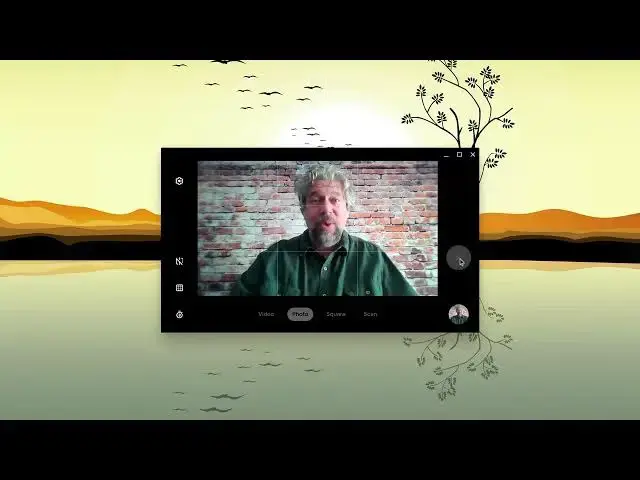
which you can do by searching for it. That's easy. And now, there we go, and now you can see me
0:14
That makes it a little bit more interesting. Now, the new camera app, you can tell you have it
0:19
because it has the scan feature on the bottom, and on the lower left
0:24
there's a little timer stopwatch icon, right? So, that's what you need
0:28
If you don't have that when you launch camera, make sure you have the very latest version of Chrome OS
0:35
And once you do, then what we want to do is we want to quick check settings
0:40
So, the first thing is, is that you can have a timer of three seconds or 10 seconds
0:45
and I think three seconds sounds about right, and then check your camera resolution
0:50
We're using the front camera, and you want to make sure you have the best possible resolution
0:54
for your picture because, hey, it's you, right? You want to look good
0:58
You want to look clear and crystal crisp and all that. So, photo resolution looks good
1:04
and the timer duration looks good. So, we're back here. Double check that the timer is enabled
1:10
and you can see that with three seconds there. And so, all that's left to do is to click on the shutter button
1:17
Now, remember, when you click on the shutter button, it won't immediately take a photo
1:22
because you set up a timer. So, you'll see how that goes. You ready
1:26
So, now it's counting down, and I stopped for a second and looked at the camera on my computer itself
1:35
so that my selfie would not be me looking down. It would be me looking at the camera
1:40
which is going to give you a better effect. So, then I can look at it by clicking on it on the lower right
1:46
and here's my photo, and that looks pretty decent. It's not super clear
1:52
but we're going to just roll with it. So, at this point, I can share it if I'm so inclined
1:57
but instead, I think I'll just go ahead and save it. So, under More Options, there's Save As
2:04
and that's pretty easy to do. I'm not going to actually go any further here
2:07
because I just wanted to give you a quick demo of how to actually do a timed selfie in Chrome OS
2:14
and now you know how to do it. So, good luck and have fun with all that
#Camera & Photo Equipment
#Software